
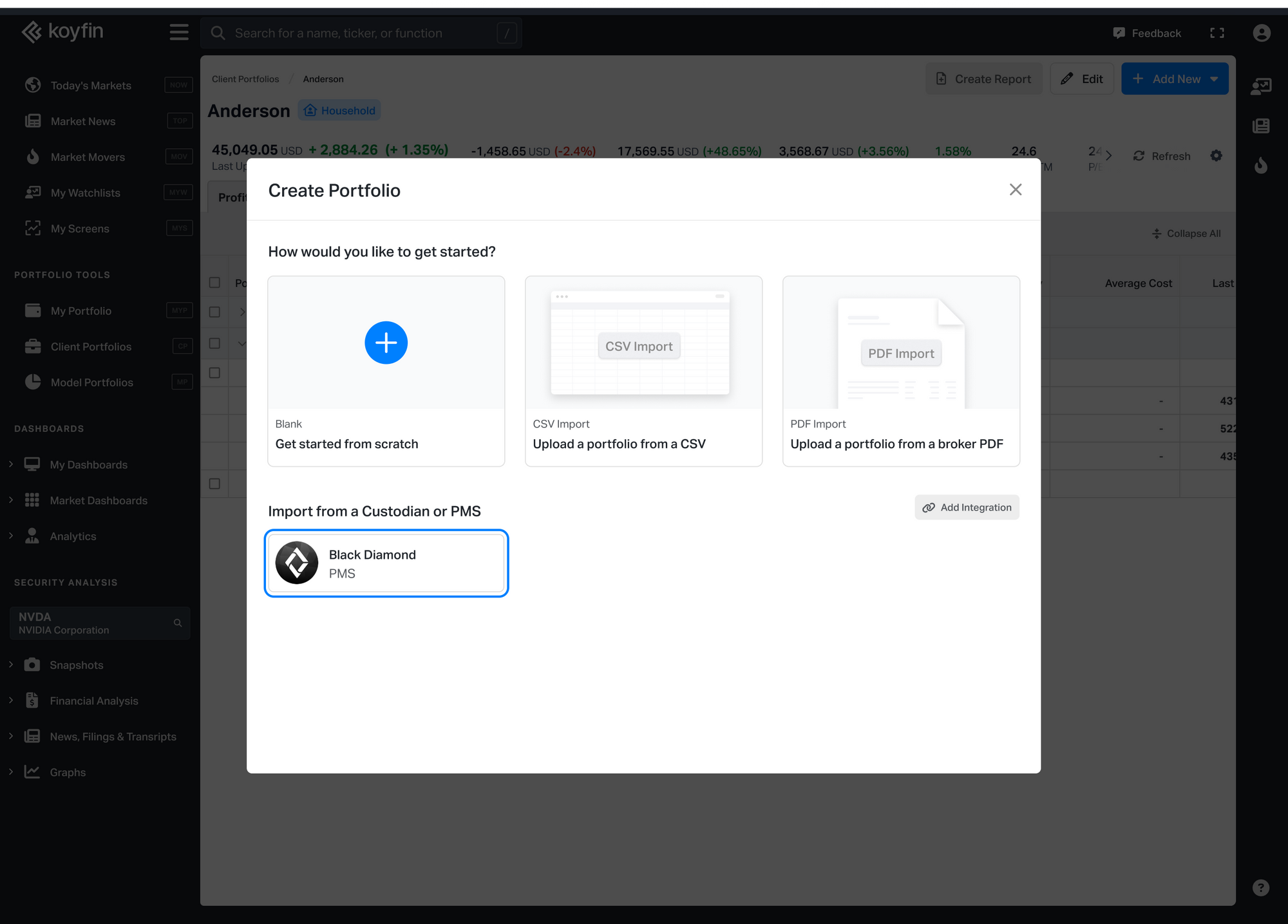
Koyfin supports direct integration with Black Diamond. This guide outlines how to connect your Black Diamond account and import client data into the Client Portfolios.
Note: Portfolio management system integrations are available on the Advisor Pro plan.
Connect Your Black Diamond Account
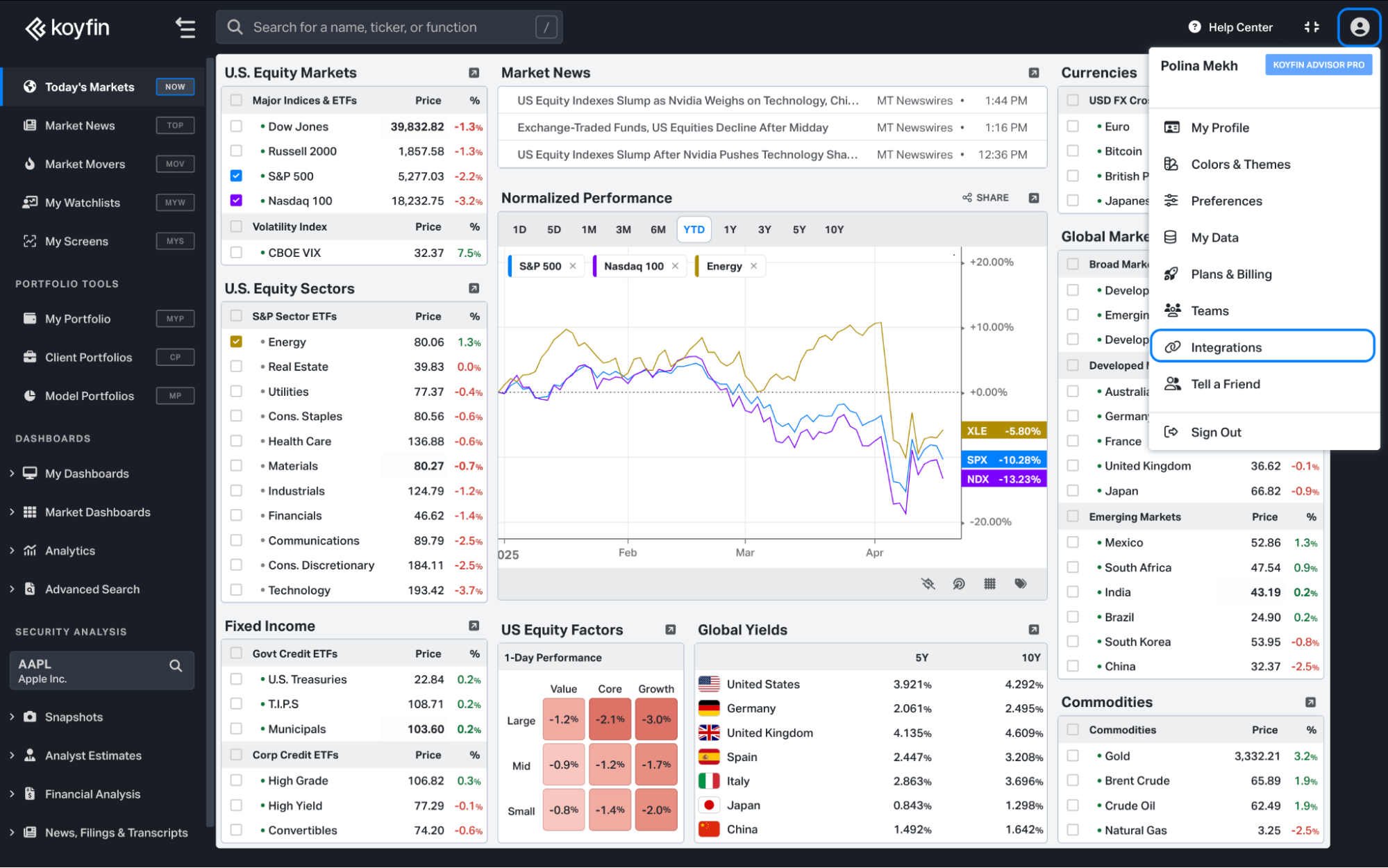
- Click on the Profile icon in the top-right corner and navigate to the Integrations page.
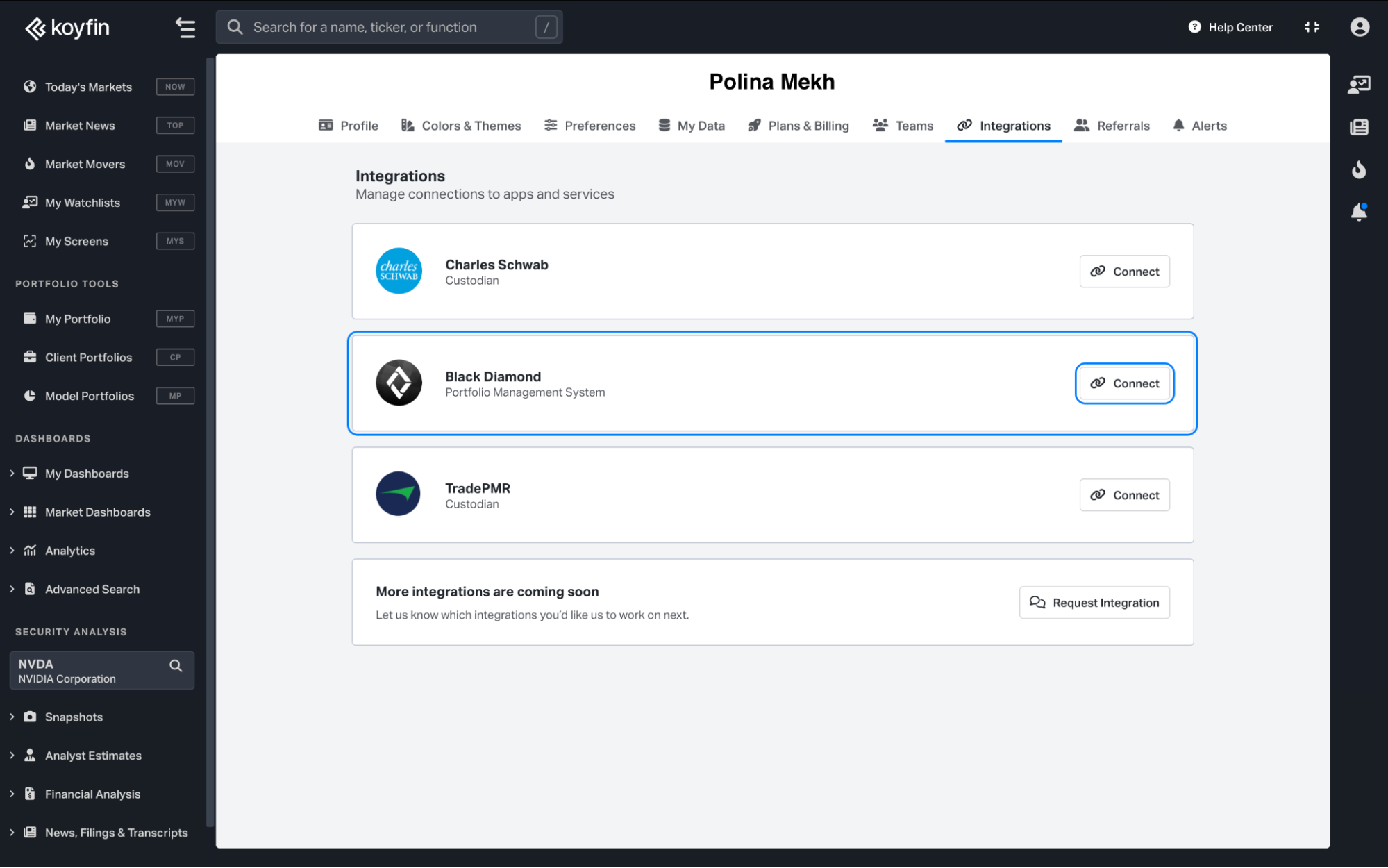
2. In the Black Diamond section, click Connect. You’ll be redirected to the Black Diamond login page. After logging in, your account will be connected to Koyfin.
After Connecting
Once the connection is verified, Koyfin automatically pulls all your accounts from Black Diamond at the next scheduled overnight sync.
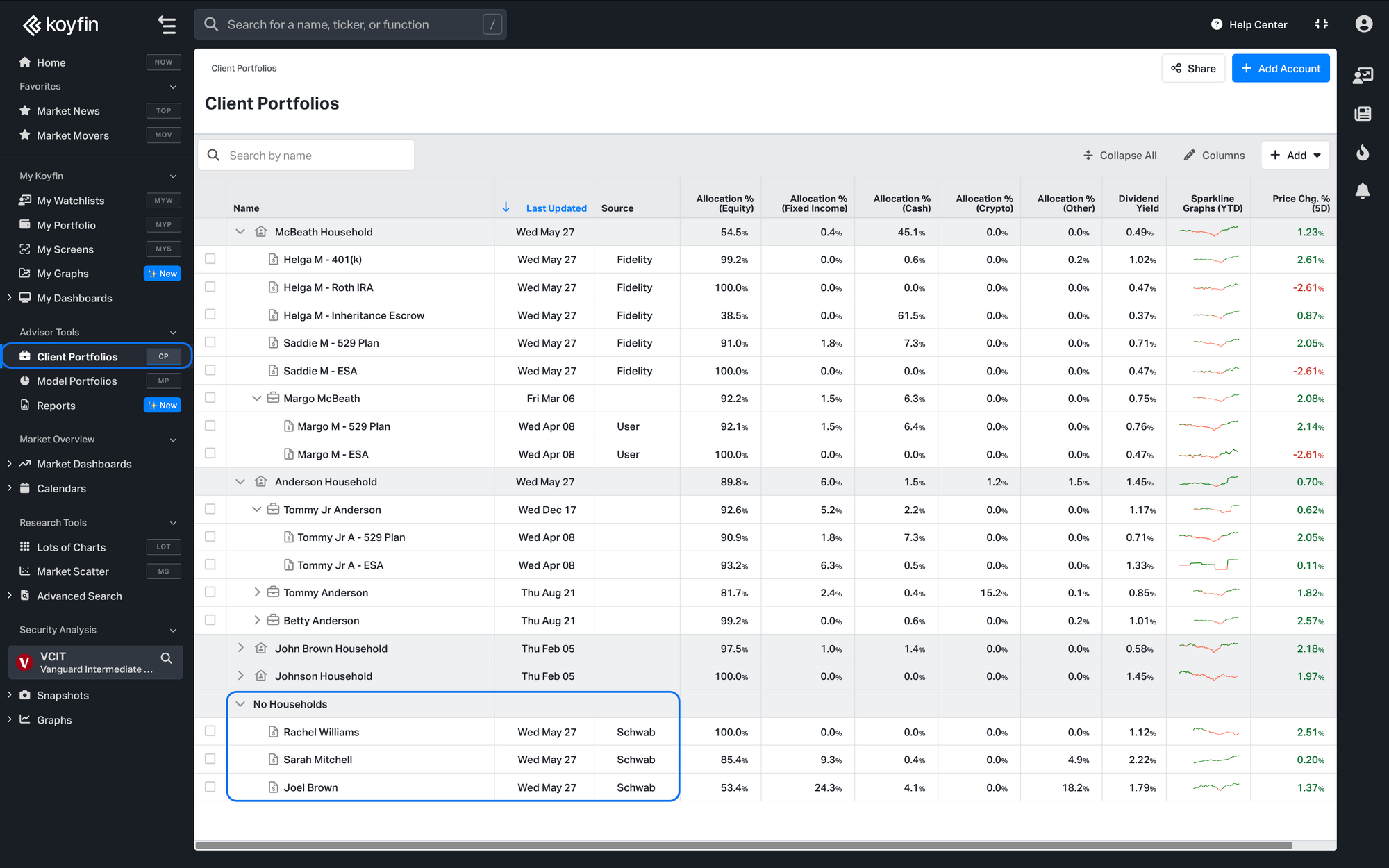
Your accounts will appear in Client Portfolios with the following defaults:
- Imported accounts arrive as individual accounts under No Household on your Client Portfolios homepage.
- Each account keeps the name from your custodian or PMS.
- The Source column shows which integration the account came from.
Any new accounts added on the Black Diamond side will also be pulled in automatically during the next sync.
Organizing Your Accounts
- Moving a single item: In Client Portfolios, hover over the account or portfolio you want to move, click the ⋯ menu, and select Move to.
- Moving multiple items at once: Select the checkboxes next to the accounts or portfolios you want to move, click Bulk Actions above the table, and select Move to. In the modal that appears, choose an existing household or portfolio, or create a new one.
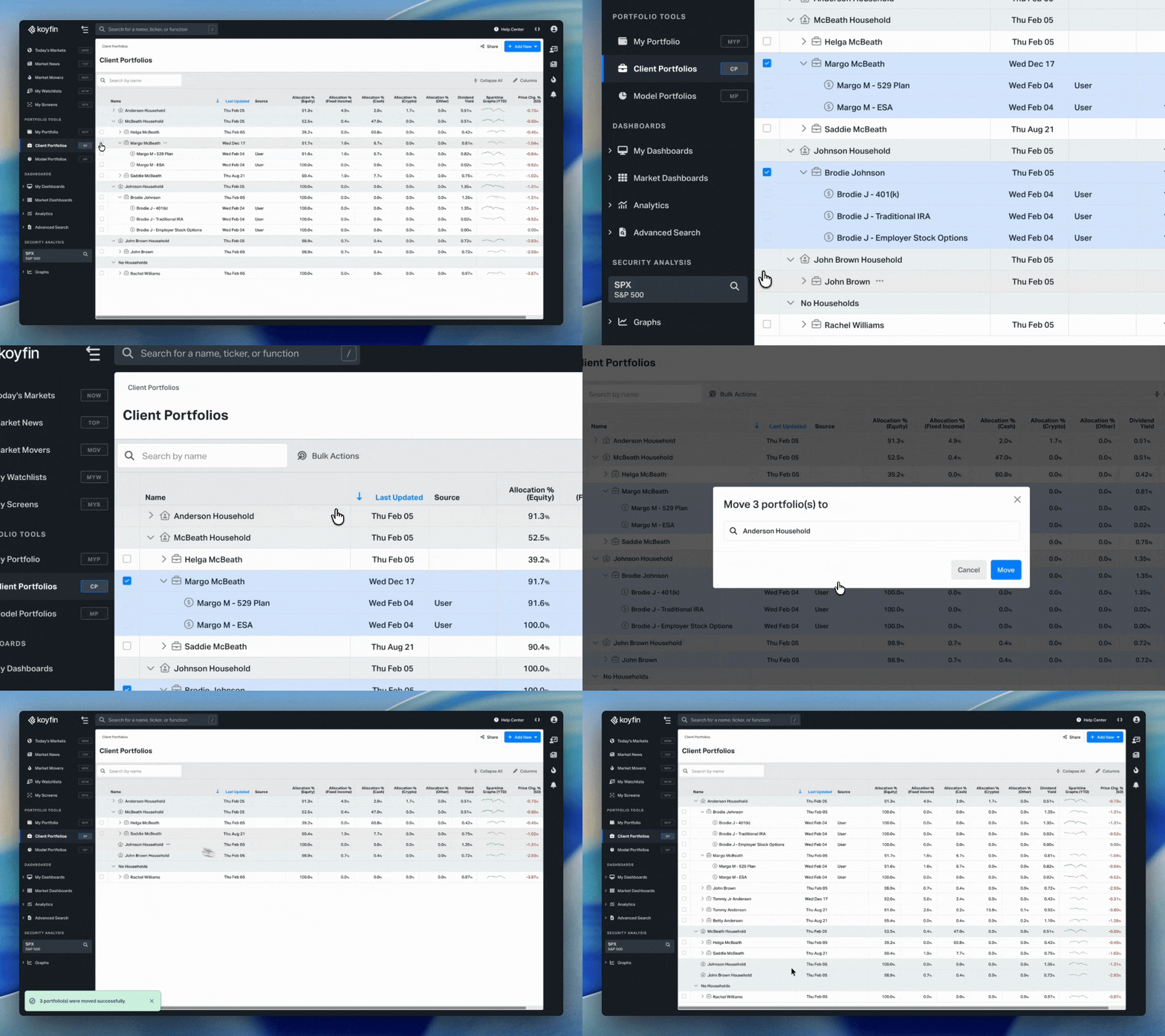
You can move accounts between households and portfolios, and portfolios between households. When moving in bulk, you can only move items of the same type in a single action.
Any structure you set up is preserved automatically. Overnight updates and new accounts coming in from Black Diamond will not change your existing organization.
Data Updates and Manual Sync
Account holdings and positions are updated automatically overnight with the latest data from Black Diamond.
To refresh an account during the day, you can trigger a manual sync in two ways:
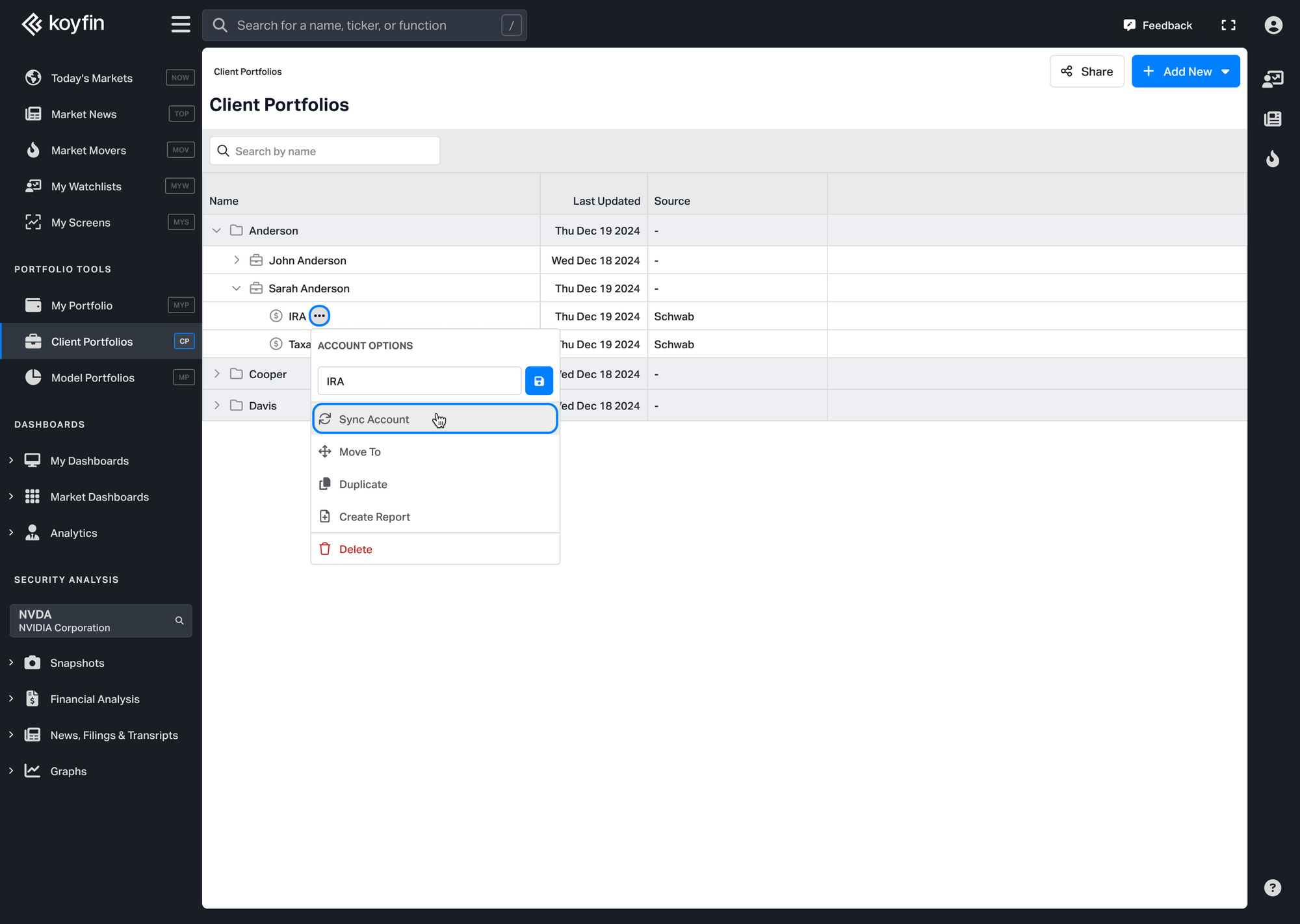
- From the Client Portfolios page, hover over the account, click the ⋯ menu, and select Sync Account.
- Or open the account and click the Sync Account button in the top bar.
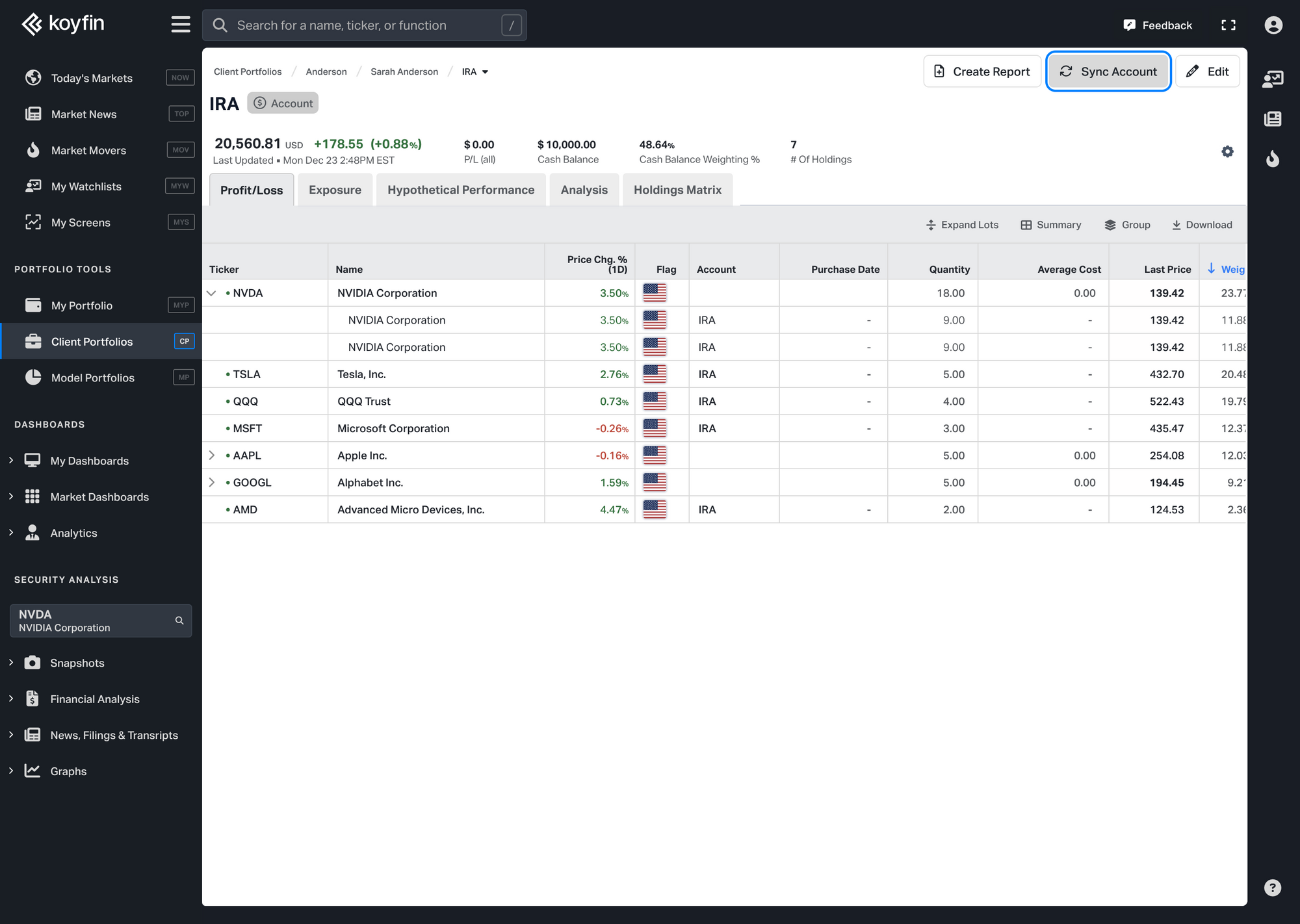
After syncing, the Last Updated column will reflect the latest refresh time.
Note: Integrated accounts are read-only to ensure data stays consistent with Black Diamond. You can duplicate an account to create an editable copy.
If you have any questions, feel free to reach out to our customer support at help@koyfin.com.