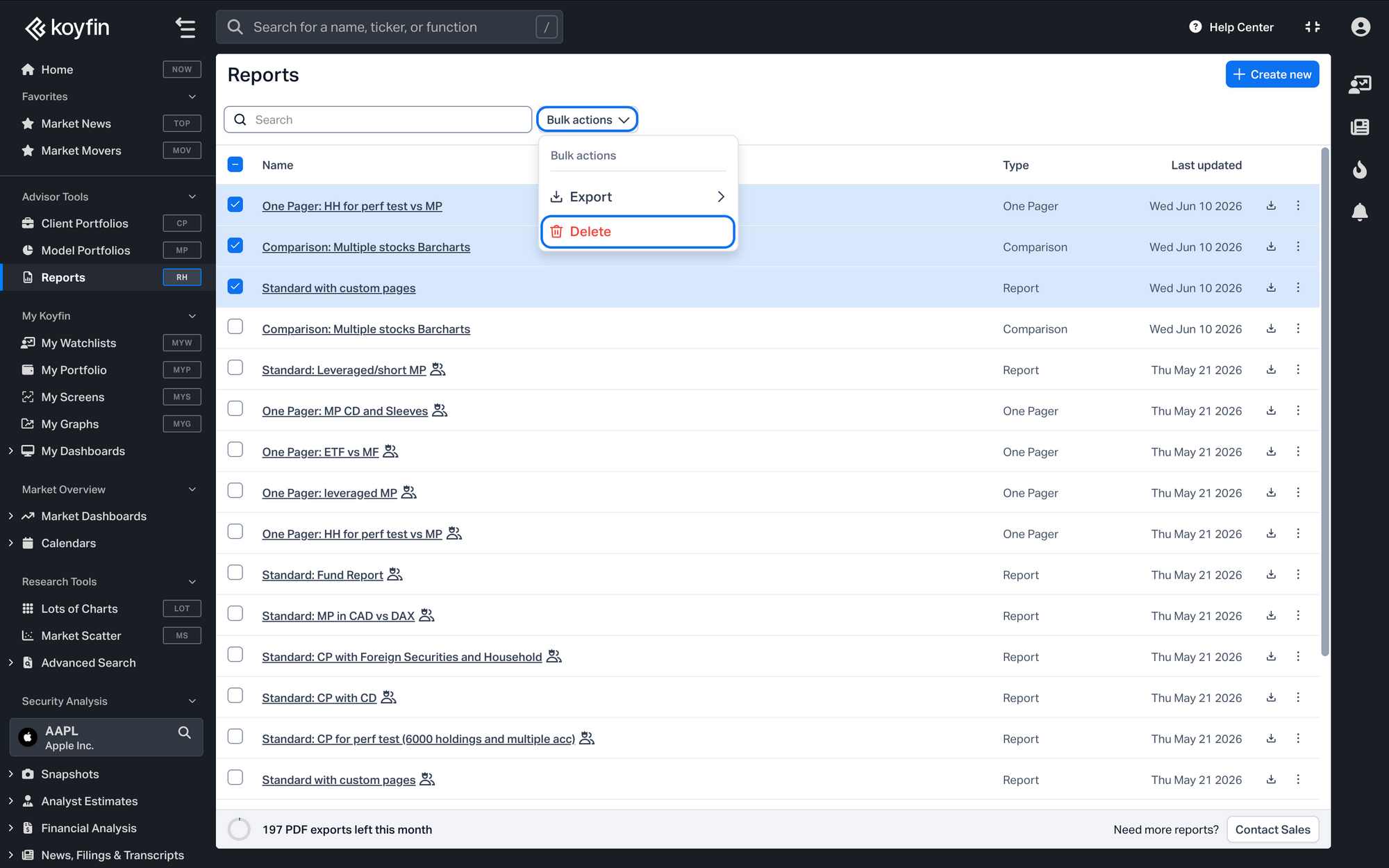
Bulk export is now available in Reports. Export a batch of reports together and apply a shared end date, client name, or other detail across the whole set in one step.
Export multiple reports
- In the Reports section, select the checkbox next to each report you want to export. To select everything, use the checkbox in the table header.
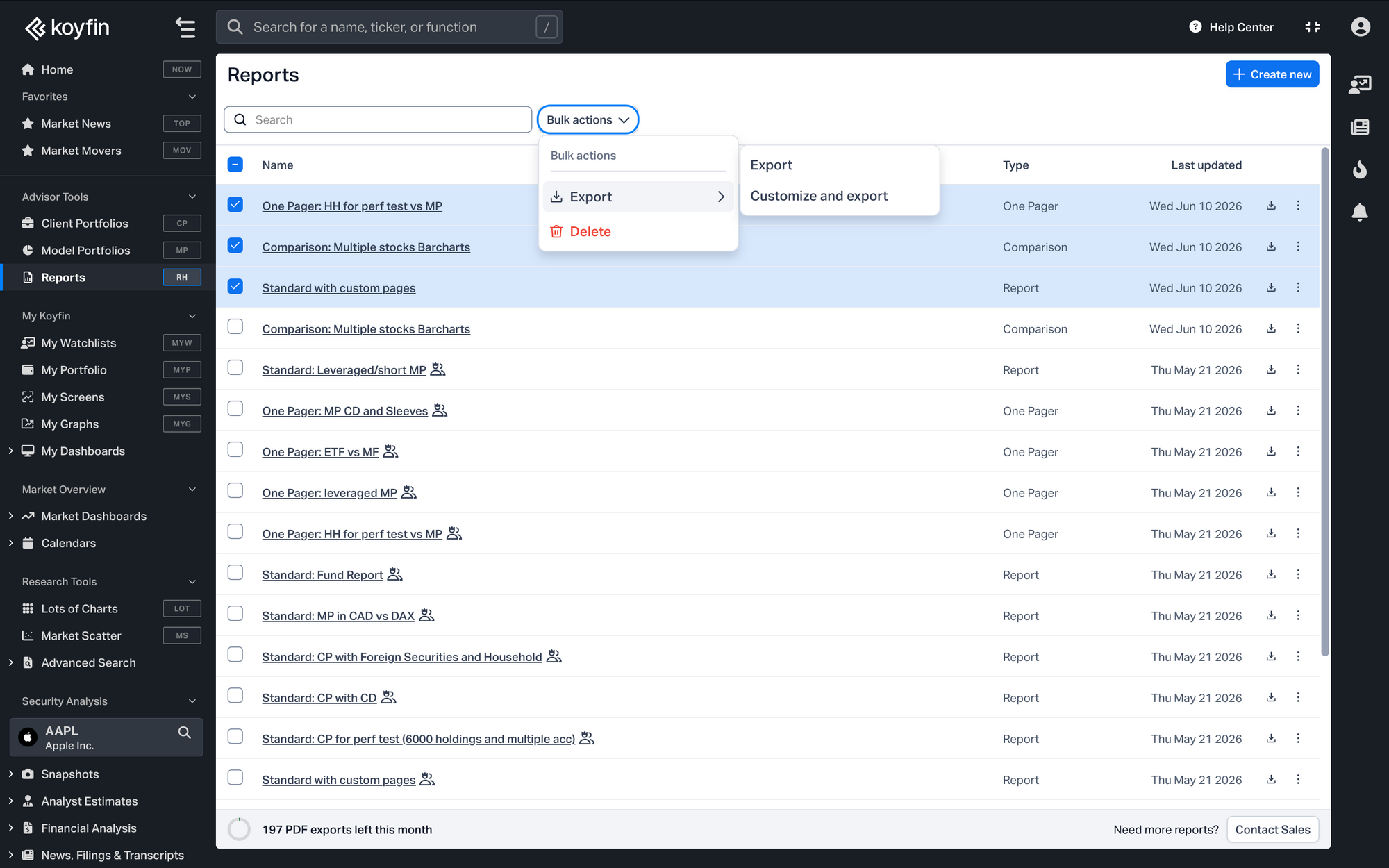
- Click the Bulk actions dropdown and hover over Export.
- Choose how to export:
- Export exports each report with its own saved values.
- Customize and export lets you set shared values across all reports first (see below).
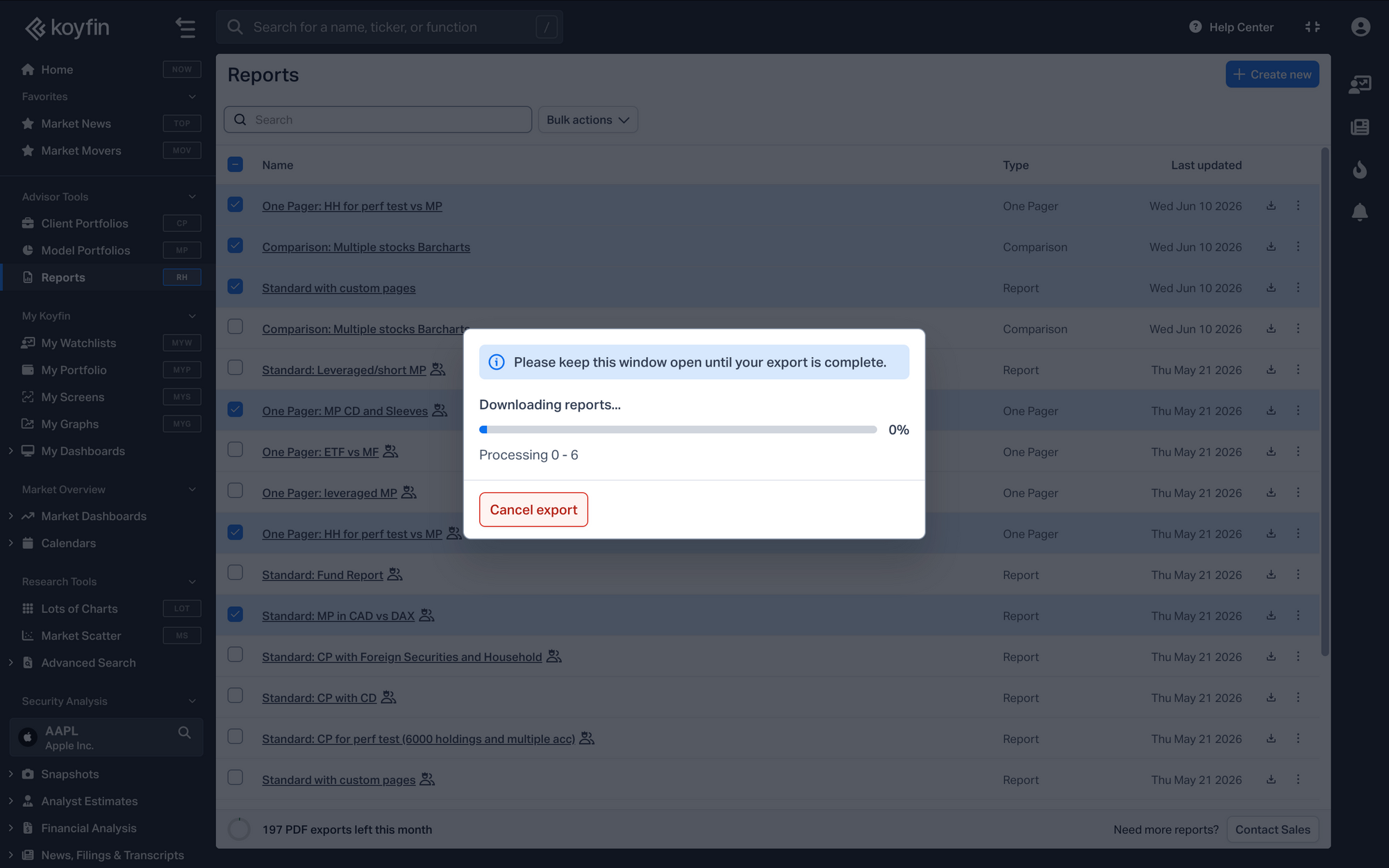
Your reports download together as a single ZIP file, named koyfin_reports_YYYY-MM-DD.zip. A progress window appears while they're being prepared. Keep this window open until the export finishes. You can cancel at any point.
Customize details before exporting
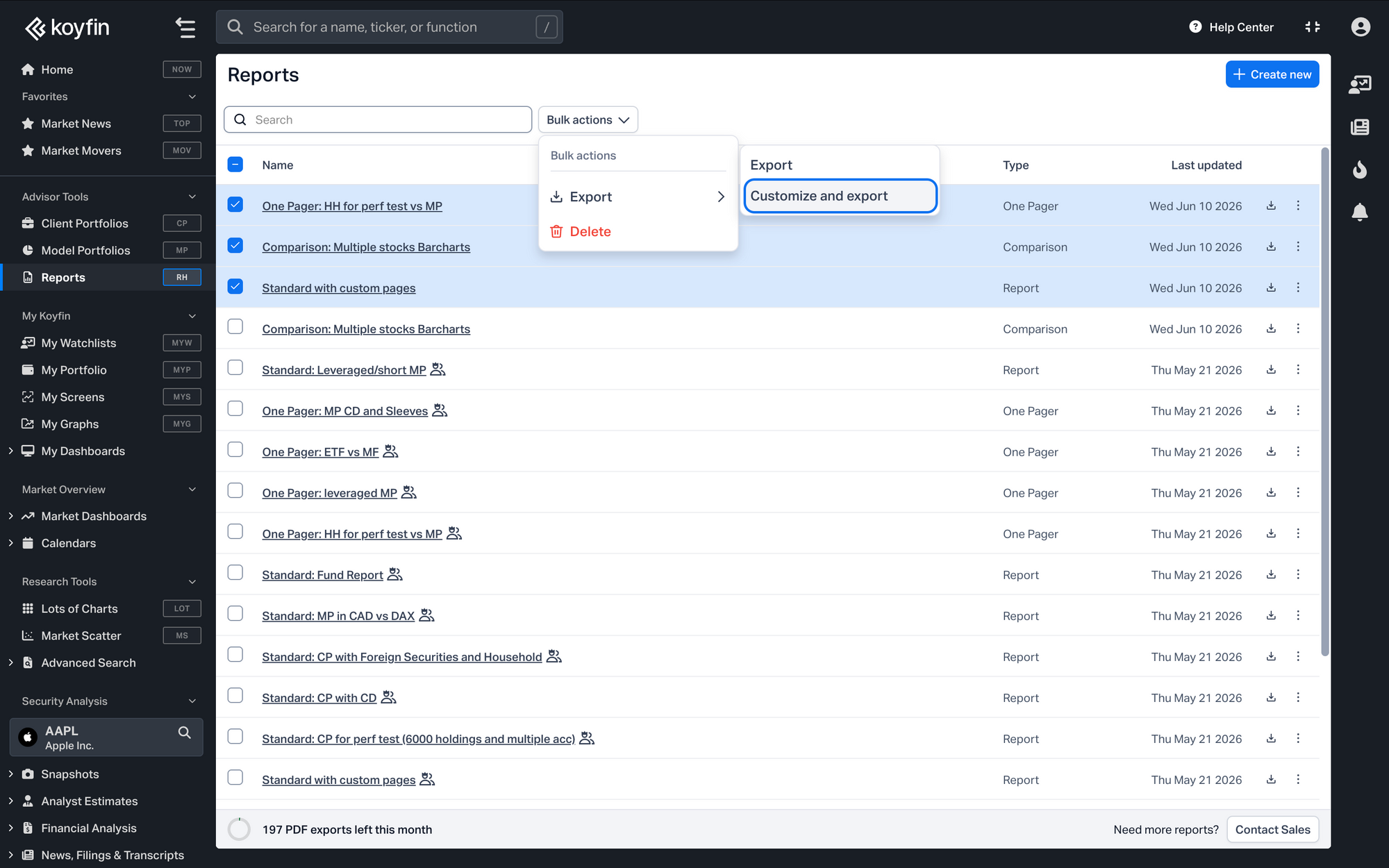
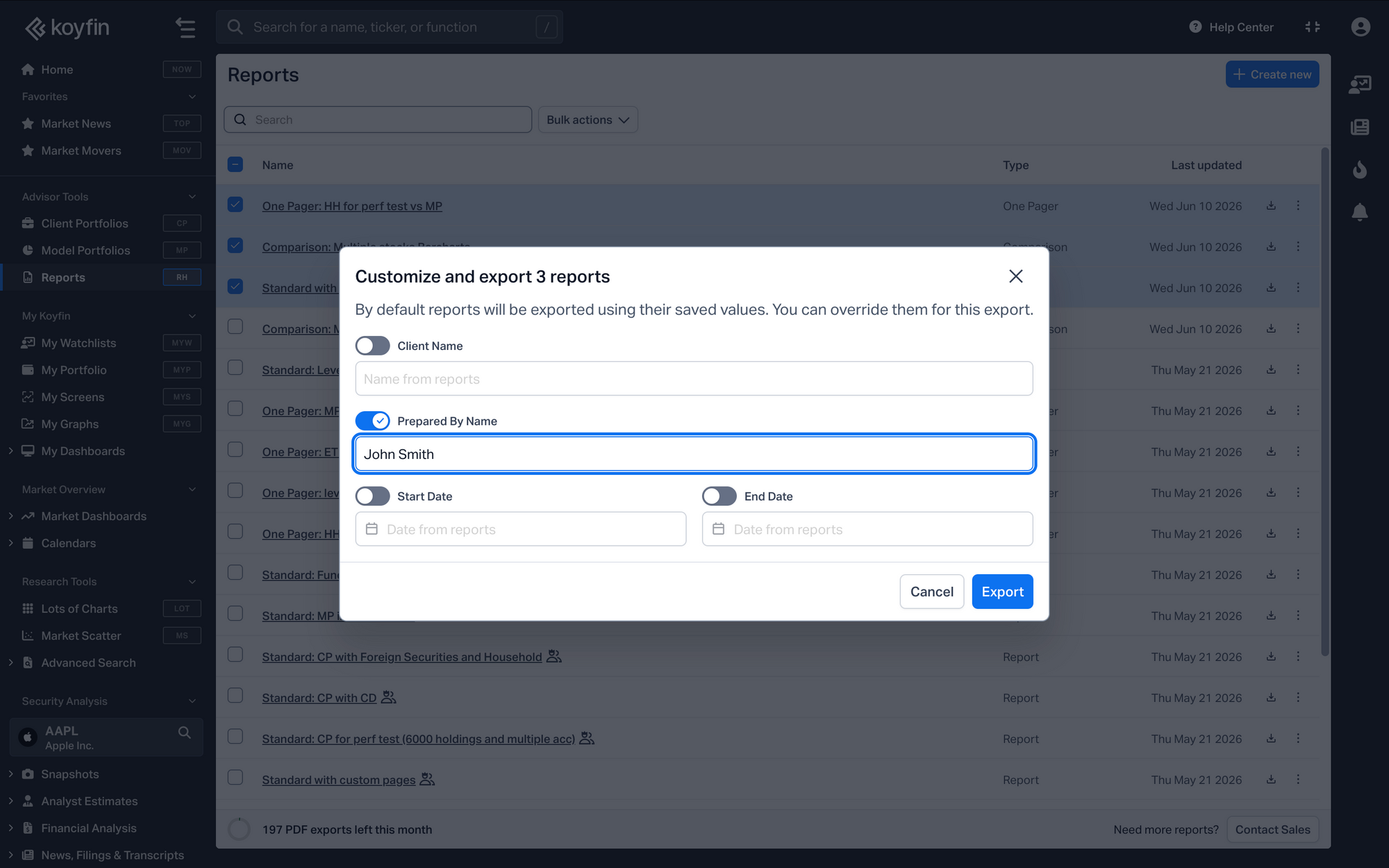
Customize and export opens a dialog where you can override shared details for this export:
- Client Name
- Prepared By
- Start Date
- End Date
Turn on the toggle next to a field, then enter a value to apply it to every report in the export. Any field you leave off keeps each report's saved value.
These changes apply to this export only. They don't update the original reports or affect future exports.
Delete multiple reports
- In the Reports section, select the checkbox next to each report you want to delete.
- Click the Bulk actions dropdown and select Delete.
- Confirm to remove the selected reports.