
You can share any report you own with other Koyfin users directly from the new Reports section, either with individuals or with an entire team.
How to share a report
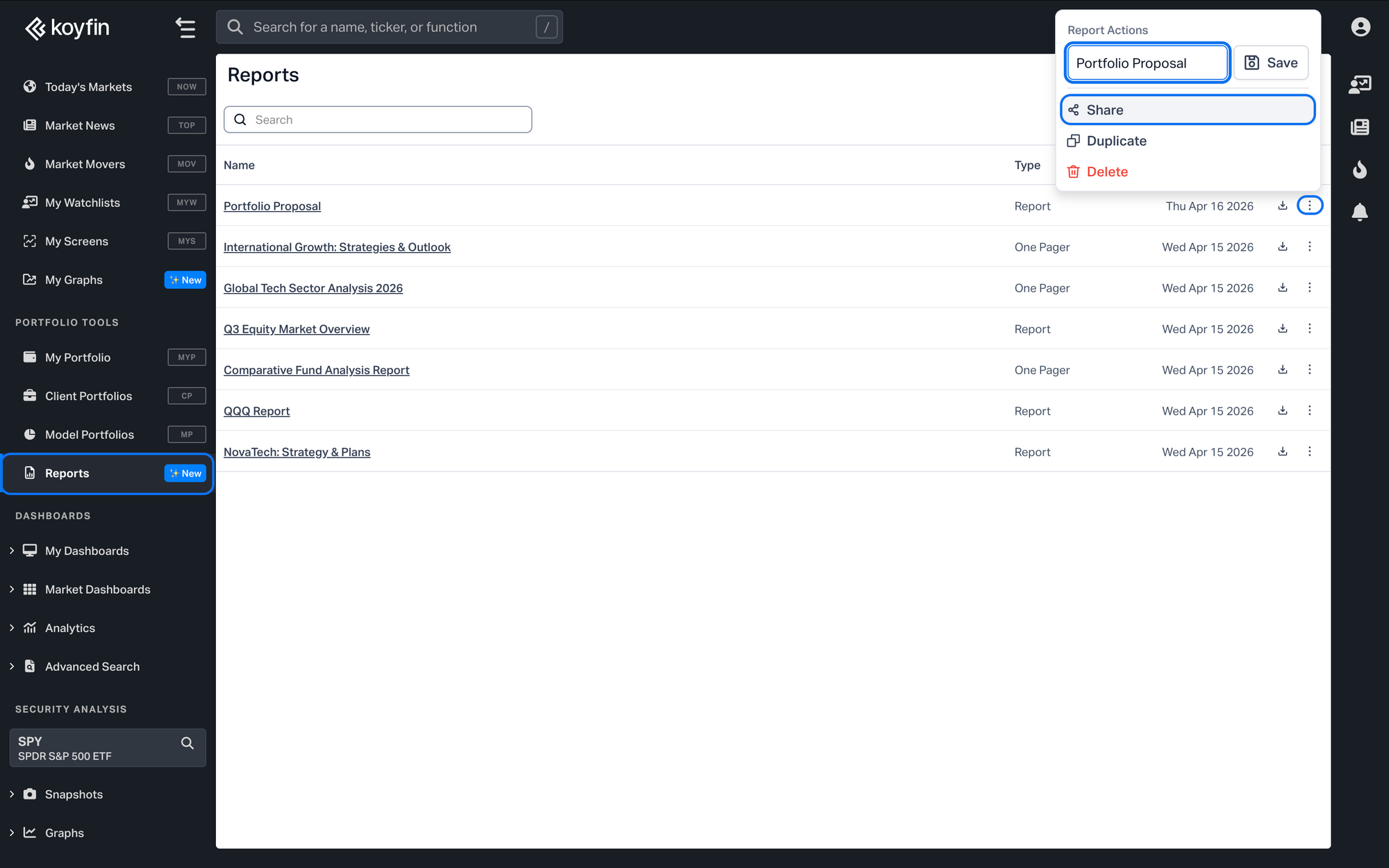
- In the reports table, find the report you want to share and click the ⋮ icon on the right side of its row.
- Select Share from the dropdown menu.
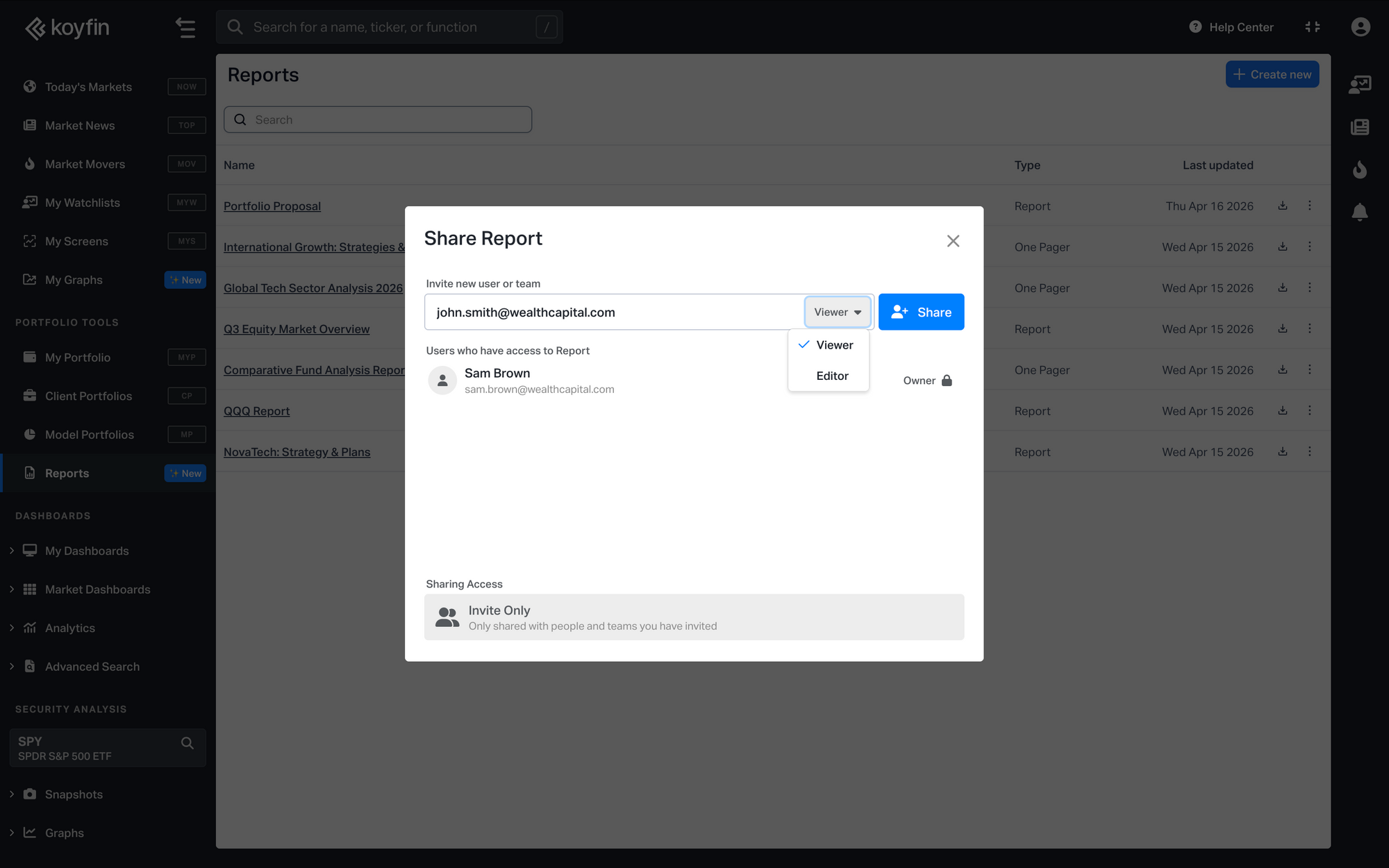
- In the Share panel, enter the email address of the person you want to invite, or the name of a team.
- Assign a role: Viewer or Editor.
- Click Share.
The report will appear in the recipient's Reports section and they will receive an email notification.
Roles
- A Viewer can browse the report and export it as a PDF, but cannot make any changes.
- An Editor can make changes to the report, including adding and reordering pages.
Only the report owner can share the report. Recipients cannot share it with others, regardless of their role.
Changing or revoking access
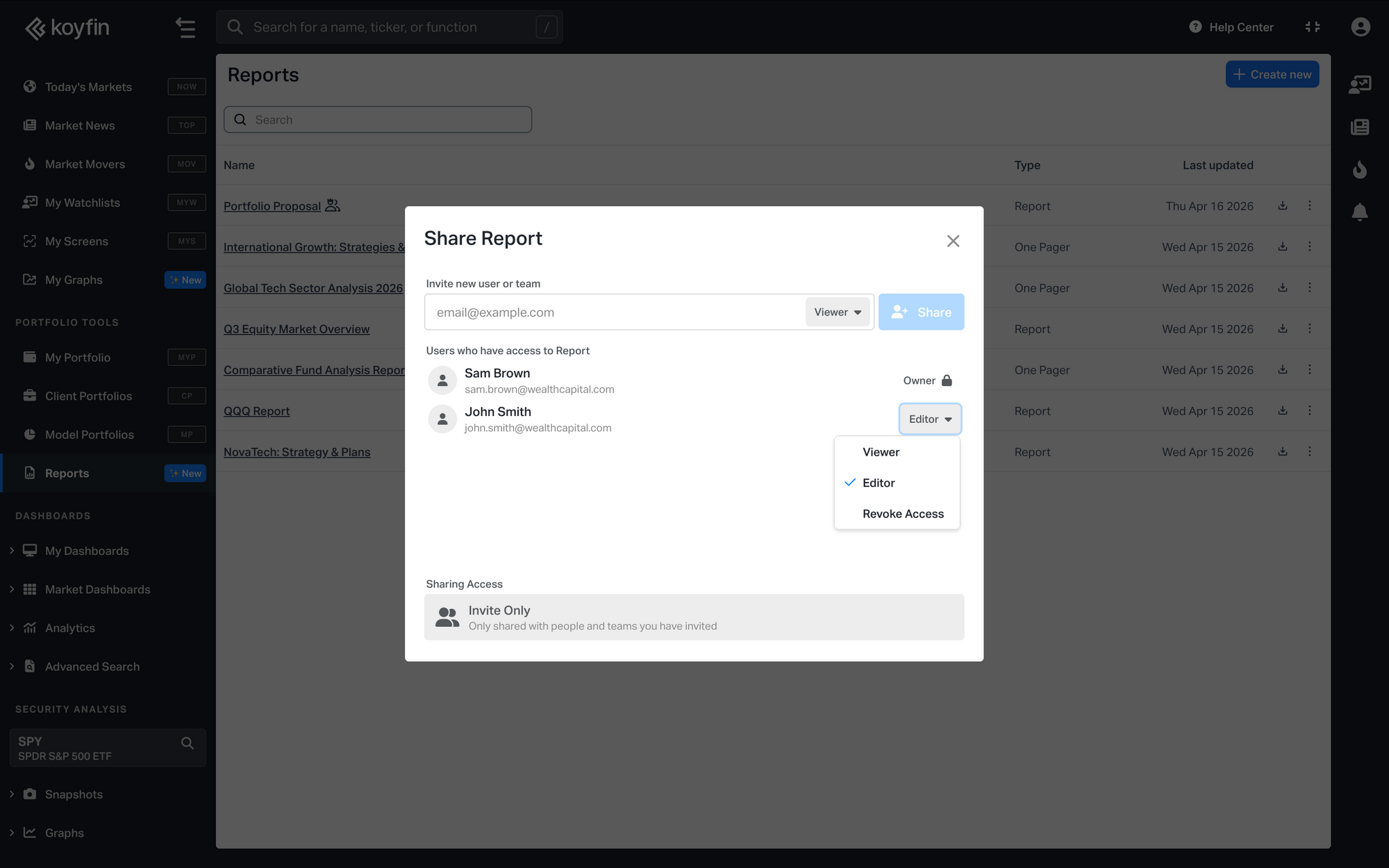
To update or remove access, open the ⋮ menu on the same report, select Share, find the person or team under Users who have access to Report. Select a new role to update their access, or select Revoke Access to remove them entirely.
Removing a shared report
Recipients can remove a shared report from their Reports section at any time using the ⋮ menu. This unshares the report and removes it from their view.
Sharing with a team
Sharing with a team lets you give a group of users access to a report in one step. To do this, you need to create a team first:
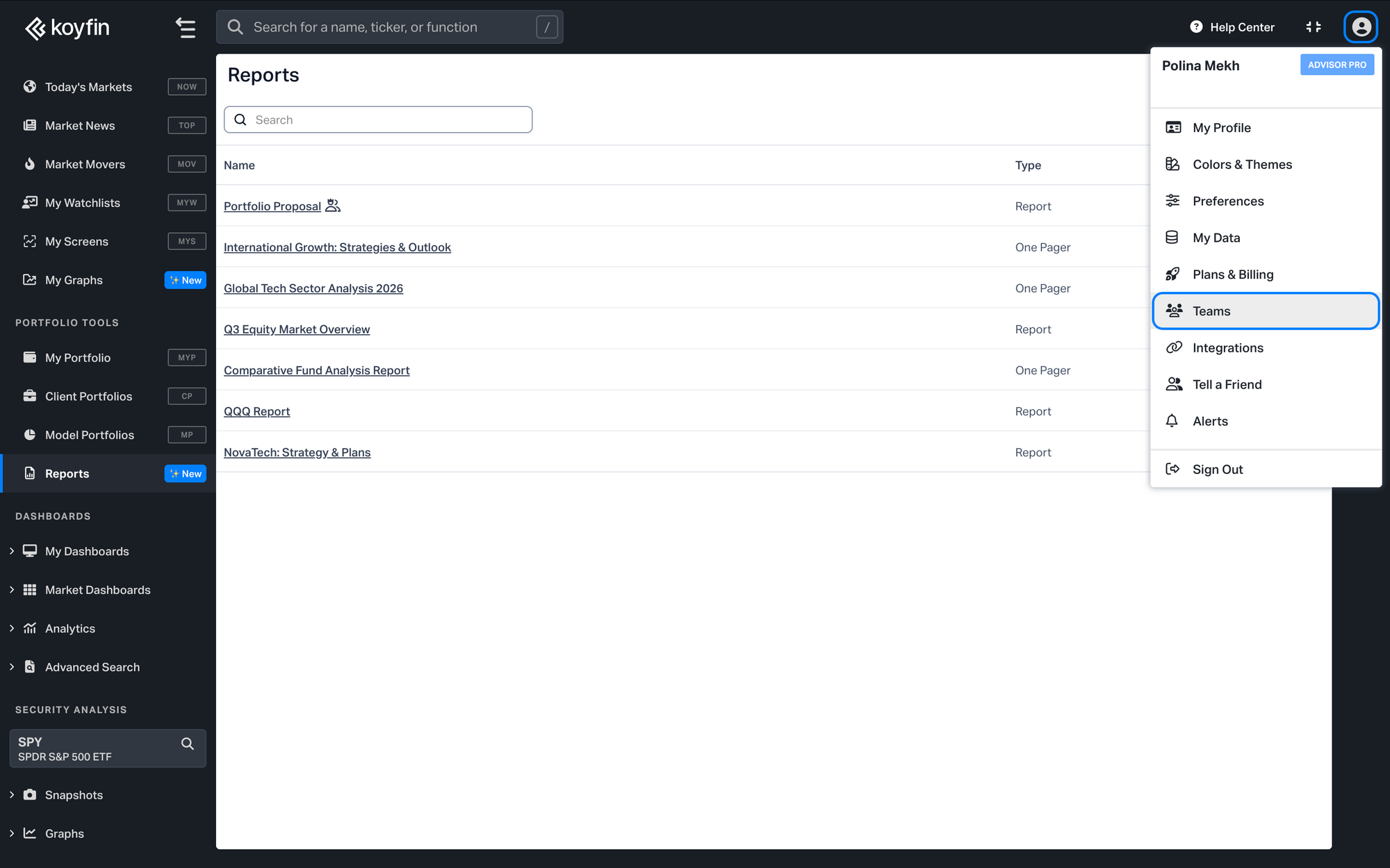
- Click your profile icon in the top right and select Teams.
- Click Create Team and give it a name.
- Click Add Members and enter the email addresses of the people you want to add.
- Set each member's role: Admin or Member. Admins can manage the team and its members; Members have access to content shared with the team.
Once your team is set up, you can select it by name when sharing a report.
Plan requirements
Both the report owner and each recipient need an active Advisor Core or Advisor Pro plan to share and access reports.