
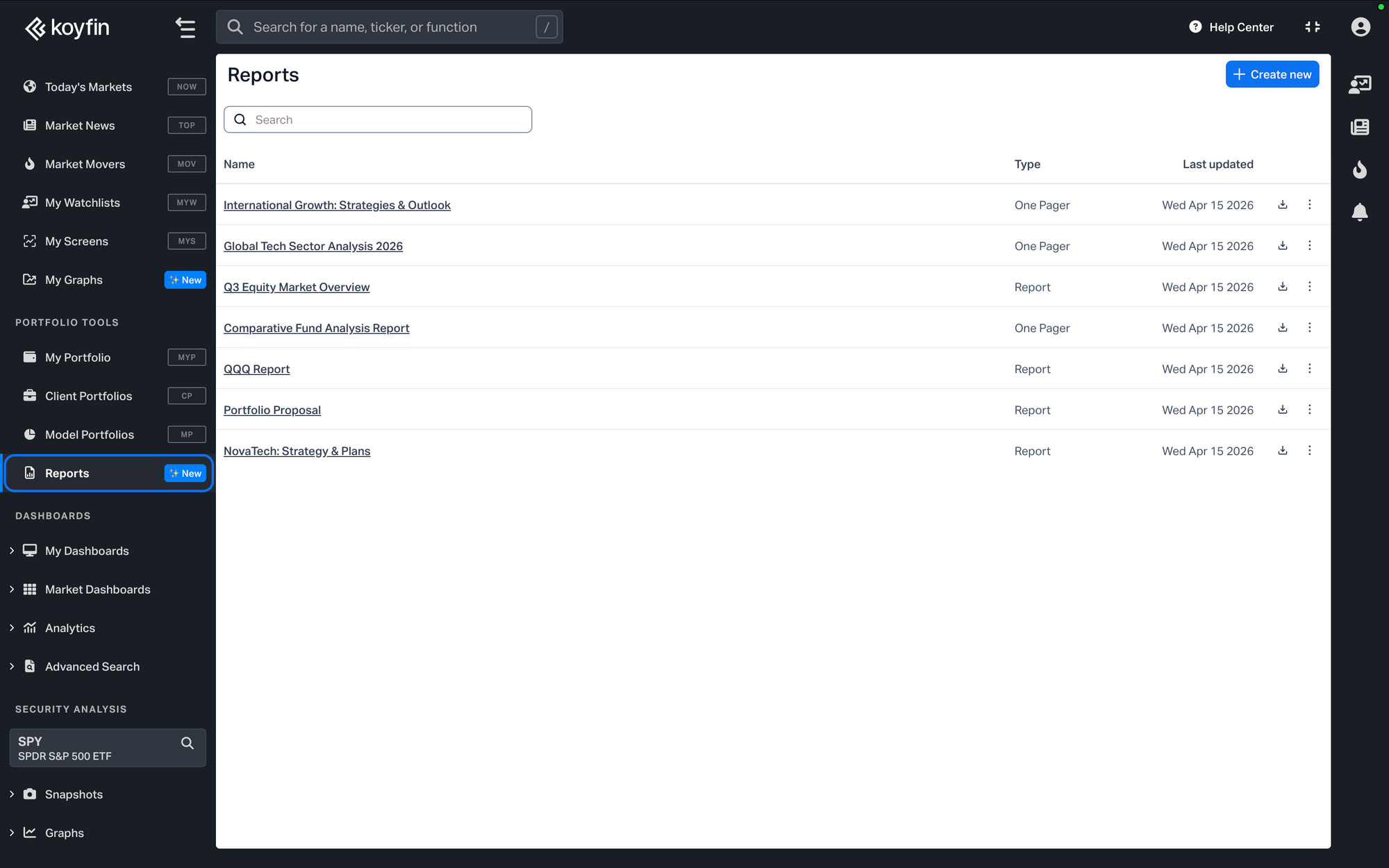
The new Reports section is a central hub for creating, managing, and exporting client-facing reports. Find the new Reports section in the left-hand navigation under Advisor Tools.
Your reports library
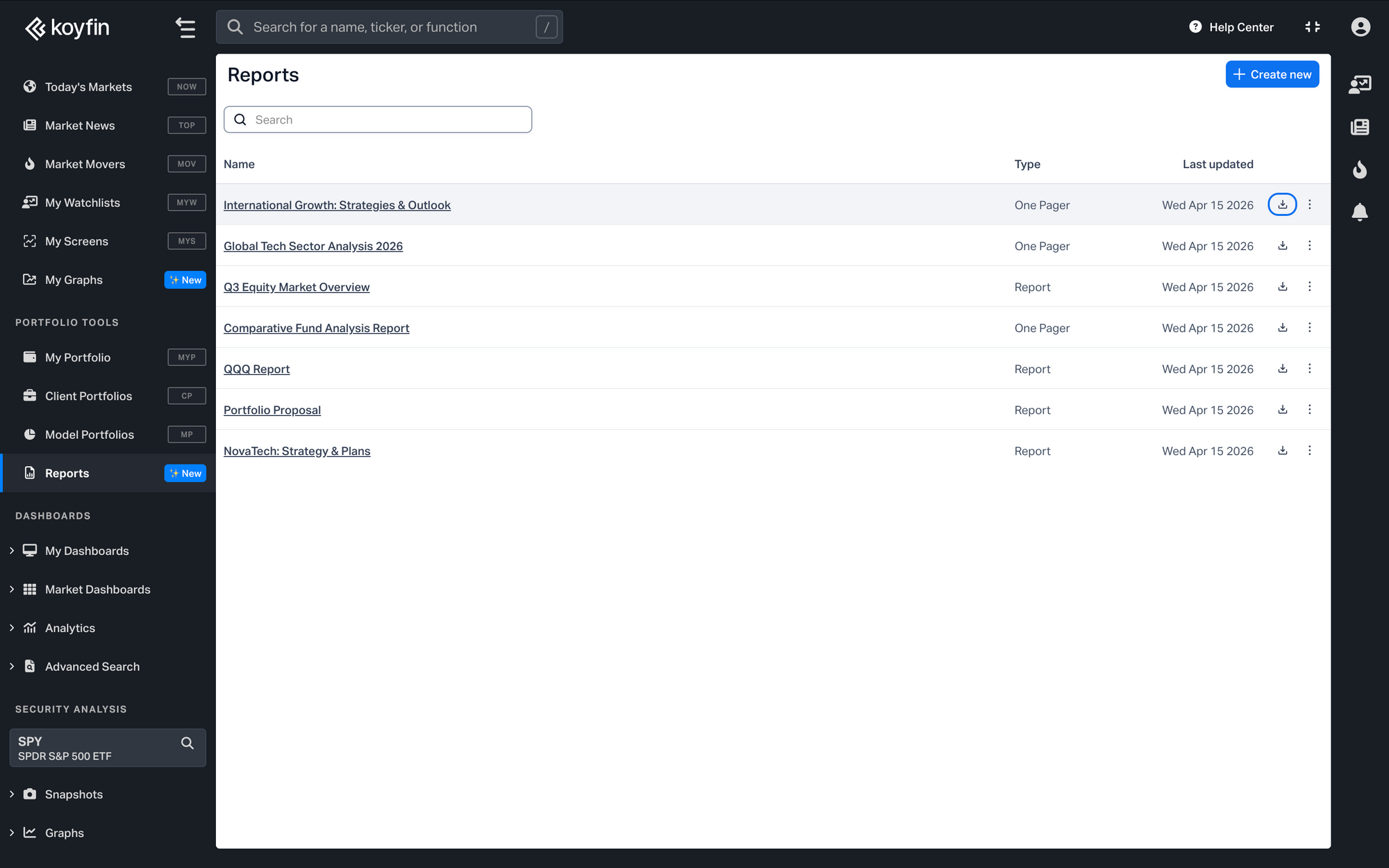
When you open Reports, you'll see a table listing all the reports you've created and saved. From the reports table you can:
- Create a new report
- See each report's name, type, and when it was last updated
- Sort by any column
- Export a report to PDF
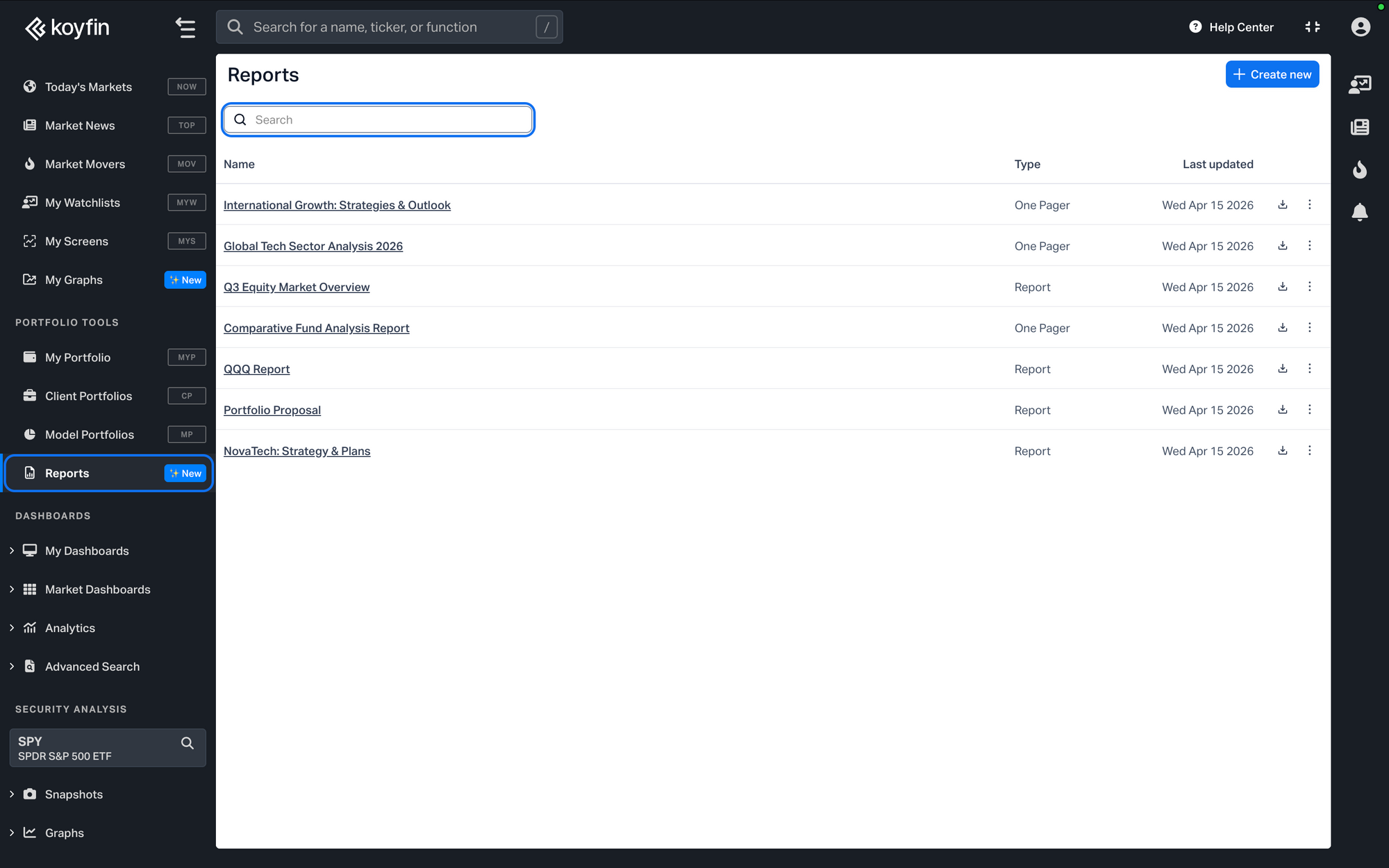
To search for a specific report, use the Search bar at the top of the table.
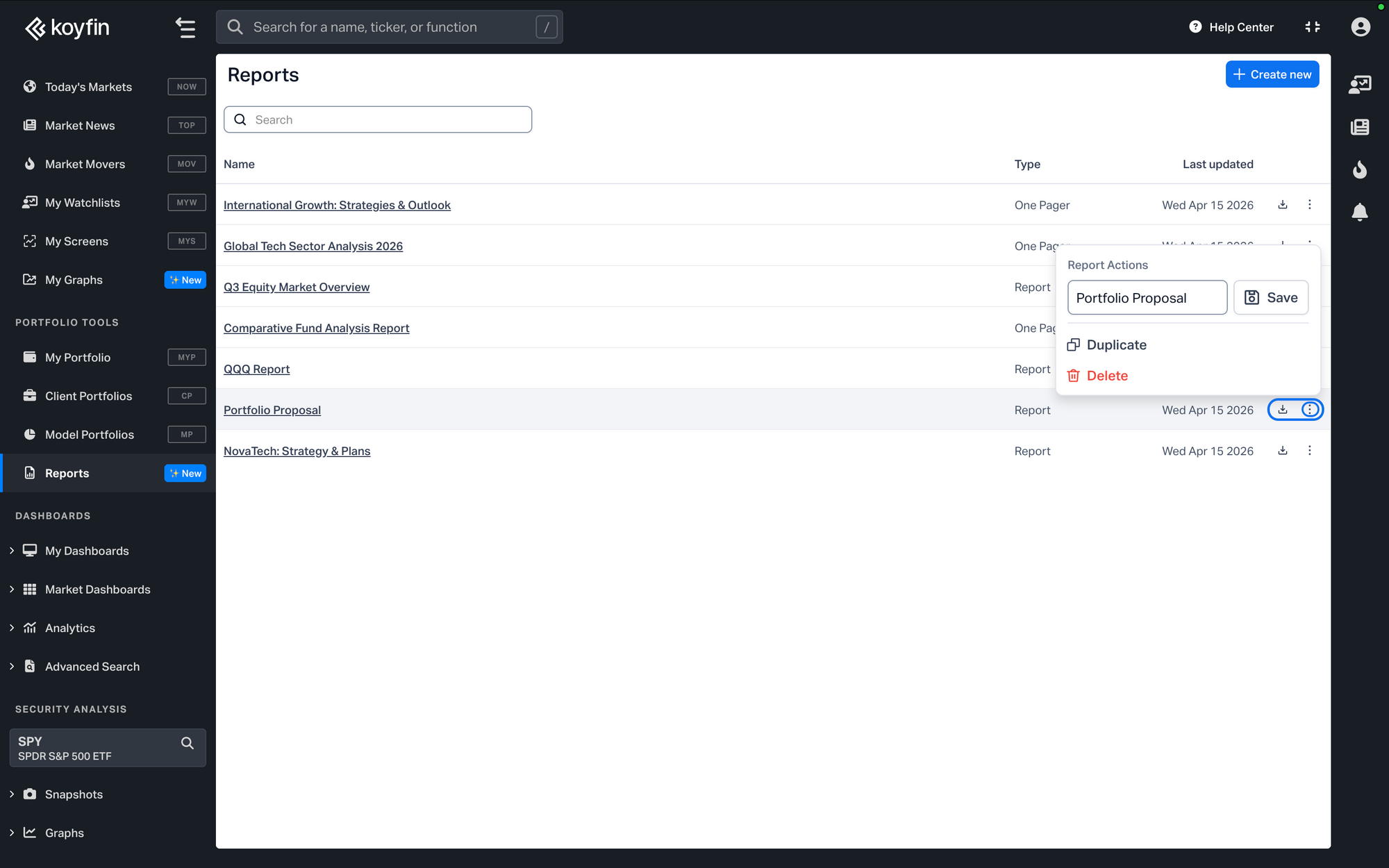
Each row has two action icons on the right side:
- A download icon to export the report as a PDF
- A ⋮ (three dots) icon to open a menu with additional options, including Duplicate and Delete
Report types
There are three report types:
- Standard – a detailed, customizable report covering allocation, exposure, performance, risk, fees, and more. You can compare up to 2 portfolios or funds side-by-side.

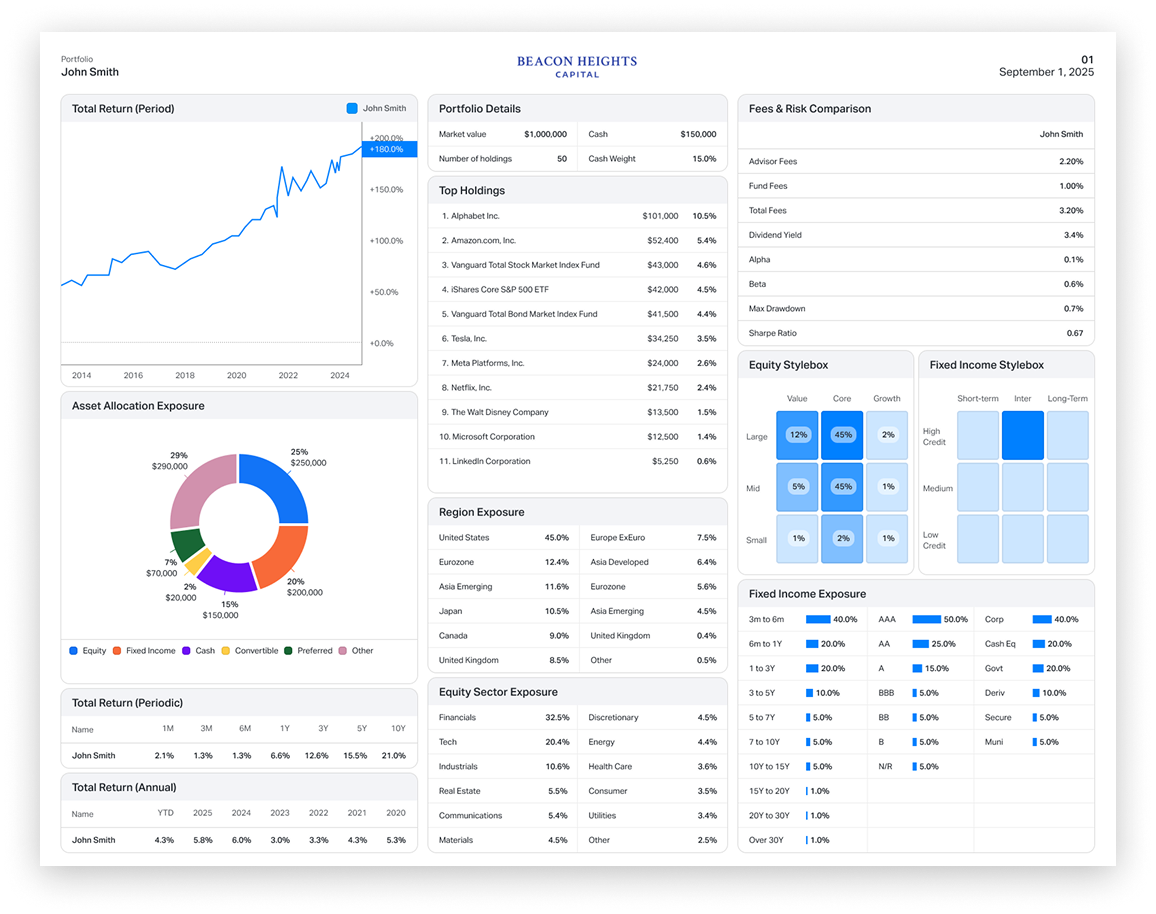
- One Pager – a compact tear sheet that distills key information about a portfolio or fund into a single page. Includes performance, holdings, risk, key stats, and more.
- Comparison – a side-by-side report comparing up to 5 portfolios or funds. Covers asset allocation, equity and fixed income exposure, performance, sector and region breakdowns, stress tests, and portfolio metrics.
Download a Comparison Report Sample

Reports created and saved from within Model Portfolios, Client Portfolios, or Fund Snapshots will also appear in your reports library.
Creating a report
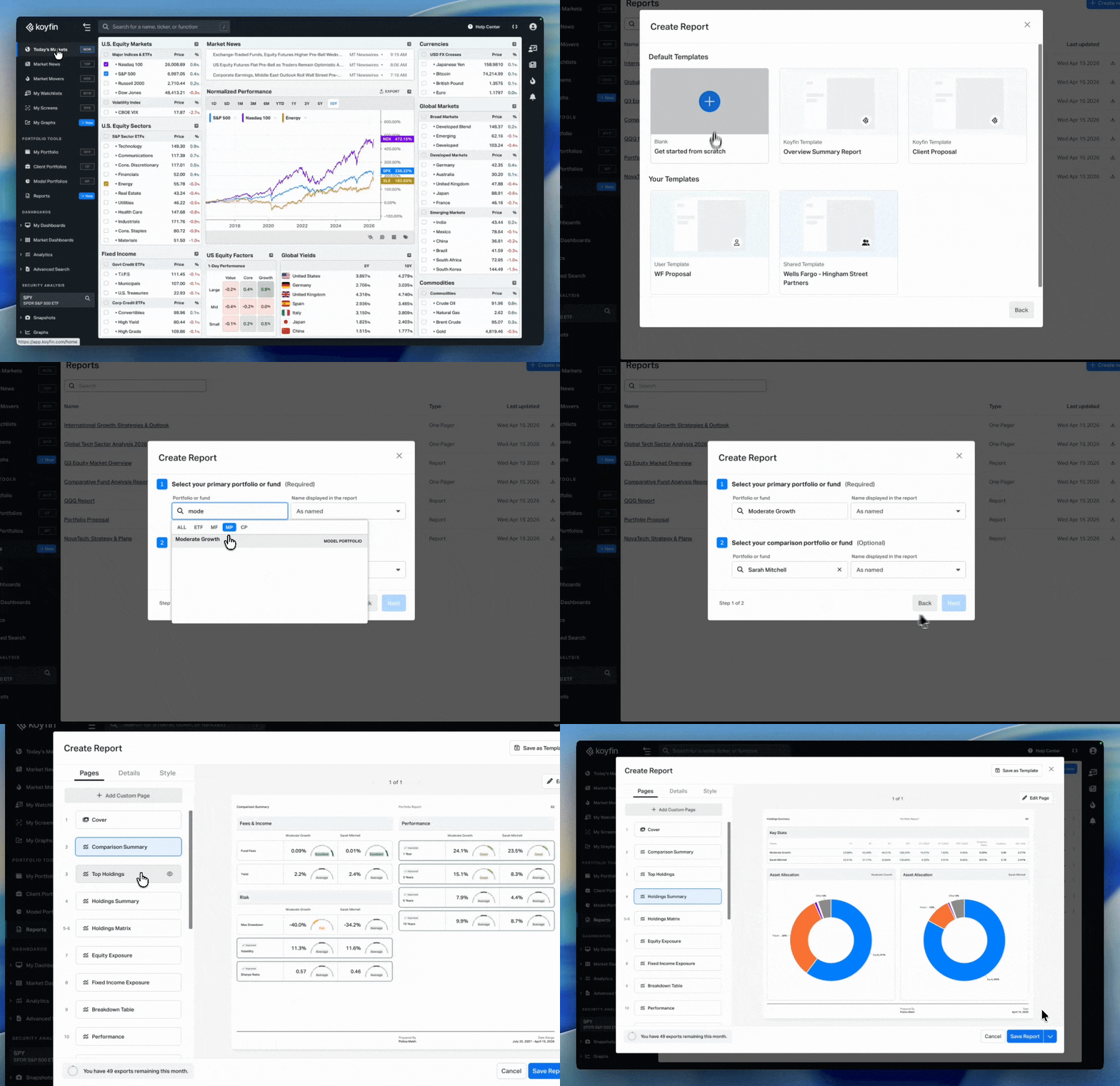
To create a report from the Reports section:
- In the left-hand navigation, click Reports under Advisor Tools.
- Click the + Create new button in the top-right corner of the page.
- A dialog will open. Select a report type – Standard, One Pager, or Comparison.
- Select the portfolio(s) or fund(s) to include.
- Fill in the Report Title, Client Name, and Prepared By fields on the details screen.
- Click Next to open the report editor.
- In the report editor, use the left-side panel to show or hide pages.
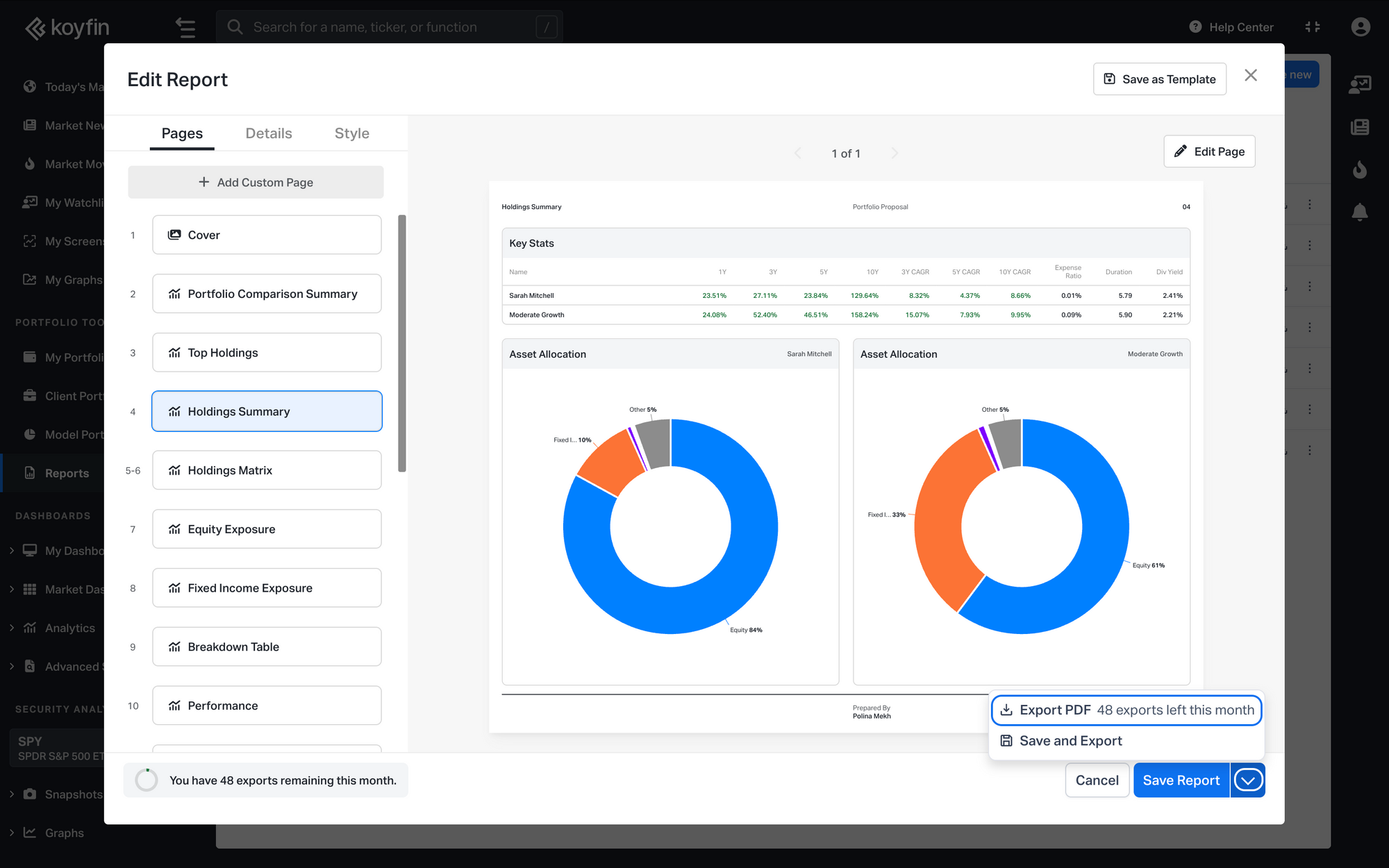
- When you're done, click Save Report in the bottom-right corner. To export immediately, click the ▾ dropdown arrow next to Save Report and select Export PDF or Save and Export. To save the report as a reusable template, click Save as Template in the top-right corner of the editor.
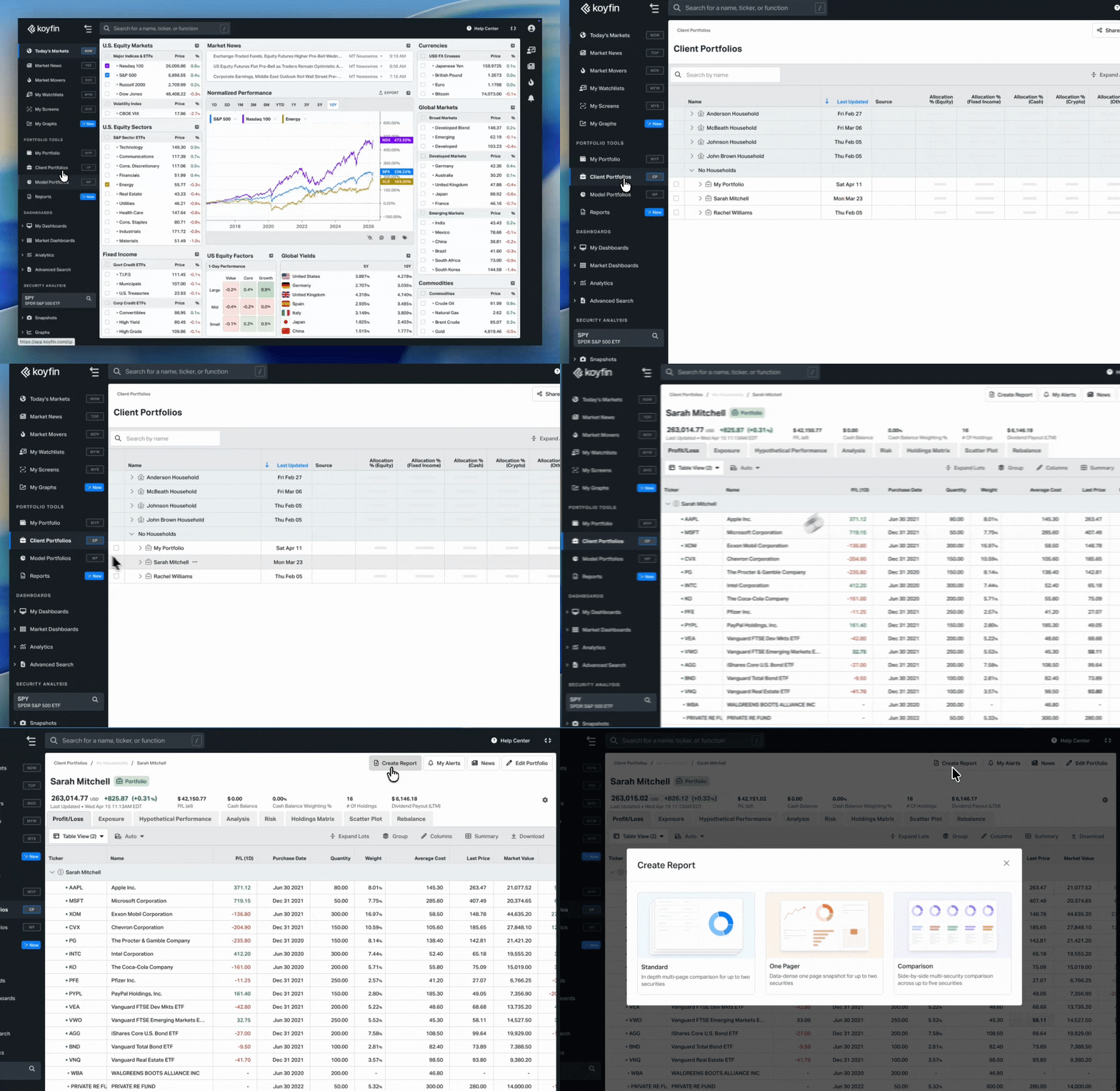
You can also create reports from within a Model Portfolio, Client Portfolio, or Fund Snapshot by clicking the Create Report button at the top right when opening the portfolio or fund page.
PDF export
To export a report as a PDF, click the export icon on the right side of the report's row in the table.
You can also export as a PDF directly in the report editor by clicking the ▾ dropdown arrow next to Save Report and selecting Export PDF.
Branding
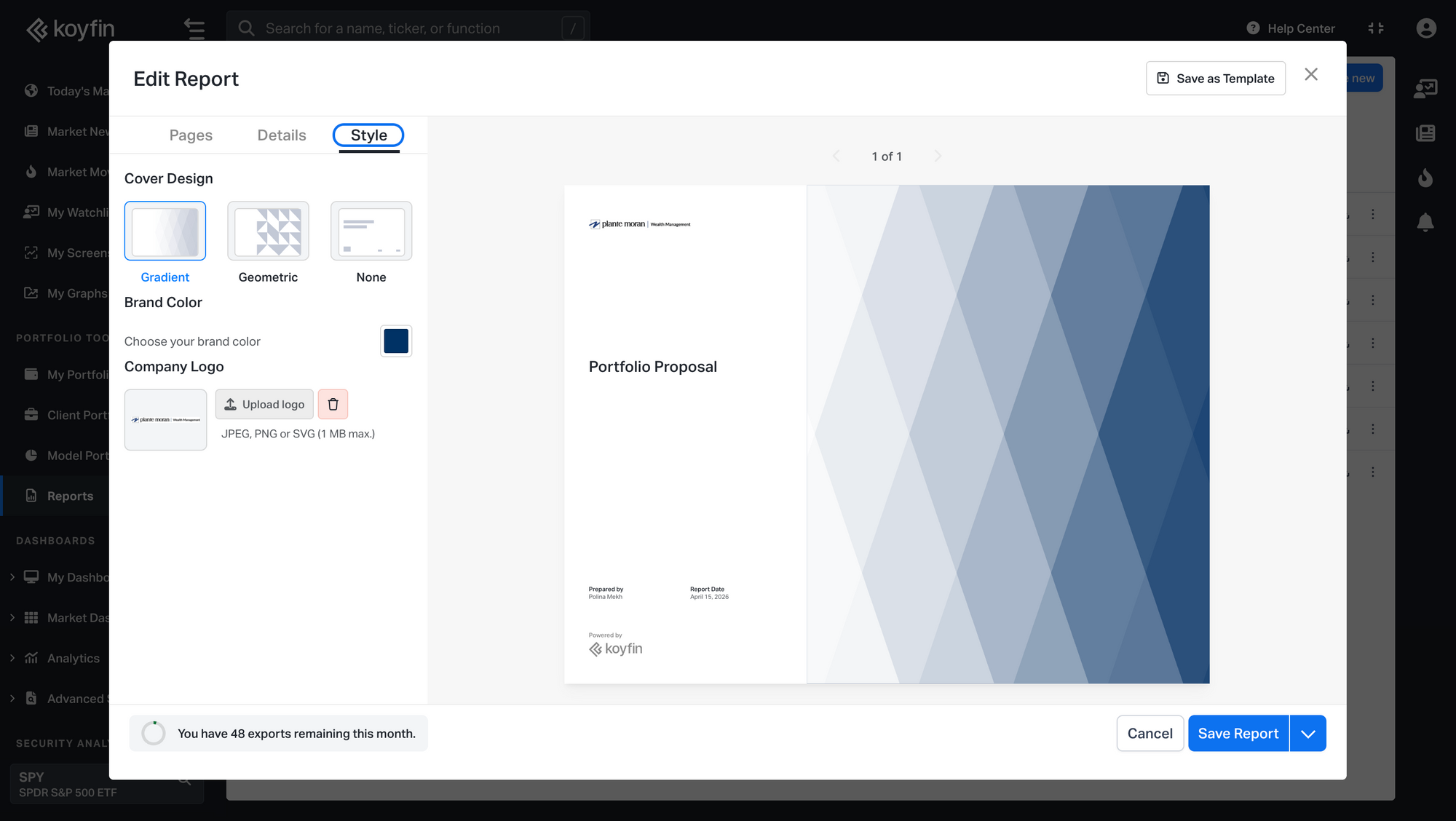
Each report can be branded with your firm's logo and a brand color. To update branding:
- Open the report from the Reports section.
- In the report editor, click the Style tab in the left panel.
- Upload your firm's logo and set a brand color. Changes apply across the report's cover page, headers, and visual elements, and save automatically.
Access
Reports are available on Advisor Core (10 reports/month) and Advisor Pro (200 reports/month) plans.