
The Compare Matrix is an LLM-enabled research tool that allows you to query data on stocks using natural language. Sources available include transcripts, filings, press releases, and news.
Comprised of two modes, Historical Comps and Peer Comps, the Compare Matrix helps you compare information across companies or over time. You can use it to compare what management said about guidance, risks, strategy, demand, and other topics covered in company documents and news.
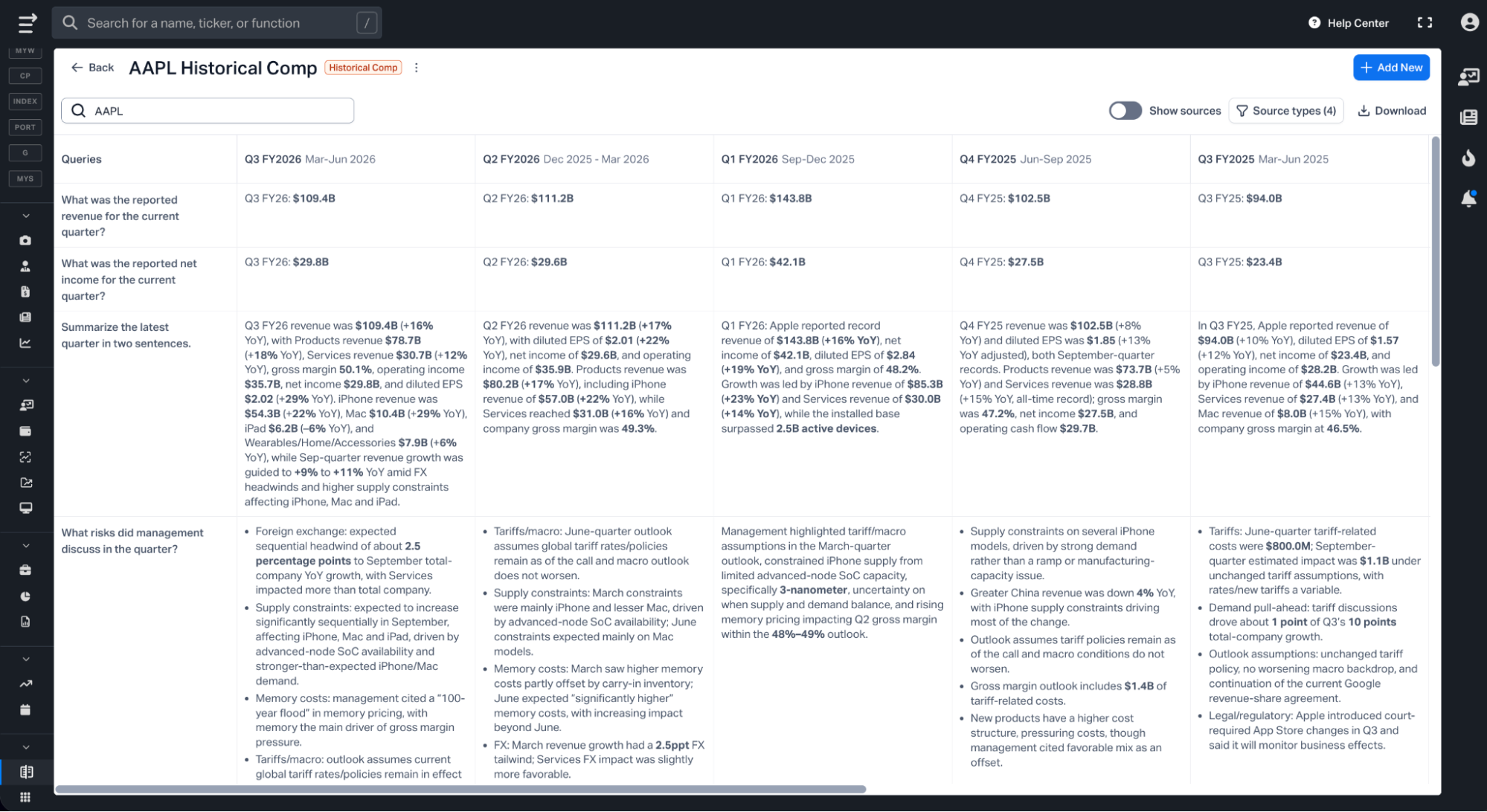
Historical Comps is designed for a single security, allowing you to ask questions that are answered across a time series of quarters. For instance, asking what management discussed relating to economic conditions would populate an answer for each subsequent quarter.
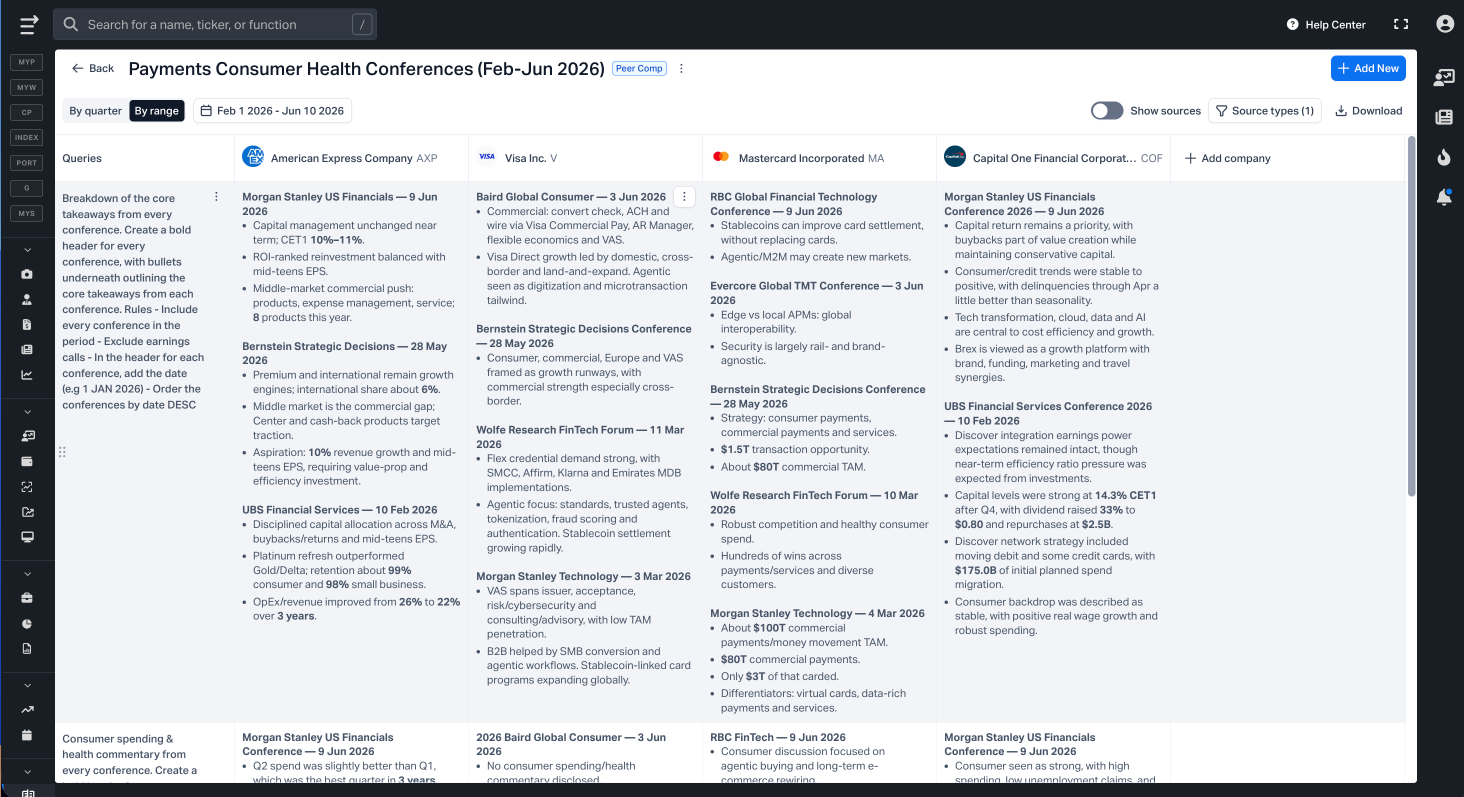
Peer Comps is designed for comparing multiple securities, allowing you to ask questions that are applied across a range of companies, over a given period of time. For example, in a Peer Comps table populated with restaurant stocks, you may ask what the trend in comparable stores sales has been over the defined period.
All table outputs include source citation, allowing you to see beneath the response and identify the primary source from which the answer originates from.
Compare Matrix is currently in beta as we look to collect investor feedback. Please note that usage limits will be applied while in beta, and that these usage limits are not reflective of the final, non-beta, usage limits.
Select companies for a comparison
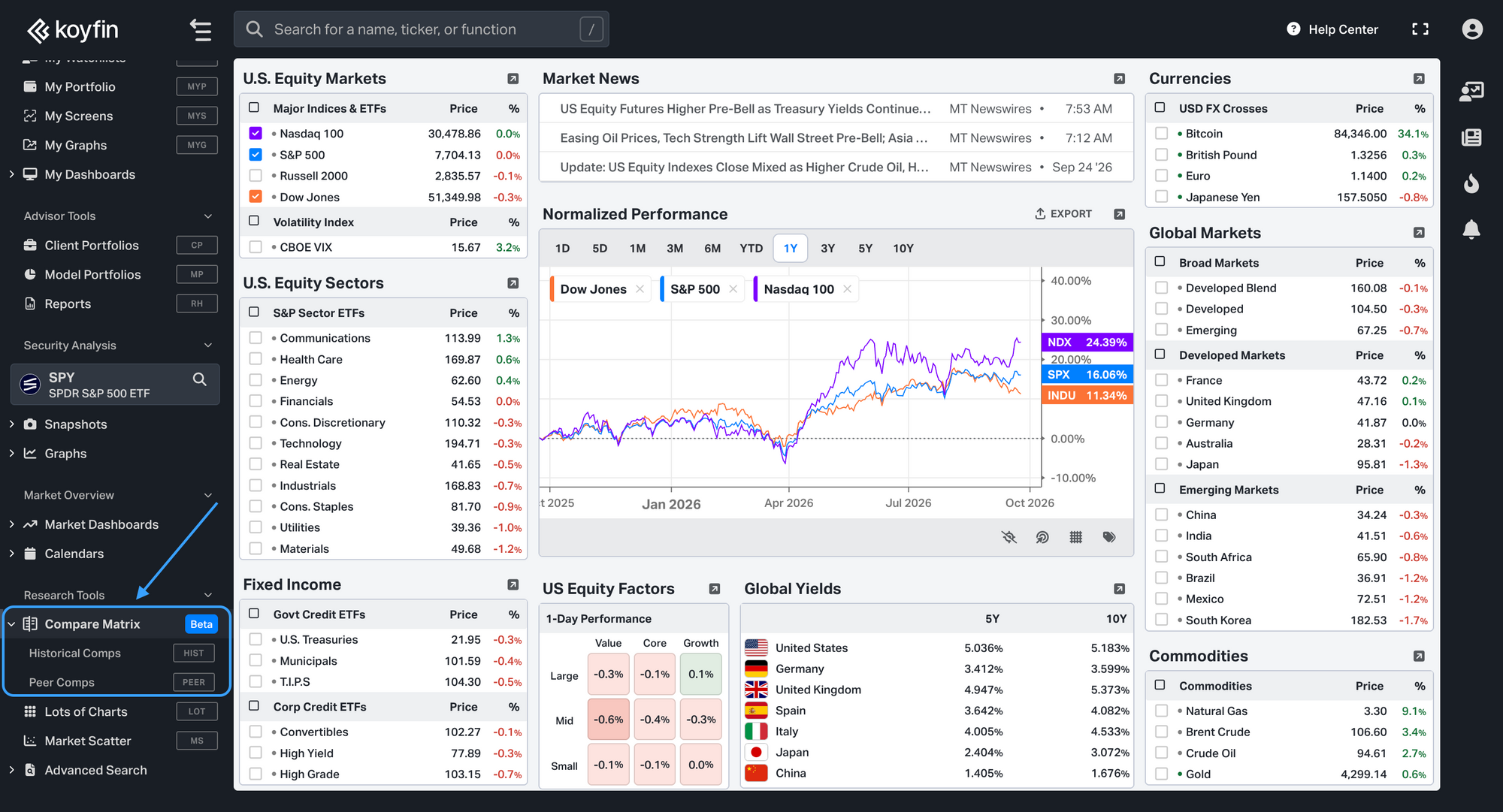
Under Research Tools in the left navigation, expand Compare Matrix and select Historical Comps or Peer Comps.
You can also open them with hotkey search: press the forward-slash “/” twice, then type HIST or PEER, and hit enter.
Historical Comps
- Click ‘+ Add New’ in the Historical Comps homepage.
- Select a company and hit ‘Create’.
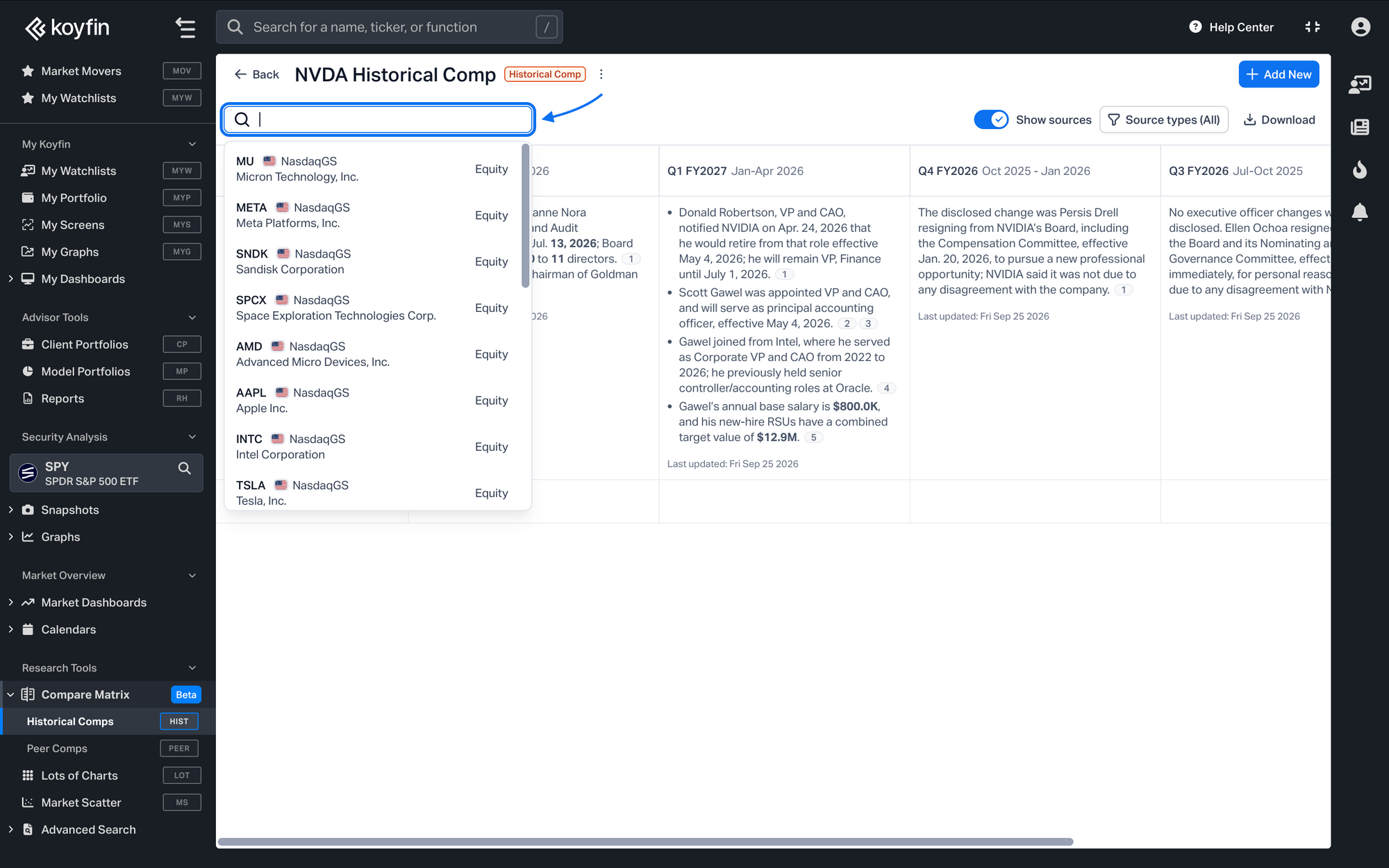
- To switch companies, use the search bar above the table.
Peer Comps
- Click ‘+ Add New’ in the Peer Comps homepage.
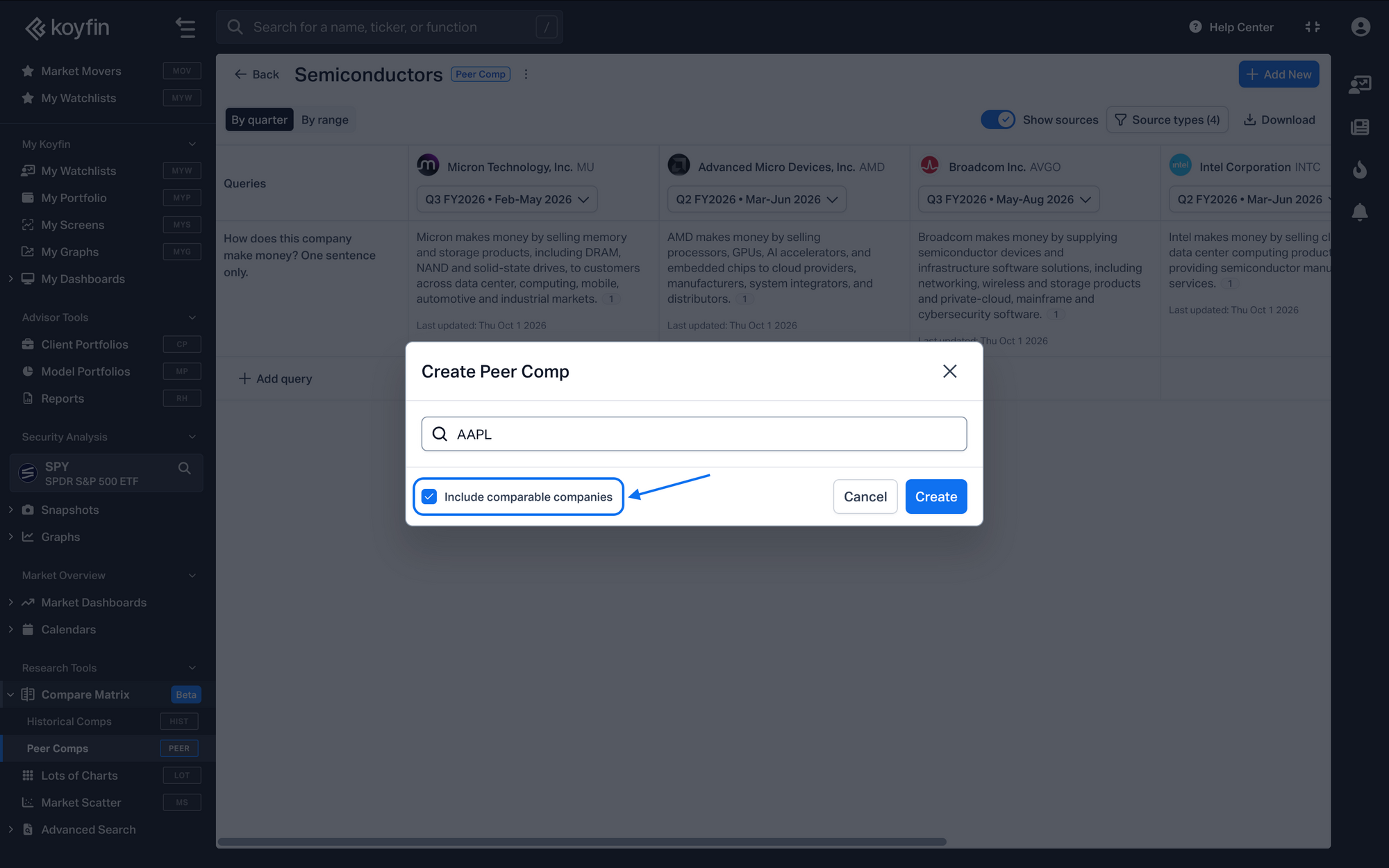
- Select a company.
- In the setup window, keep the Include comparable companies switch on to add its peers automatically, or disable it to build the peer group yourself.
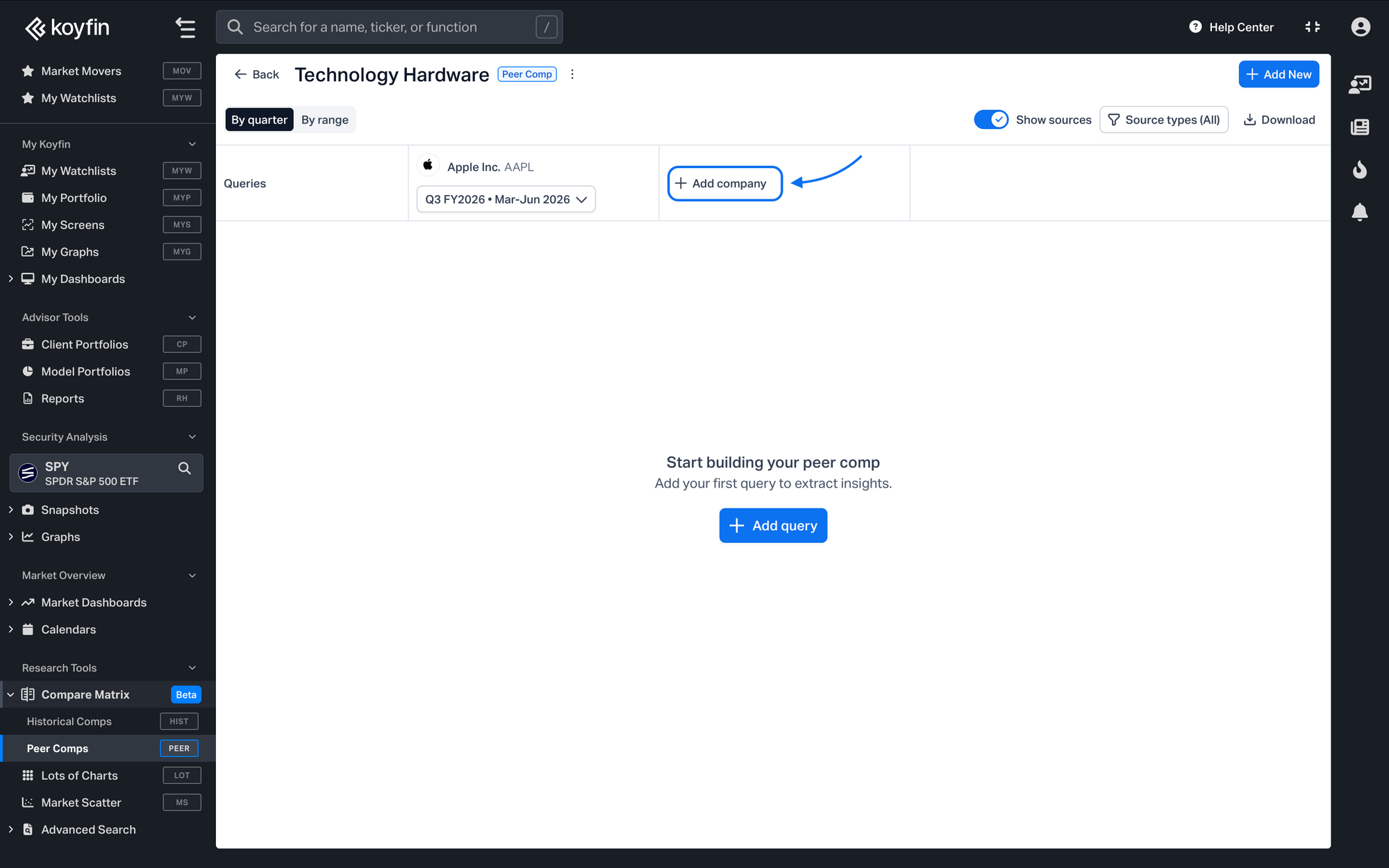
- After the comp is created, use the Add company column at the end of the table to add another company.
Choose the comparison period
Use the toggle above the table to choose:
- By quarter compares a selected fiscal quarter for each company. Choose the quarter from the dropdown under each company name. The dropdown shows which months the quarter covers, making it easier to align companies with different fiscal calendars.
- By range compares all companies over a single date range, which can be configured using the calendar.
Ask questions
Click Add query to enter your own question or choose one from Suggestions. Each query is added as a row, and Compare Matrix answers it across all companies or quarters in the table.
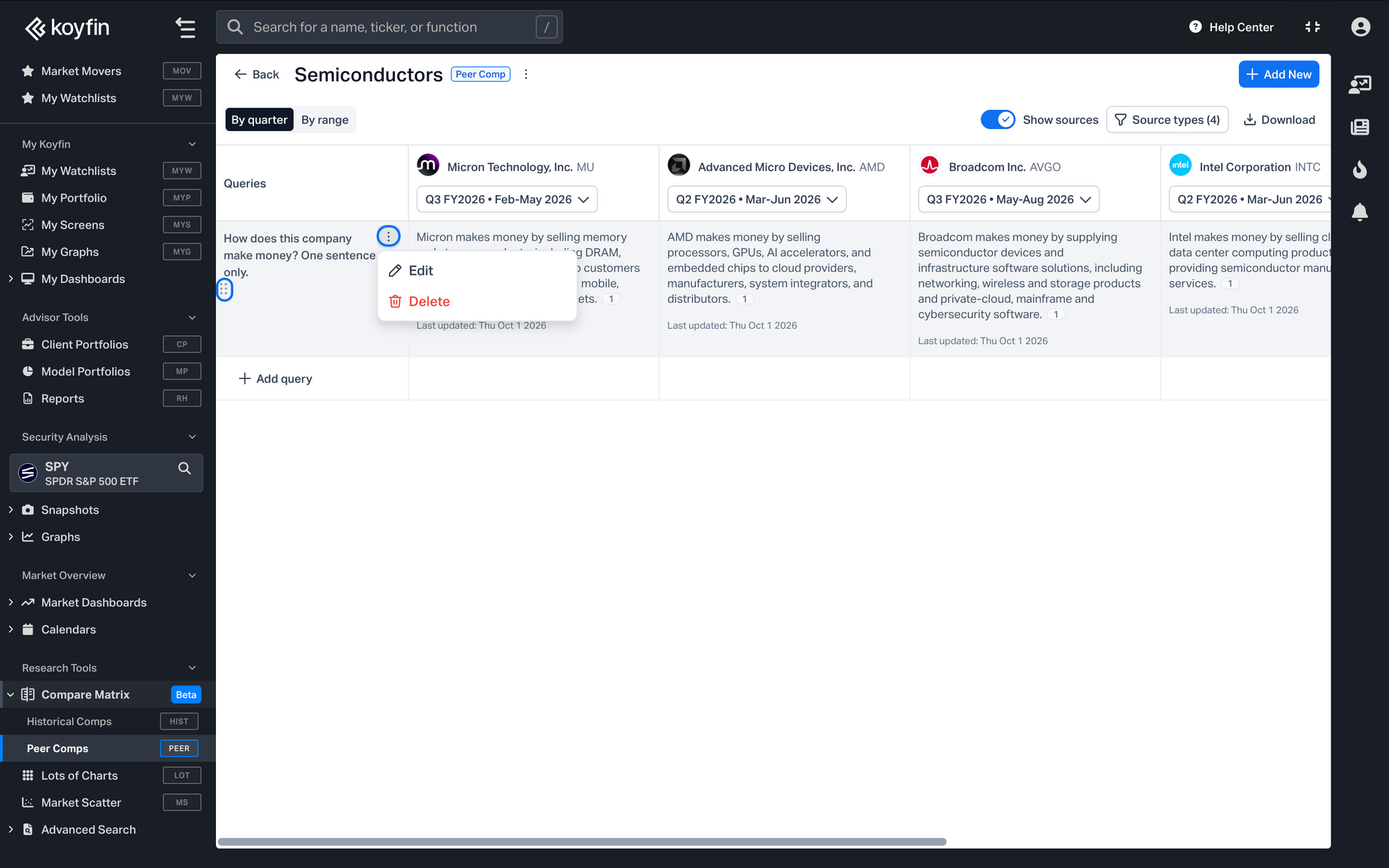
Use the three-dot menu to edit or delete a query, or drag the row to reorder it.
What you can ask
You can compare reported results, management commentary, and news in the same table. For example:
- Reported results: "What was the reported revenue for the current quarter?"
- Management commentary: "What risks did management discuss in the quarter?"
- News: "Highlight the 5 most impactful news stories during the period."
Sources & Citation
Each output produced by the model will contain a source citation, which can be shown or disabled using the “Show sources” toggle.
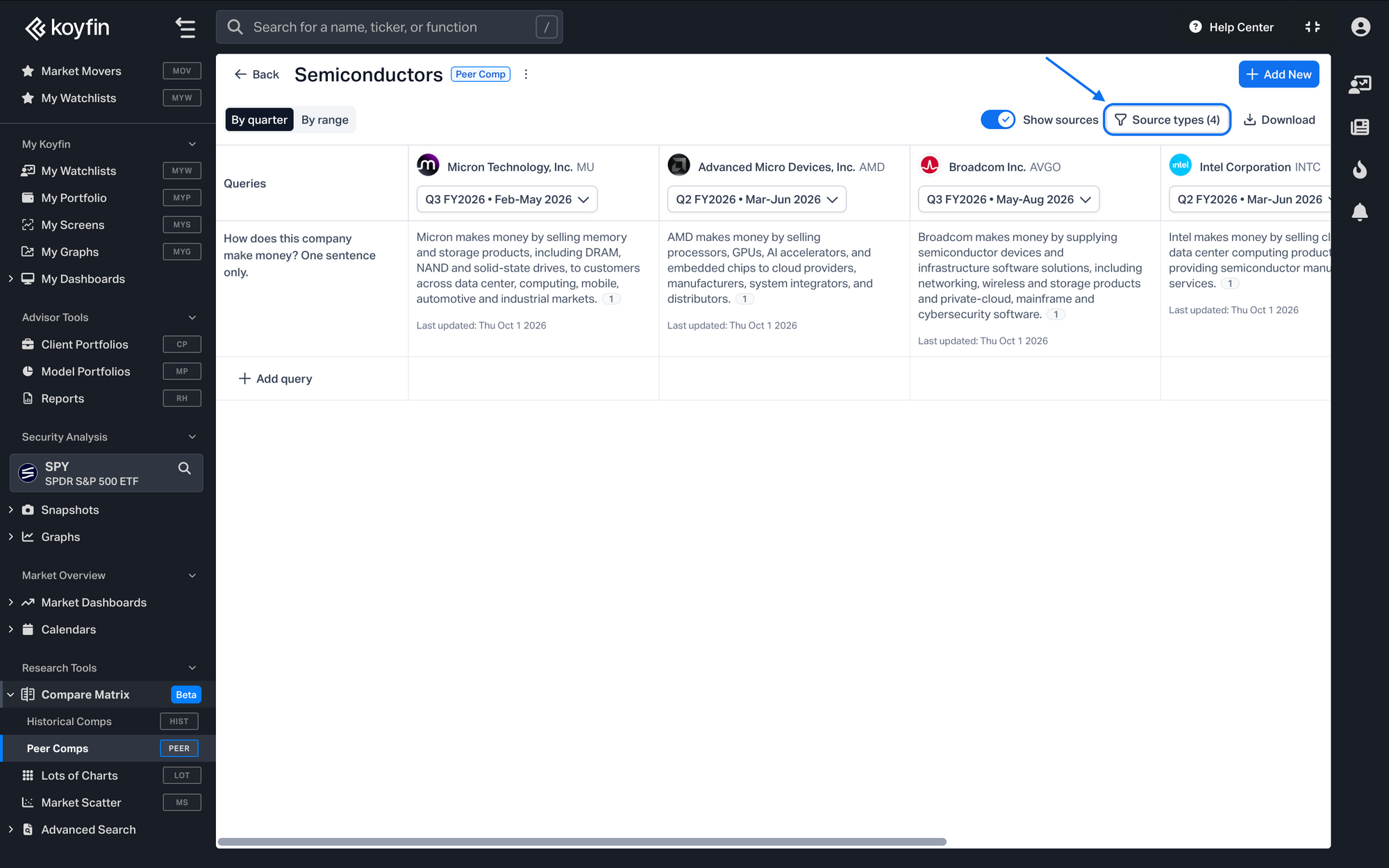
The range of sources the model utilizes are available in the Source Types menu and include:
- Filings
- Press Releases
- Transcripts
- News
All source types are selected by default. After changing the selection, click Apply and refresh to reload the answers.
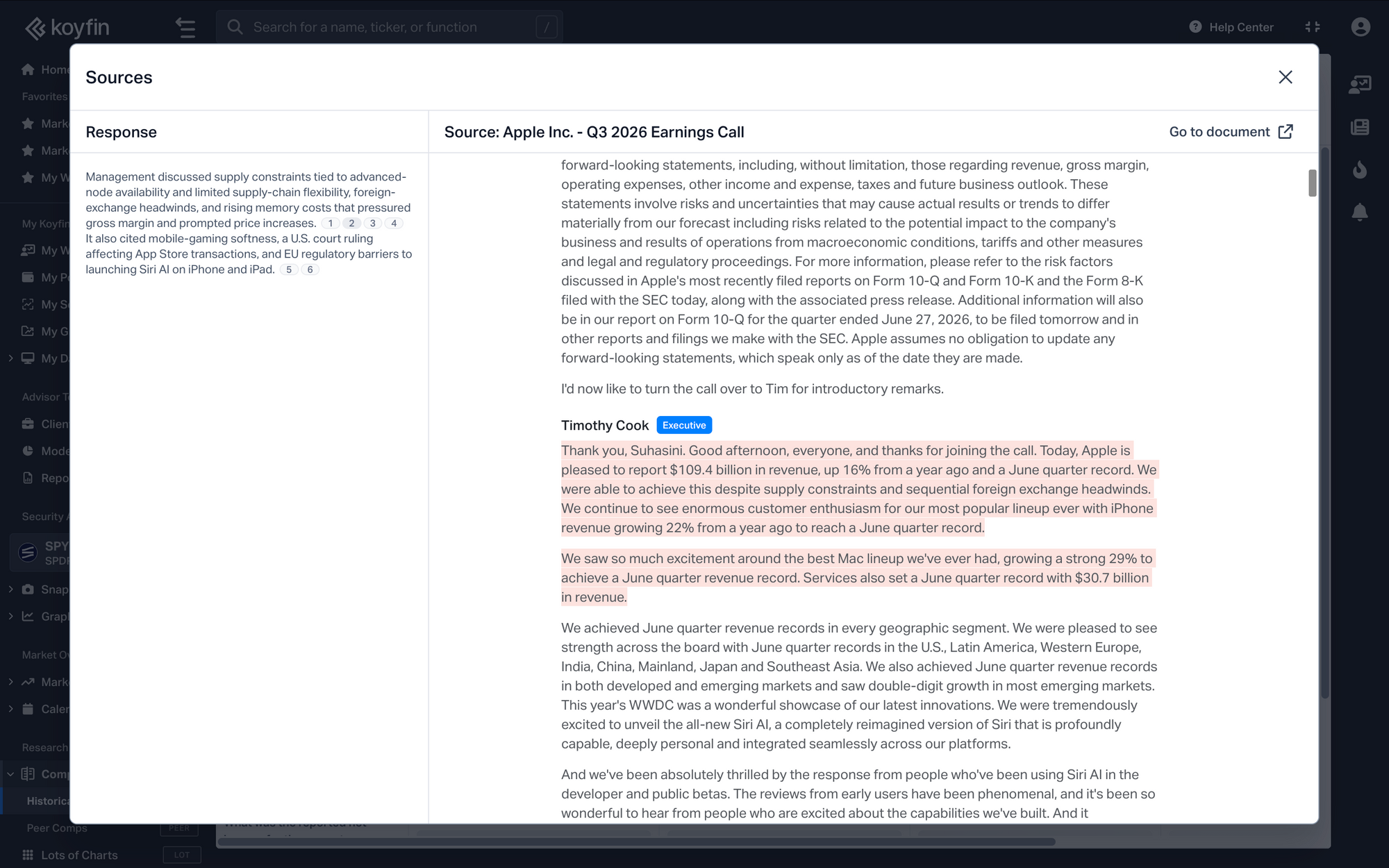
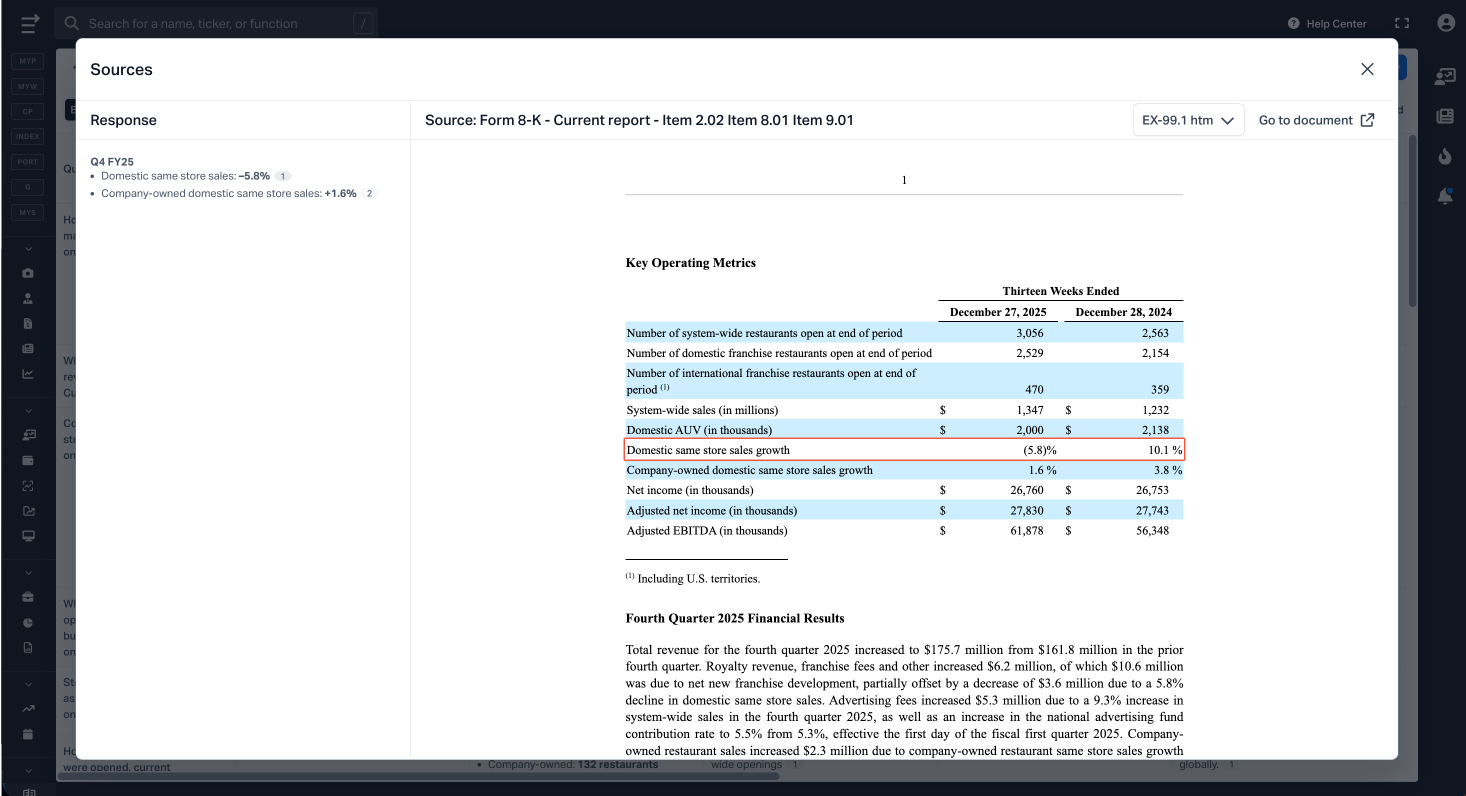
Source citations appear as numbered indicators within the output. To view the primary source, click a citation which will open the Sources view. In the Sources view, the response, as well as the section of the relevant data source will be displayed.
Manage answers and comps
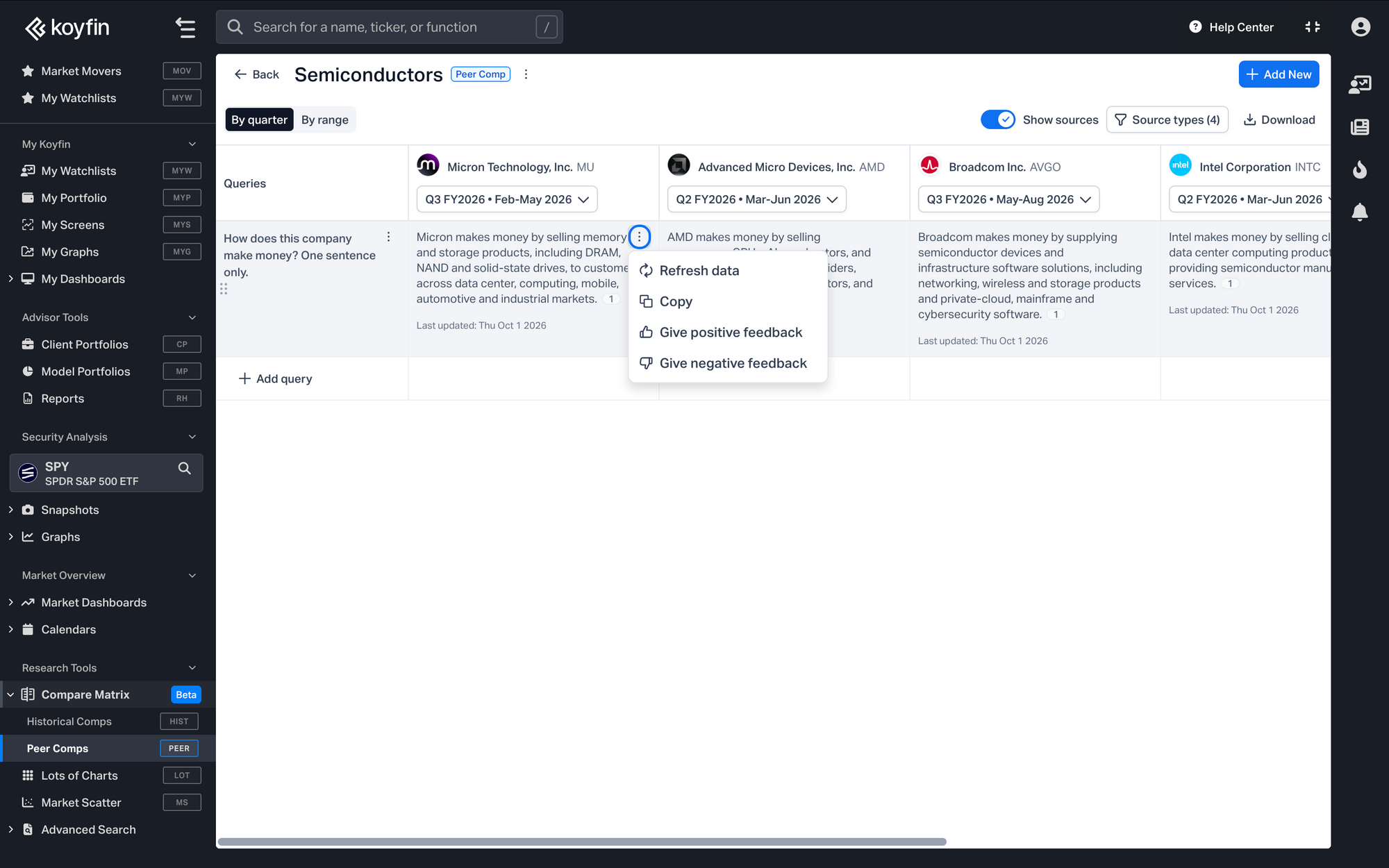
Answers: Open the three-dot menu on an output to Refresh data, Copy it, or leave positive or negative feedback.
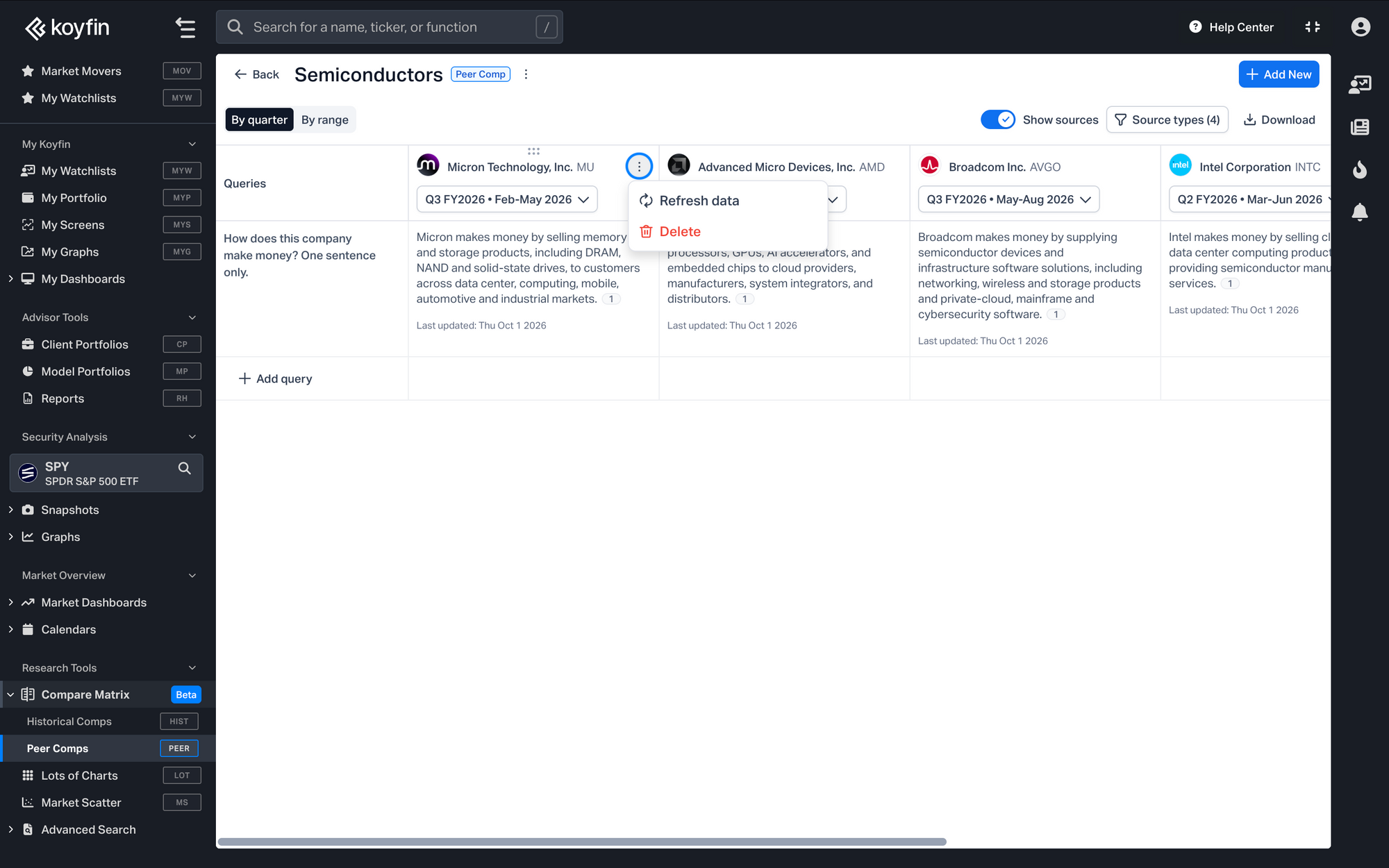
Companies: In Peer Comps, use the menu in a company header to refresh all answers for that company or remove it from the comparison. Drag the column to reorder companies.
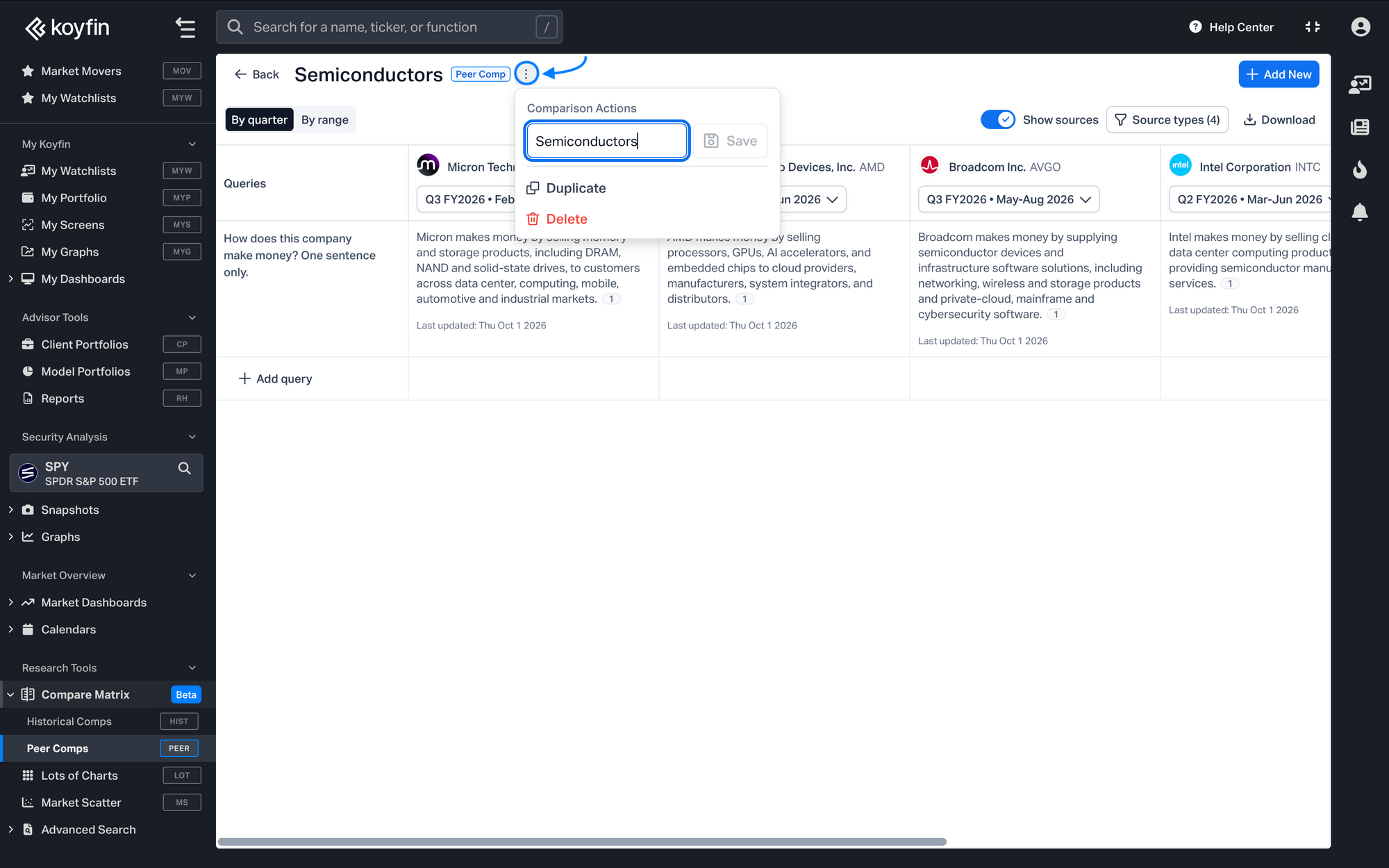
Comparison: Use the menu next to the comp name to Rename, Duplicate, or Delete it.
Downloading Outputs
Click Download above the table to export the table data as a CSV.
Monthly usage limit
During the beta, each account has a limited supply of AI token usage per calendar month. The limit resets on the first day of each month.
Reloading answers, for example by changing the period or source types, or refreshing data, counts toward the limit.