
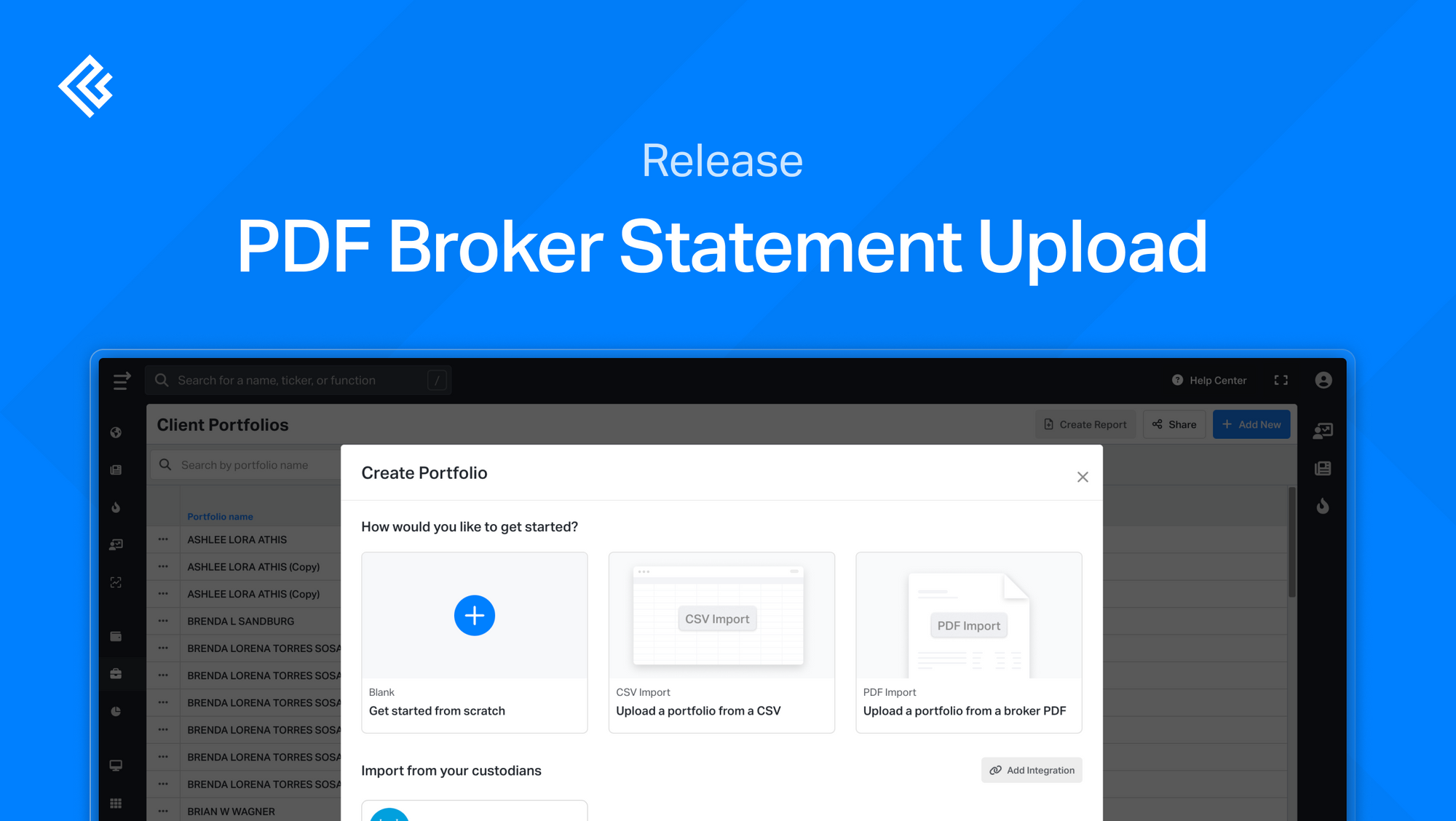
You can import a brokerage statement in PDF format to create a Client Portfolio. This allows you to upload data without entering holdings manually.
Note: PDF import is available on the Advisor Pro plan only.
How to Upload a PDF Statement
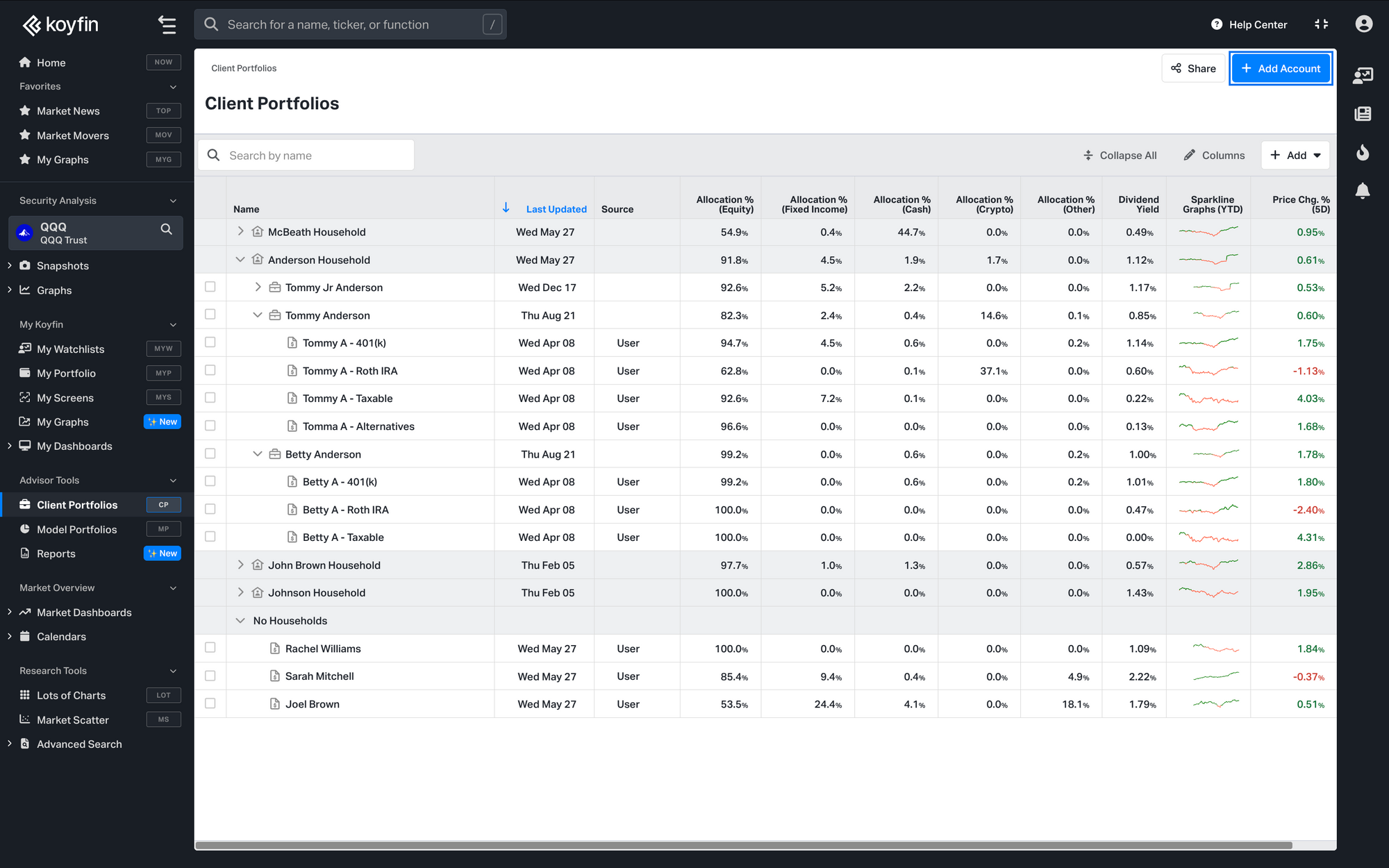
- Navigate to the Client Portfolios page.
- Click + Add Account in the top-right corner.
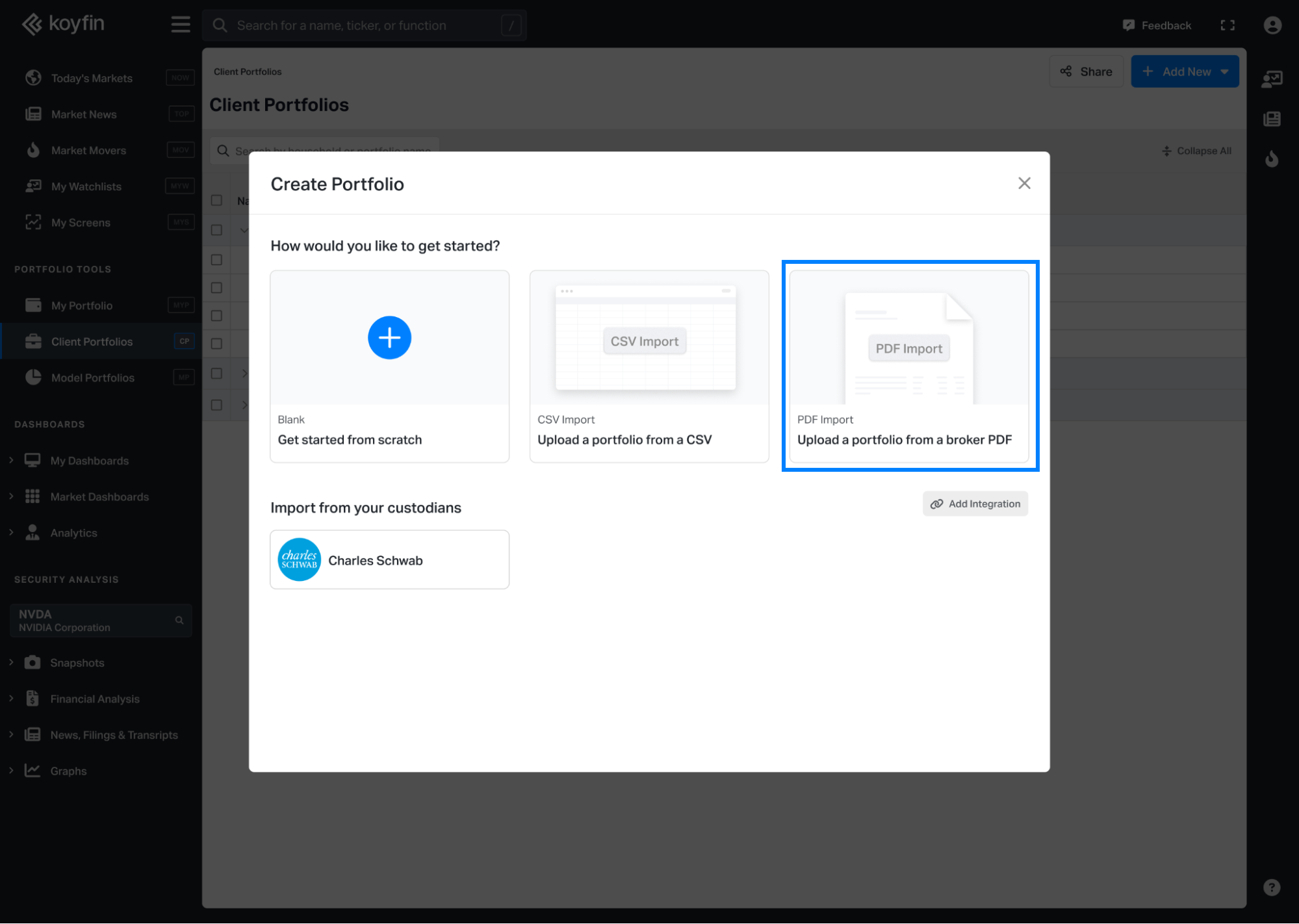
3. In the creation window, choose PDF Import.
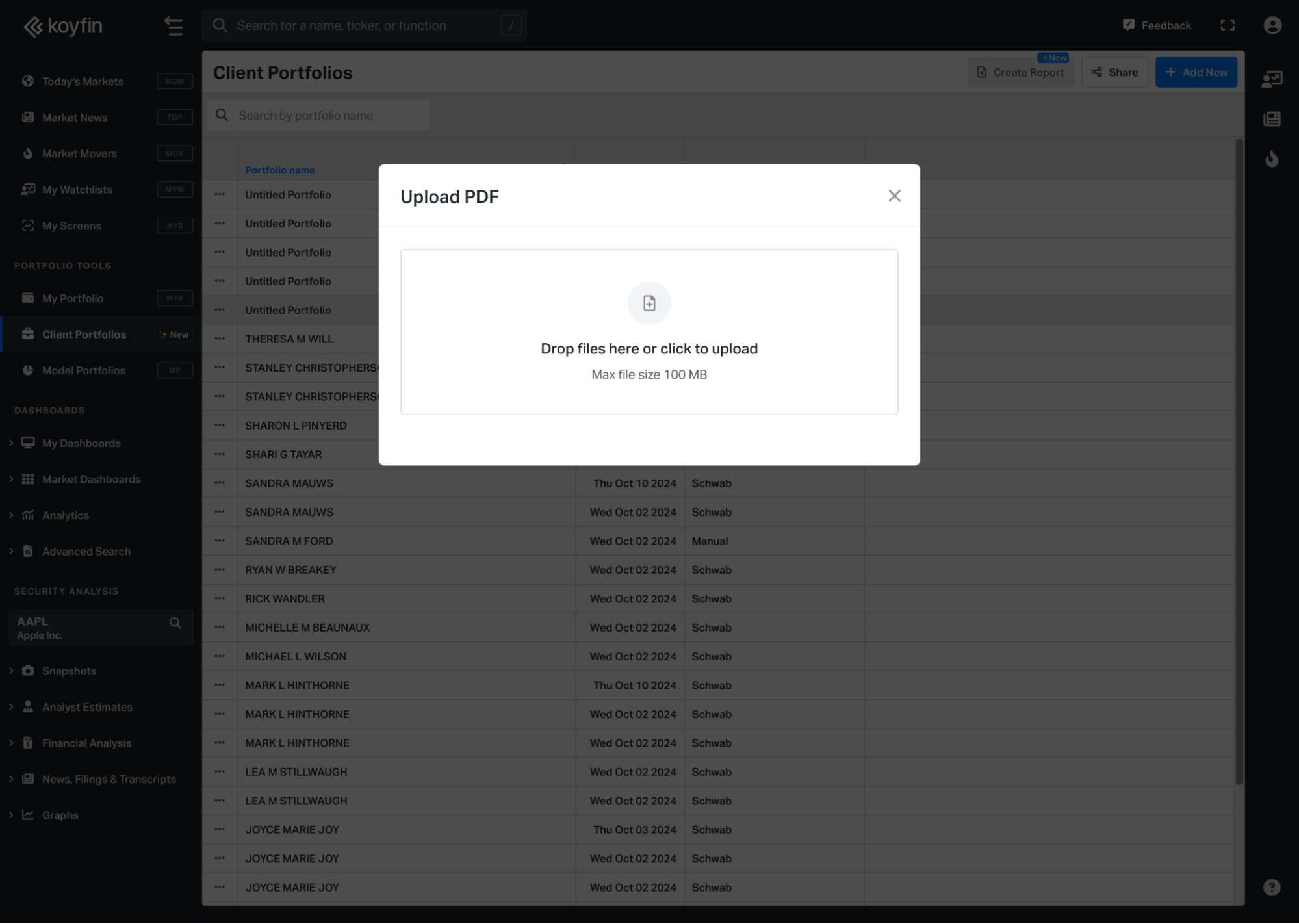
4. Upload a valid brokerage statement in .pdf format
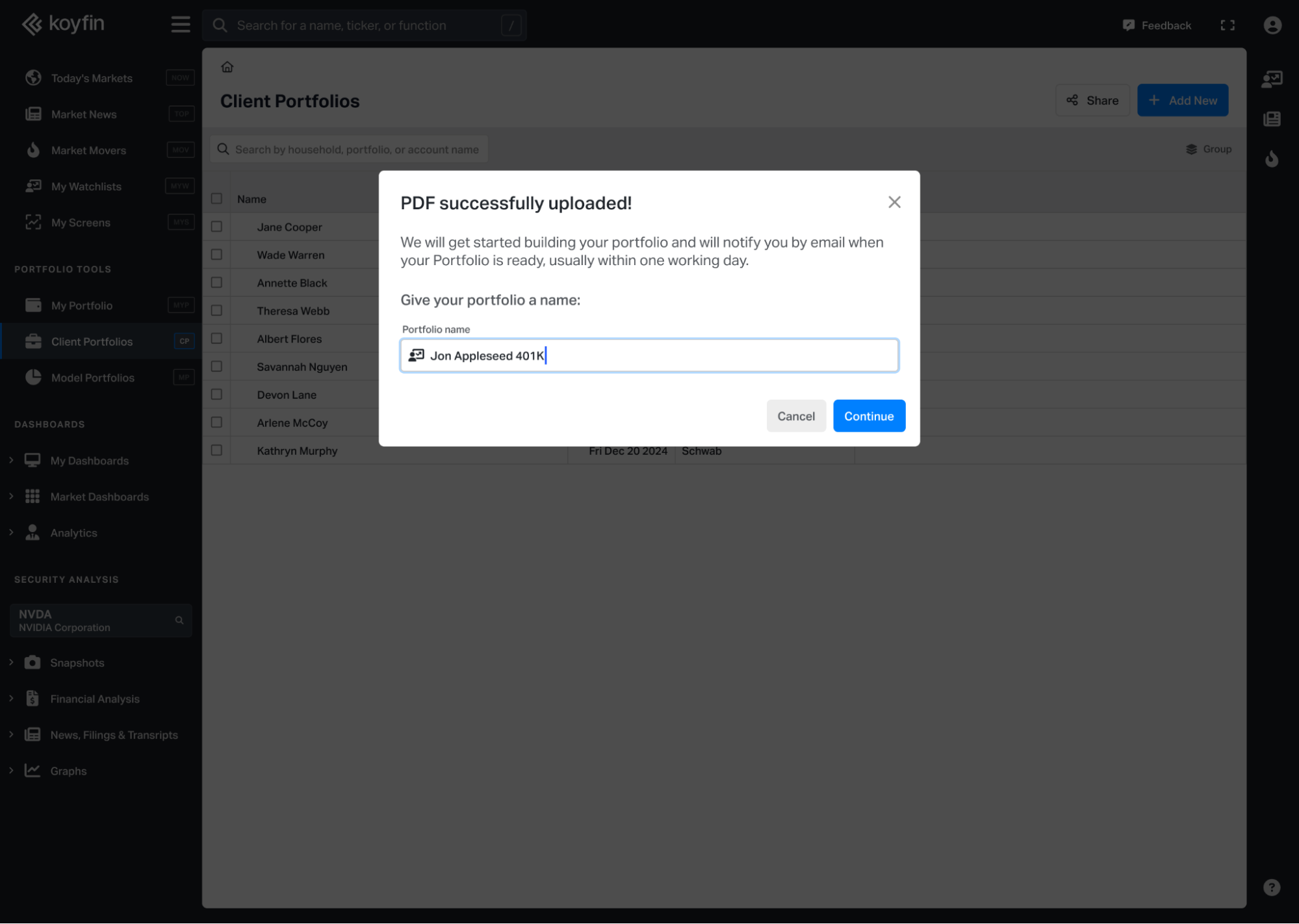
5. After uploading, enter a name for the portfolio (this makes it easier to recognise later).
- If no name is entered, the portfolio will use the file name (excluding the .pdf extension)
Tracking Upload Status
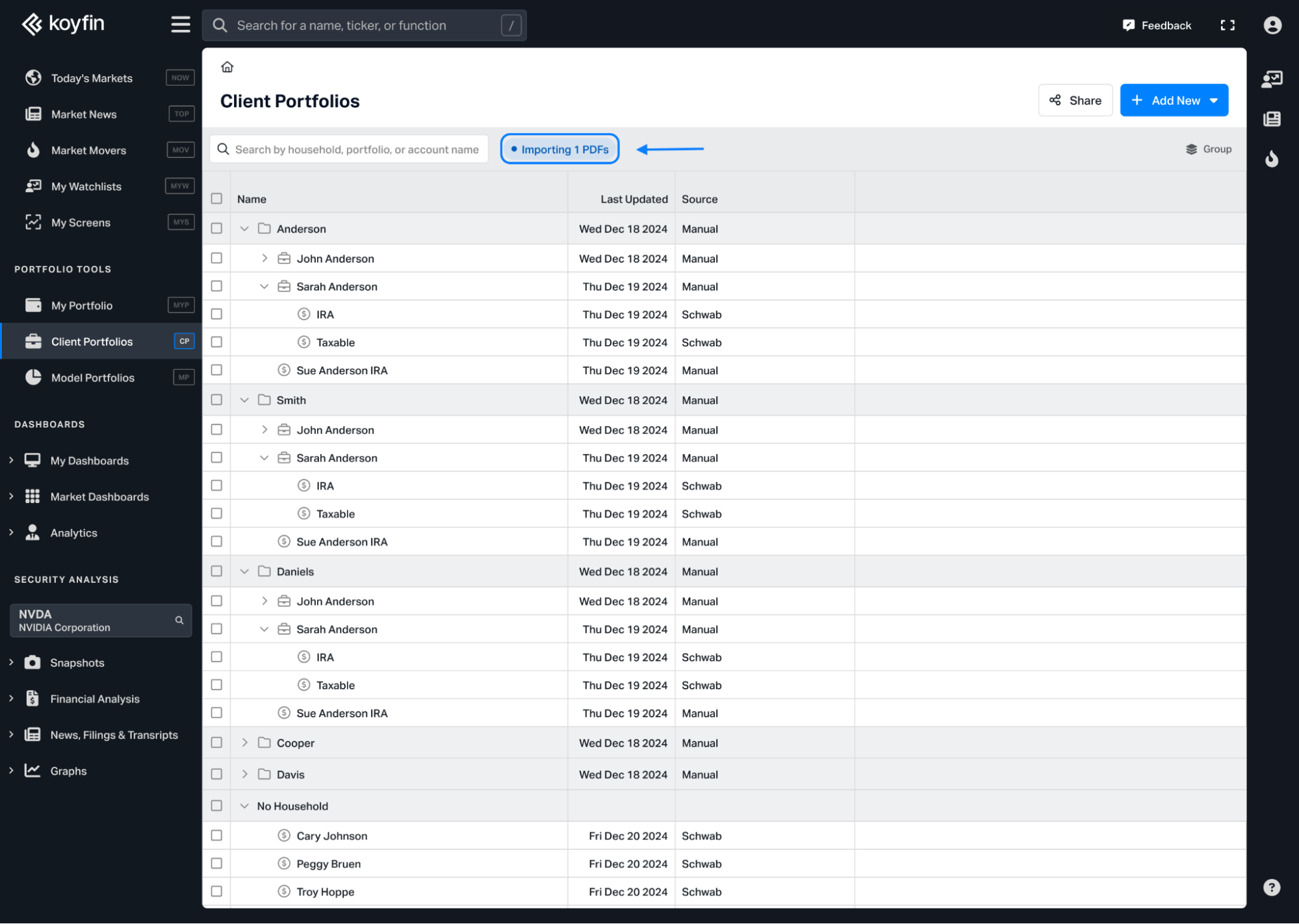
- Portfolios that are still processing will appear in the status indicator at the top of the Client Portfolios page (next to the search bar). Click the status indicator to view which portfolios are in progress.
- You will also receive an email notification once the upload is complete.
- Statements that can be reconciled automatically, will take up to 24 hours to process.
- Accounts that require manual reconciliation, may take up to 72 hours, at which point we will notify you.
After Importing
- Imported accounts appear under the No Household section by default.
- To organize the accounts:
- Rename the account if needed.
- Group the accounts into a Household or Portfolio by hovering over the row, clicking the ⋯ menu, and selecting Move to.
- Bulk-organize by selecting multiple accounts and using Bulk Actions → Move to.
If you have any questions or issues, feel free to reach out to us at help@koyfin.com.