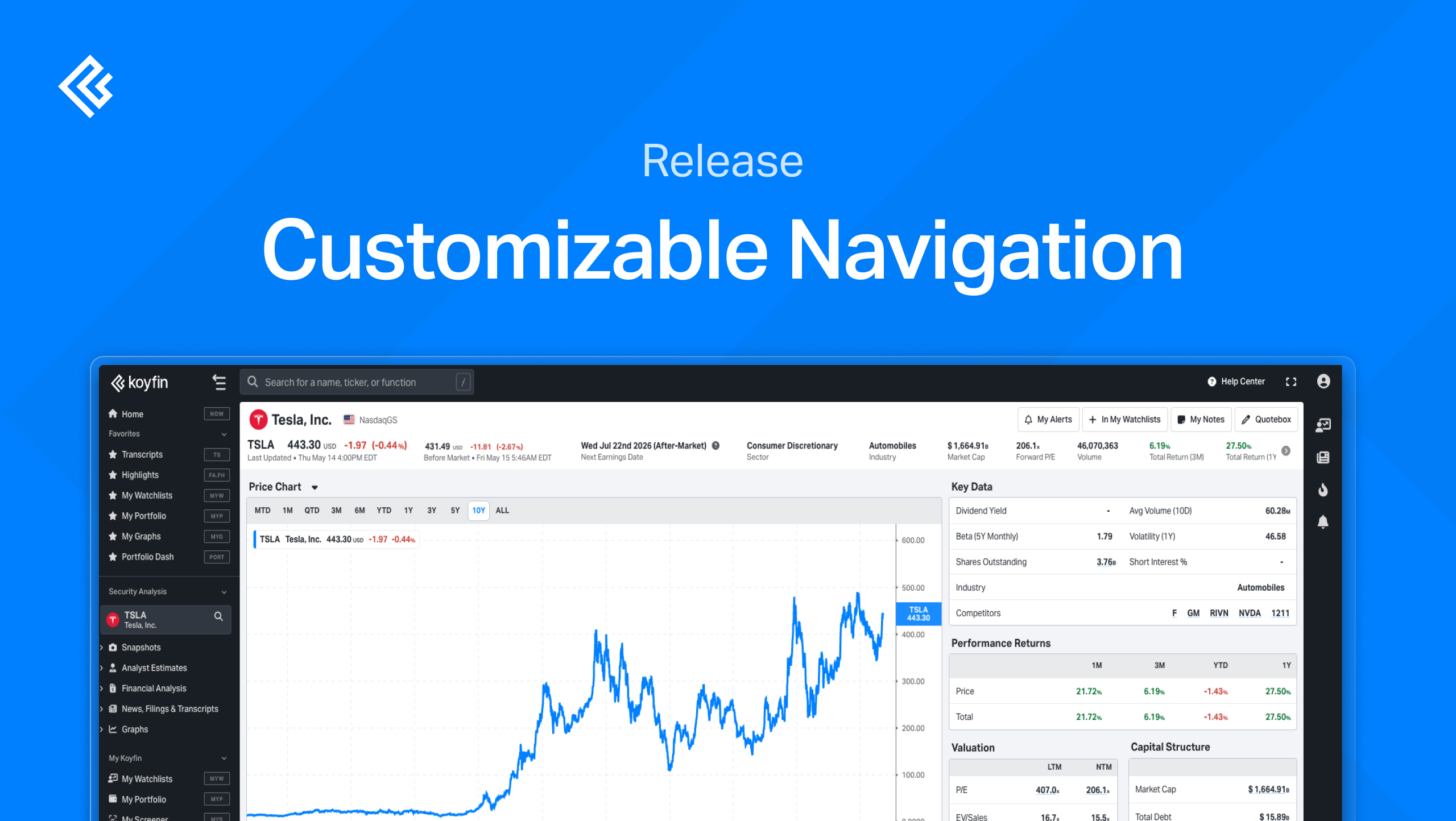
We've redesigned the left navigation to give you more control over how it's organized and make your most-used tools easier to reach. Here's what's changed.
Watch the full walkthrough:
Add features to your Favorites
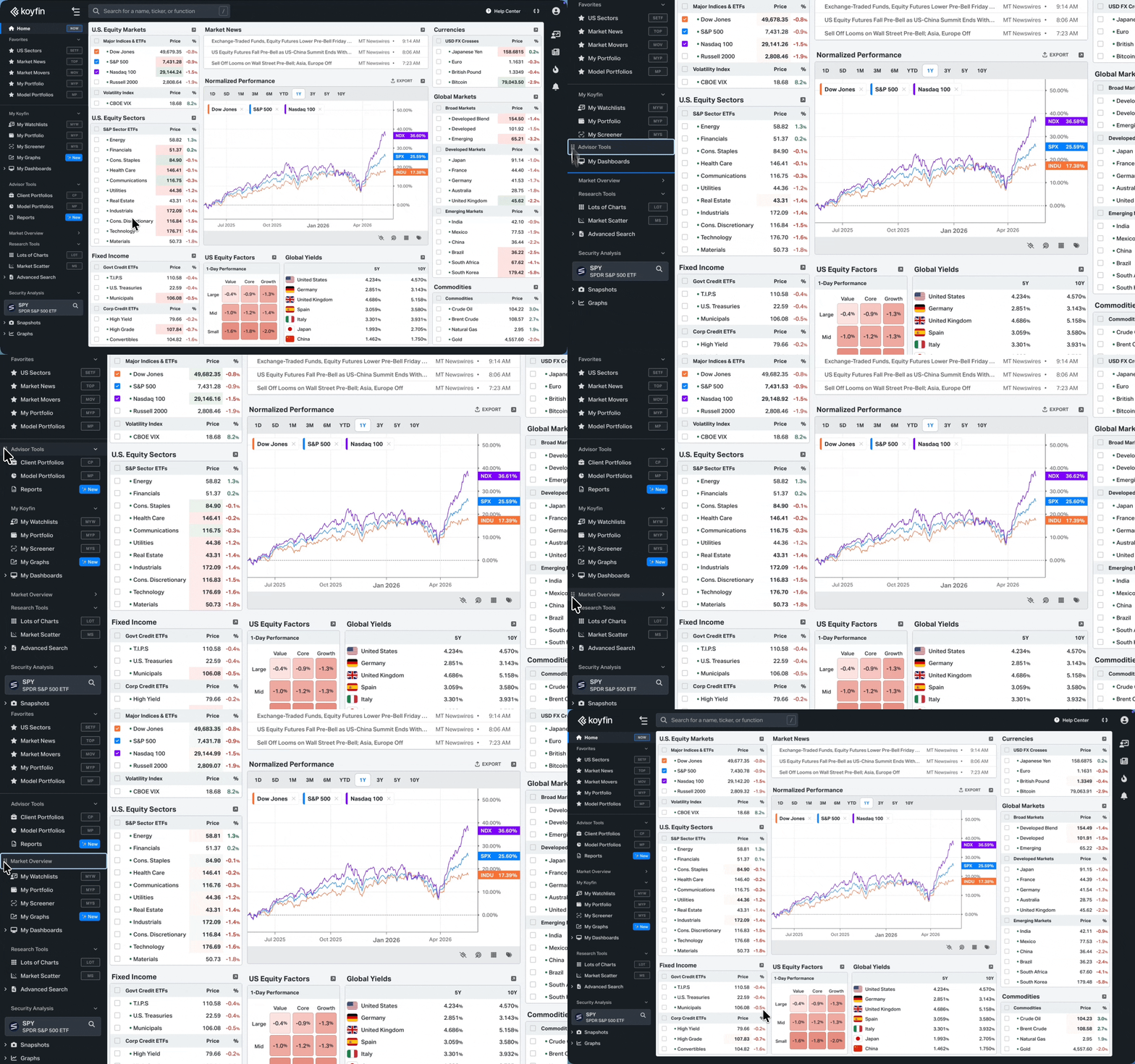
Hover over any feature and click the star icon to add it to your Favorites. Your favorites appear at the top of the left navigation. Drag and drop to reorder them.
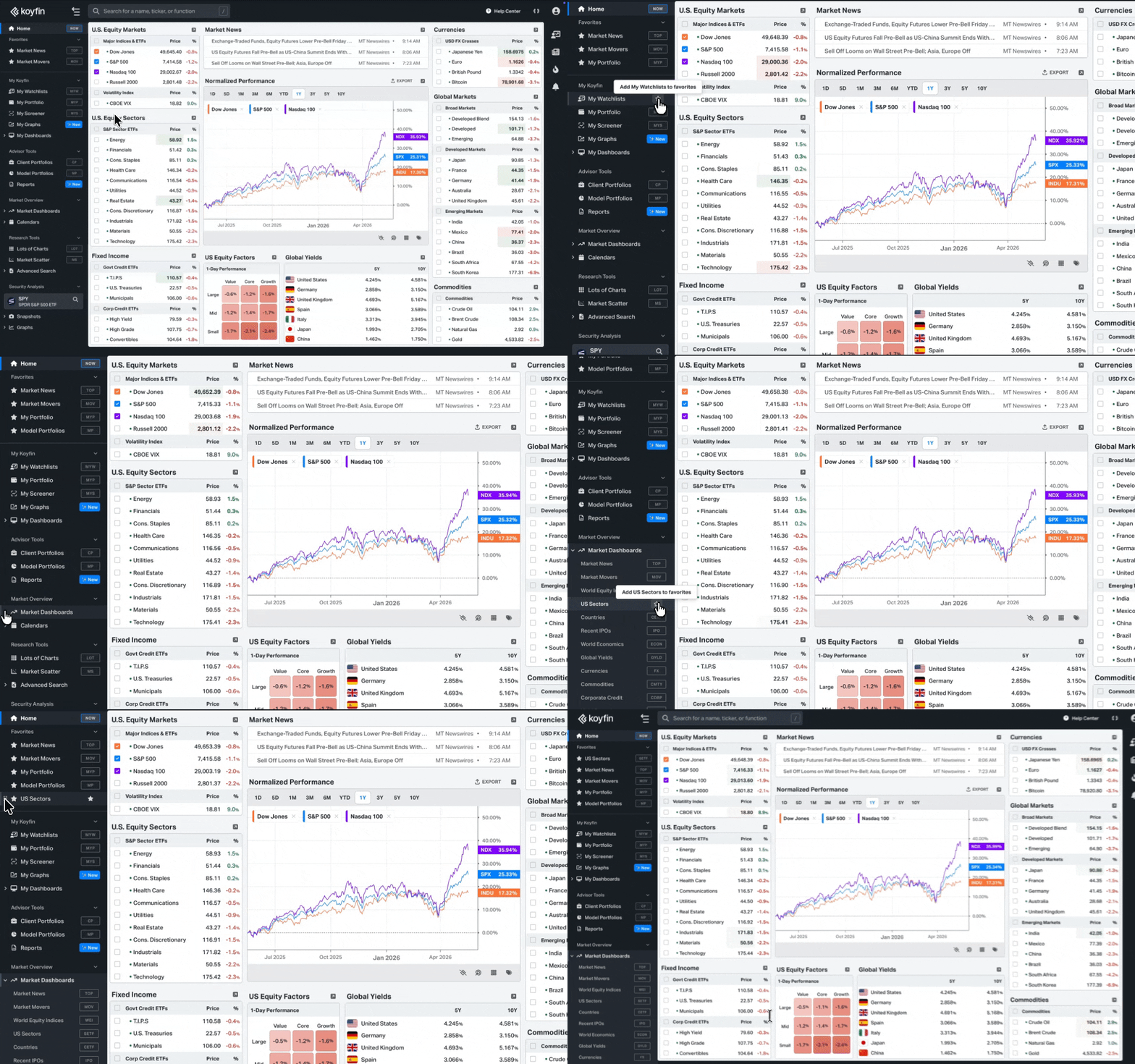
Collapse sections
Click any section name to collapse it and hide everything inside.
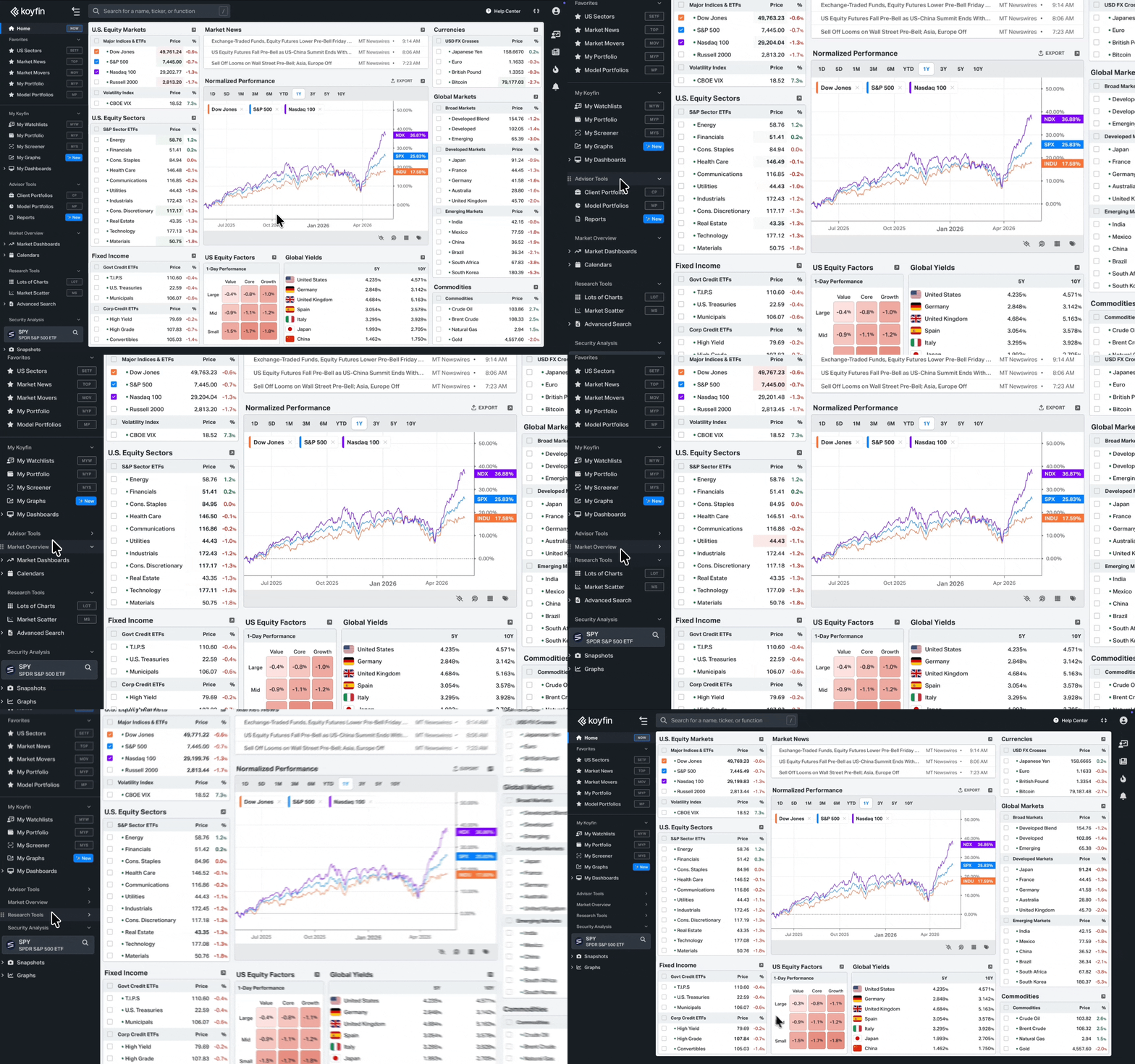
Reorder sections
Drag any section up or down to change its position in the sidebar. Your layout saves automatically.
Updated sections
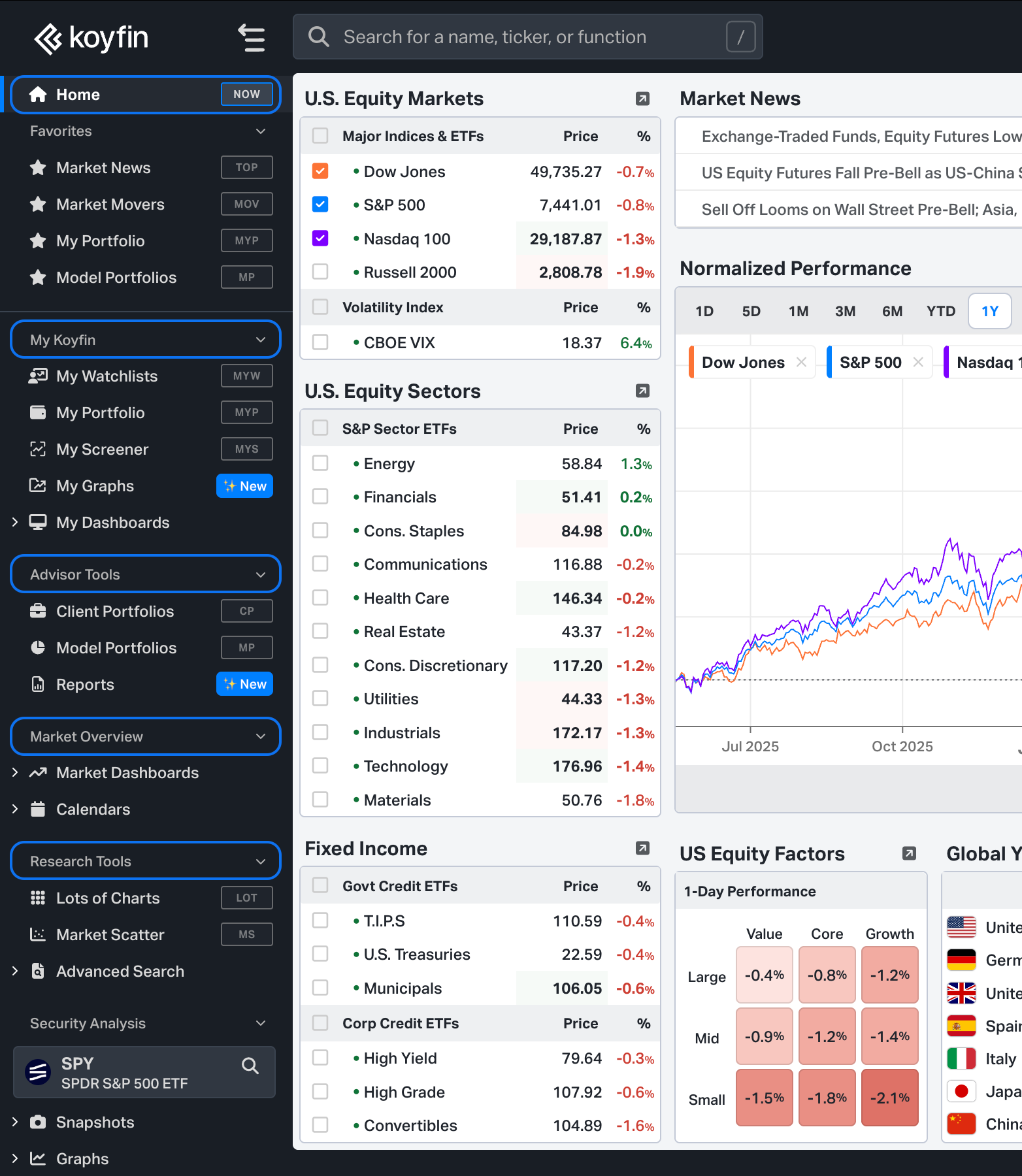
We've renamed and restructured several sections to better reflect what's inside:
- My Koyfin is a new section that brings together everything you create: watchlists, custom dashboards, templates, and more.
- Market Overview replaces Dashboards. The structure and groupings inside have also been updated.
- Research Tools replaces Analytics.
- Advisor Tools replaces Portfolio Tools. A few features have moved around inside, so take a look.
- Home replaces Today's Markets as your starting point when you open Koyfin, with your favorites pinned at the top.
A few icons across the navigation have also been updated to better match the features they represent.
Company logos
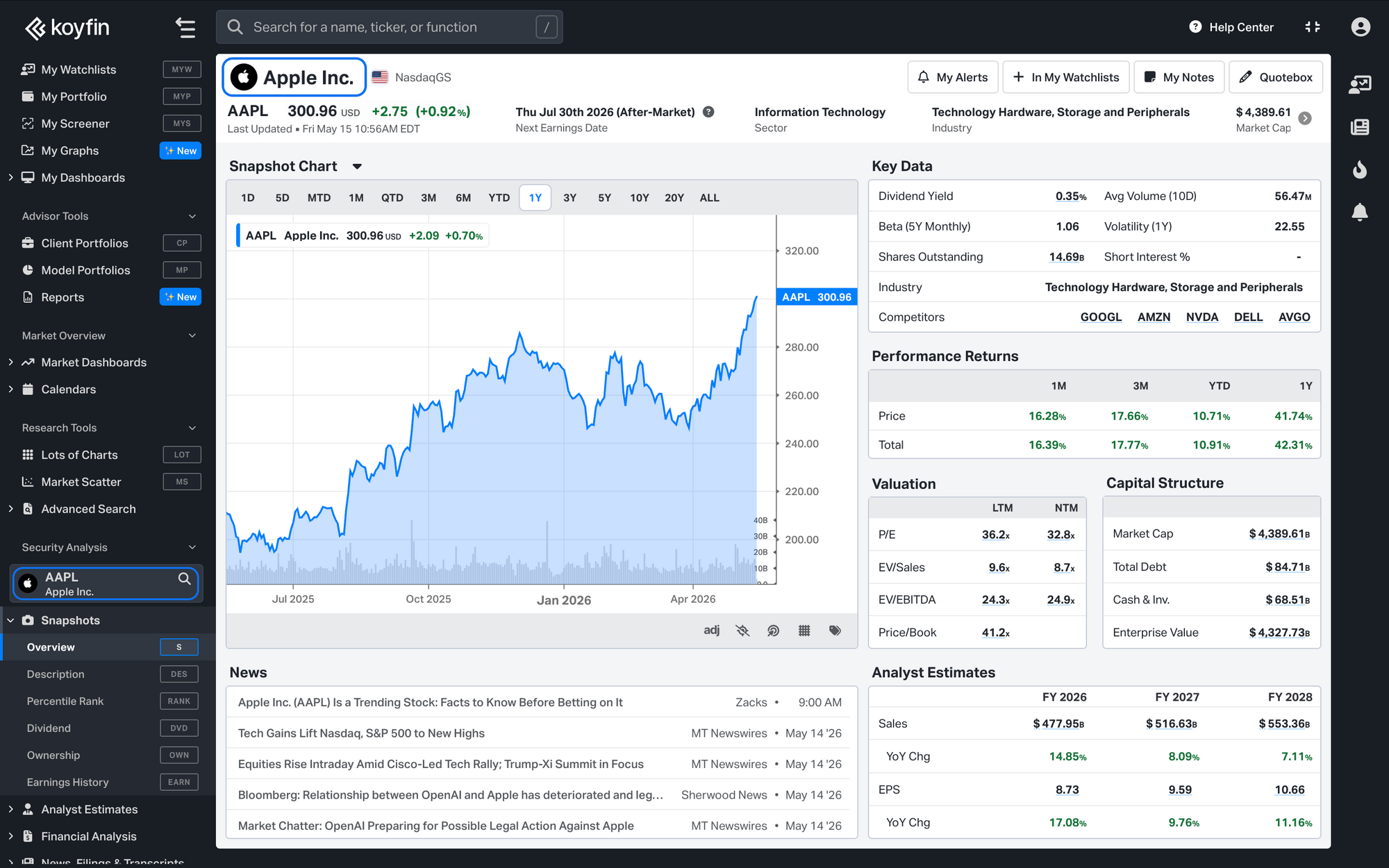
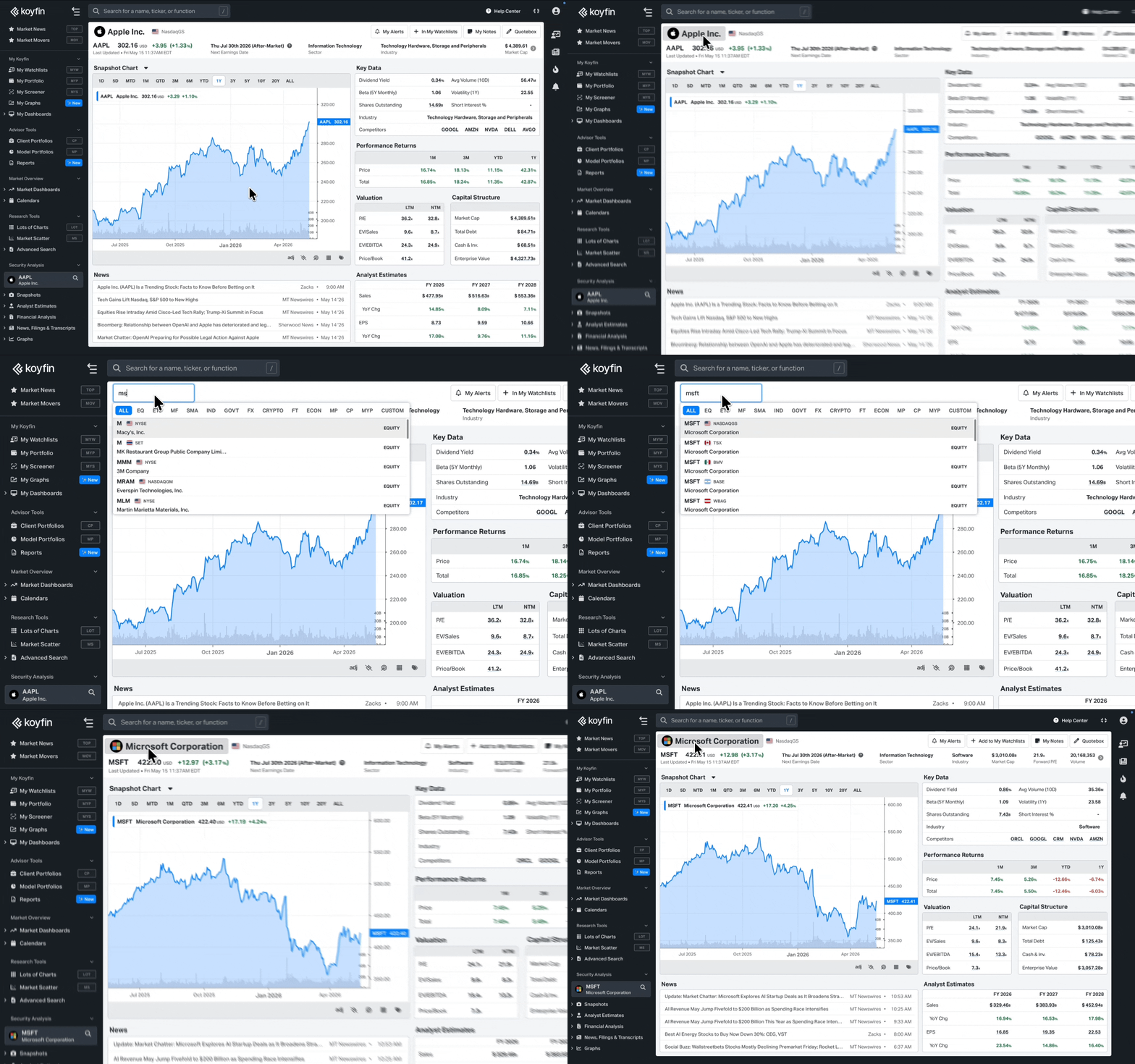
Company logos now appear in the ticker search and on Security Analysis page titles, making it faster to recognize what you're looking at.
Switch tickers faster on Security Analysis pages
Two new ways to change the ticker without reaching for the search bar:
- Start typing anywhere on a Security Analysis page and the ticker search activates automatically.
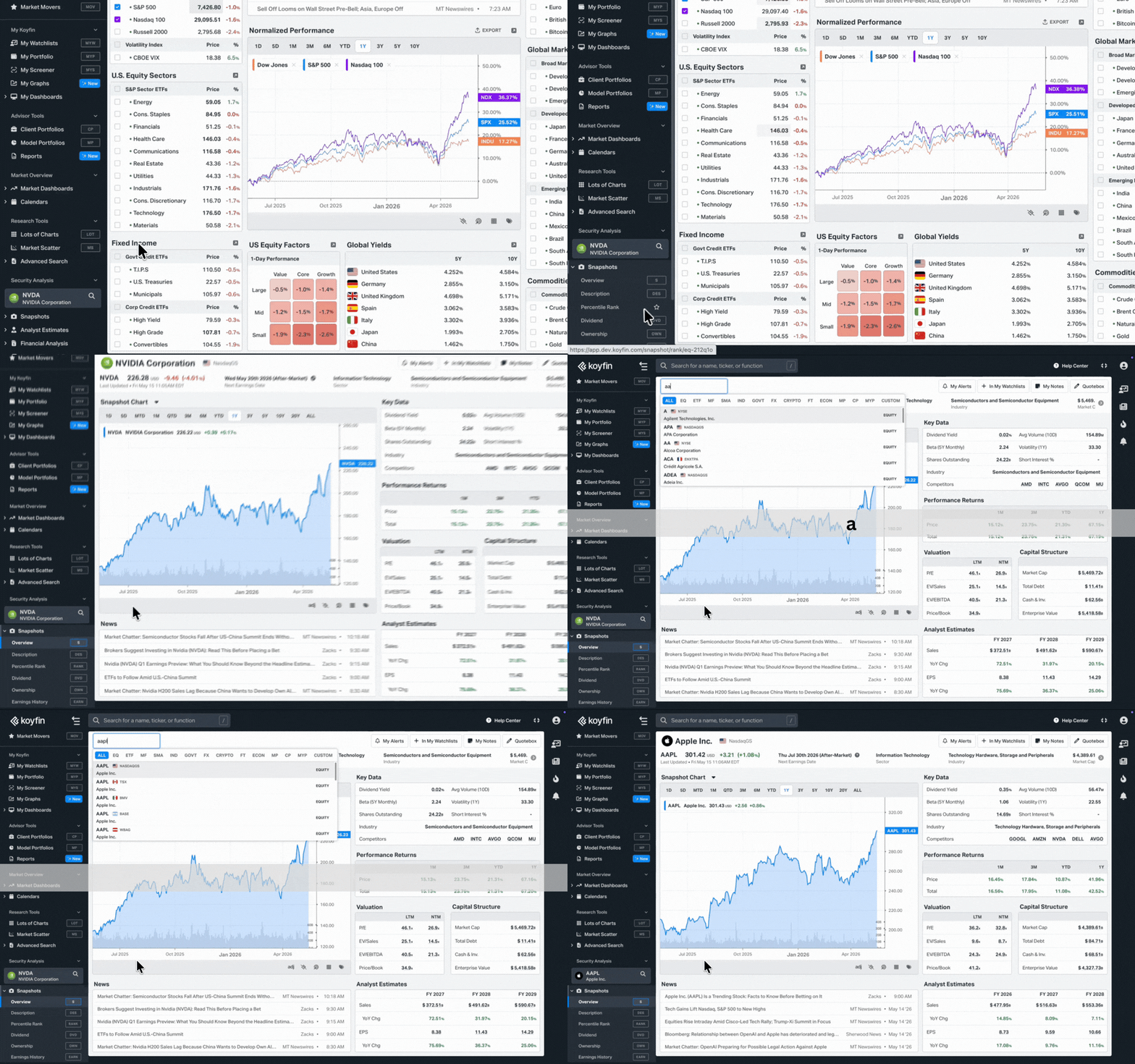
2. Click the page title at the top of any Security Analysis page to open the ticker search right there.
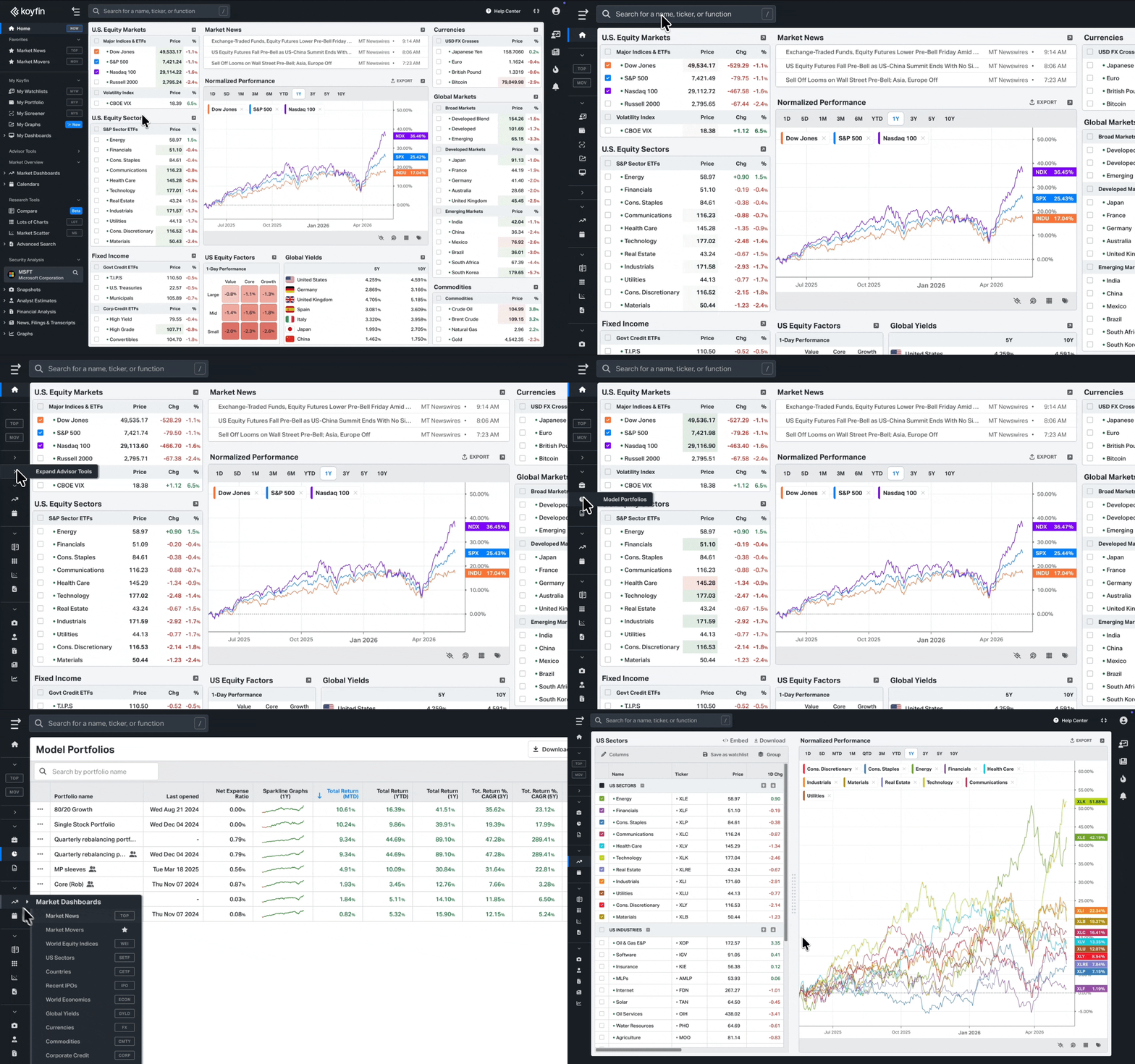
Collapsed view
Hover over any icon to see its name. You can still collapse and expand individual sections even when the navigation is minimized.