
Koyfin supports direct integration with Addepar. This guide outlines how to connect your Addepar account and import client data into the Client Portfolios.
Note: Portfolio management system integrations are available on the Advisor Pro plan.
1. Before you connect Addepar to Koyfin
Your firm must grant you access to the Koyfin integration in Addepar before you can connect it from Koyfin.
Who can grant access: The person granting access must have the Integration user access permission enabled under Firm Administration. This is typically a Firm Admin.
How access works:
- Access can be granted to all users at your firm or only to specific users
- Only users with access can authorize and connect the integration
- You can disconnect authorized integrations from Personal Settings in Addepar at any time
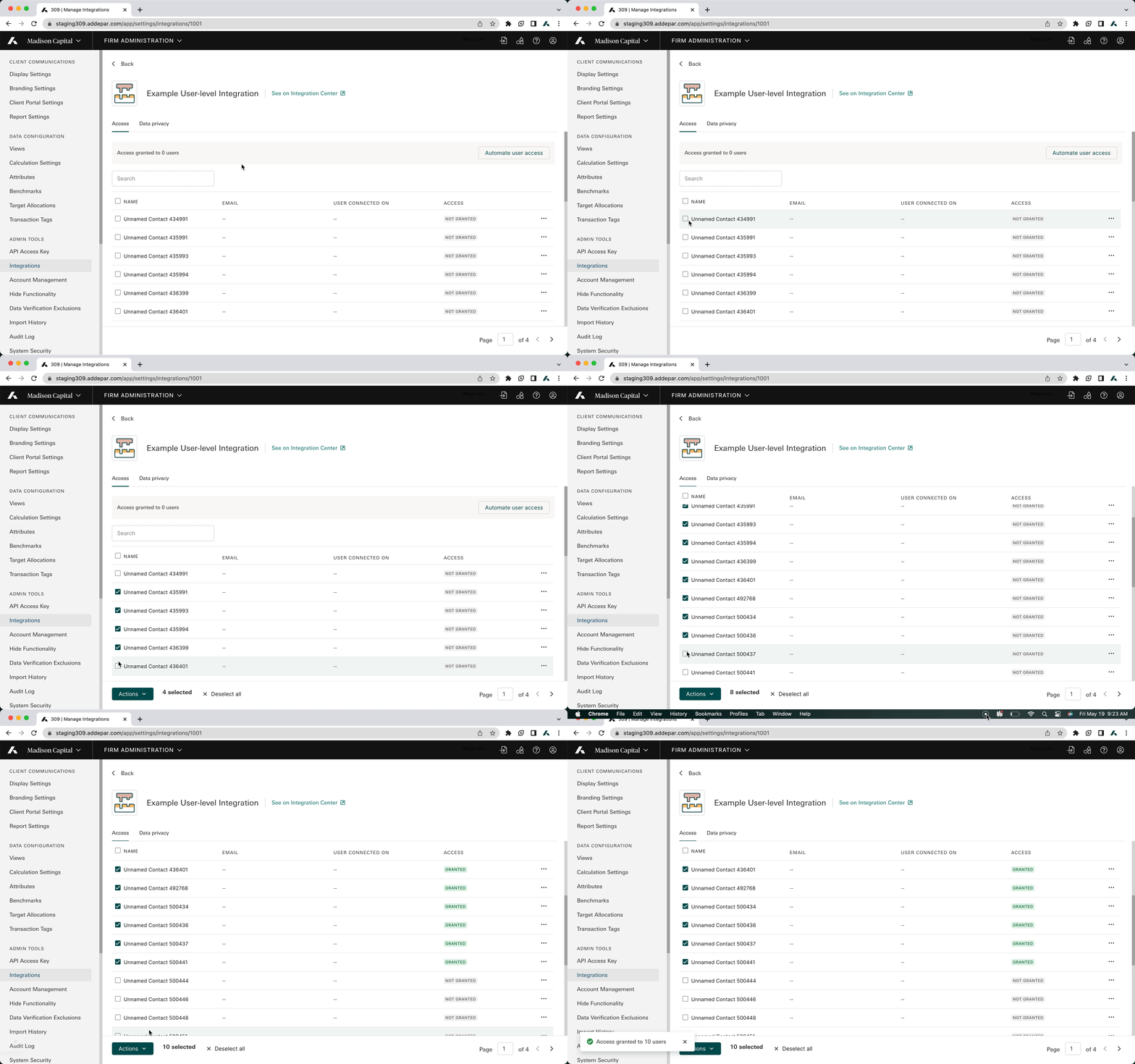
How to grant access in Addepar:
- Go to Firm Administration → Integrations
- Select the Koyfin integration
- Grant access:
- All users: Click Automate user access.
- Specific users: Search or select the users, then click Actions > Grant access.
Once access is granted in Addepar, you can connect the integration from Koyfin.
2. Connect your Addepar account from Koyfin
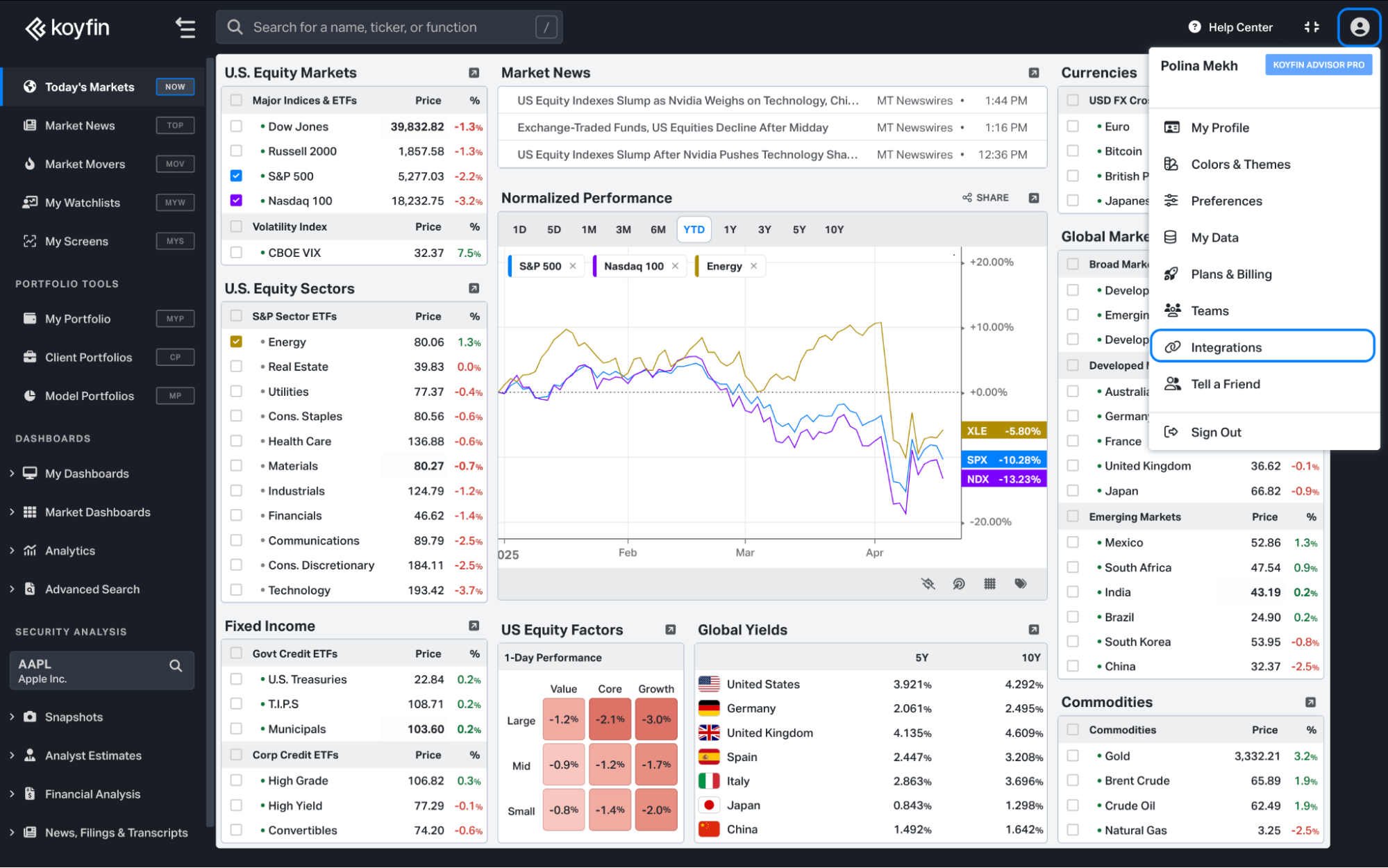
- Click on the Profile icon in the top-right corner and navigate to the Integrations page.
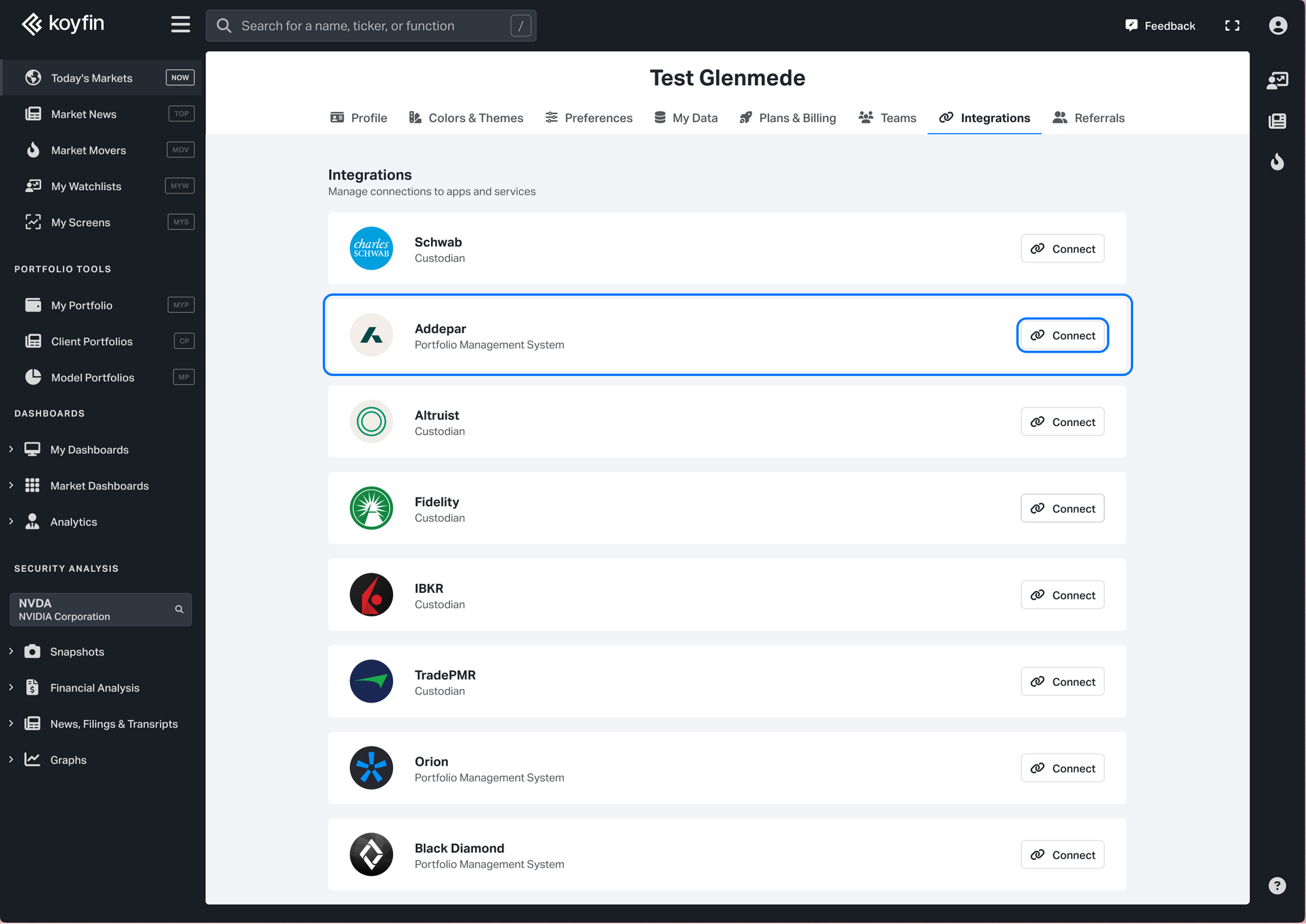
2. In the Addepar section, click Connect.
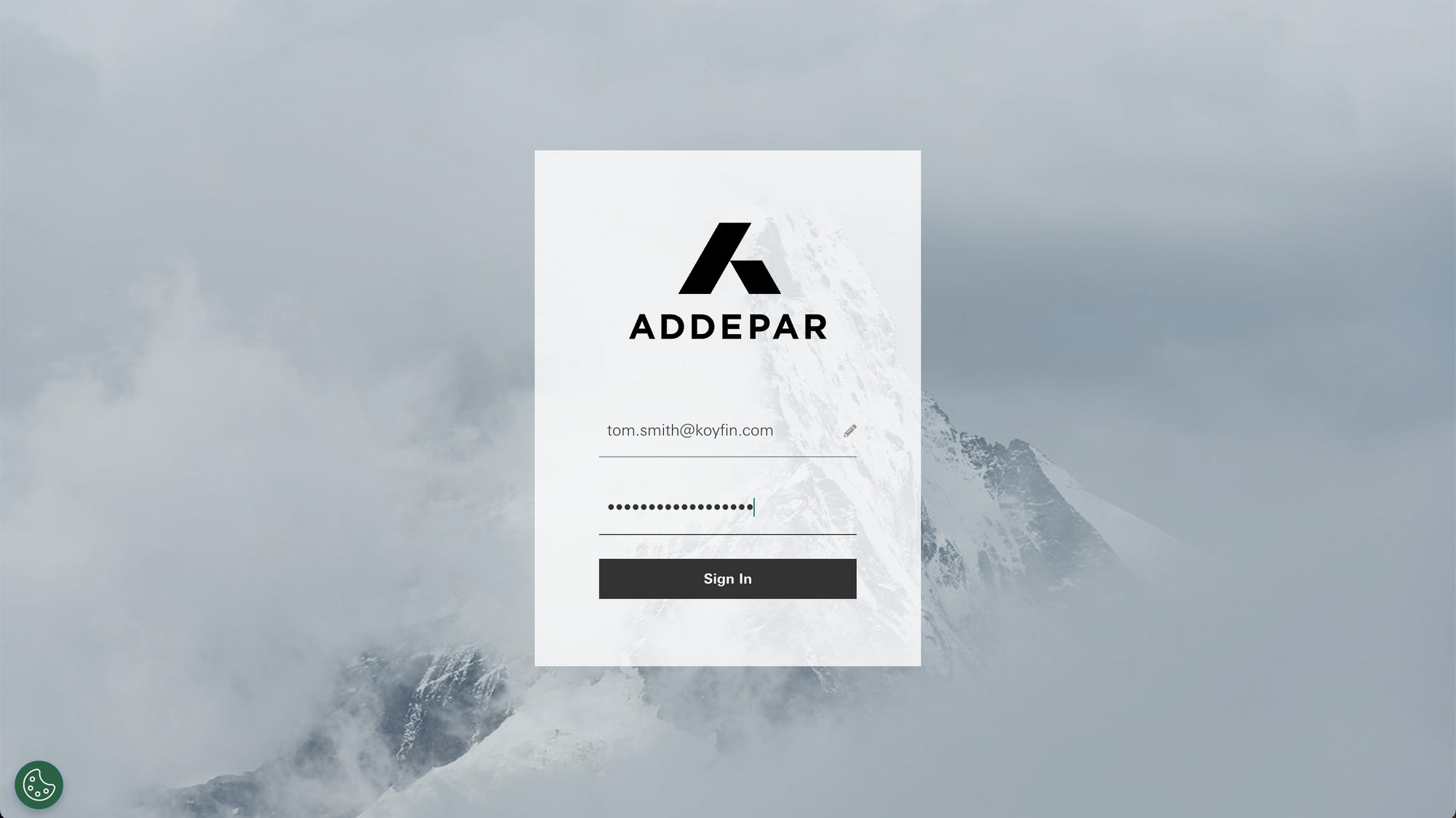
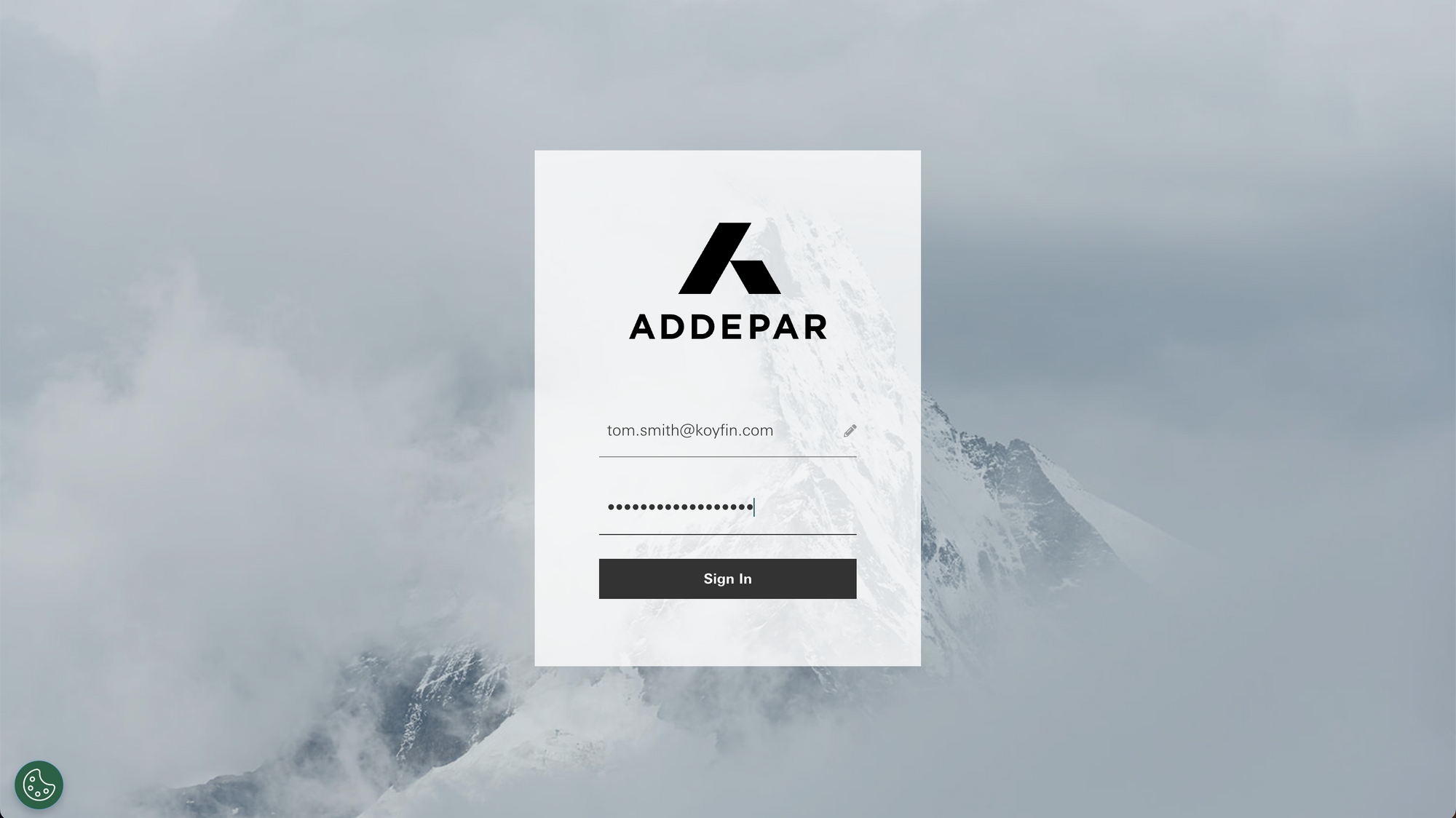
3. You’ll be redirected to the Addepar login page. After logging in, your account will be connected to Koyfin.
3. Import Accounts from Addepar
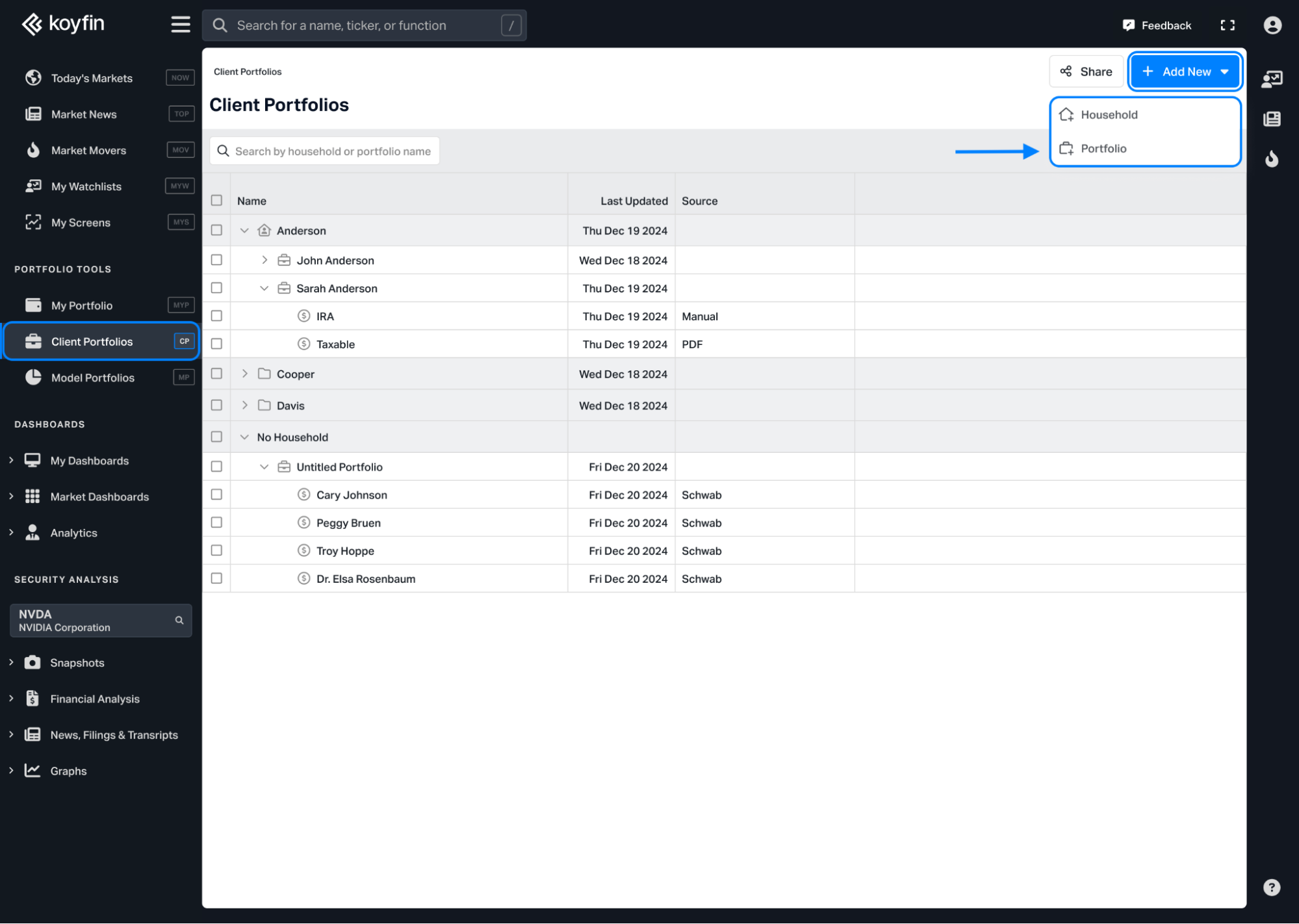
- Go to the Client Portfolio page and click + Add New → Portfolio
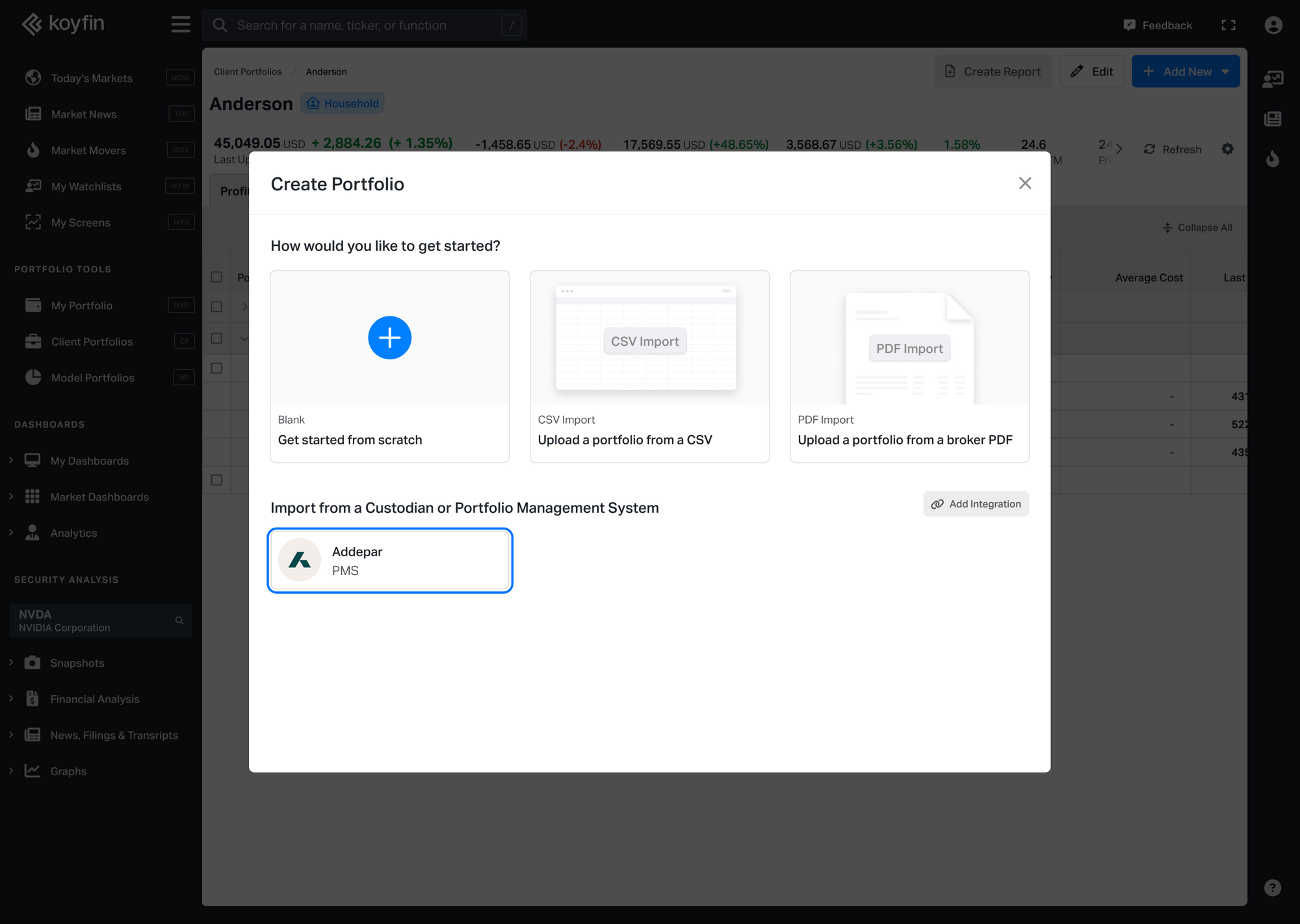
2. In the Portfolio creation window, choose Addepar.
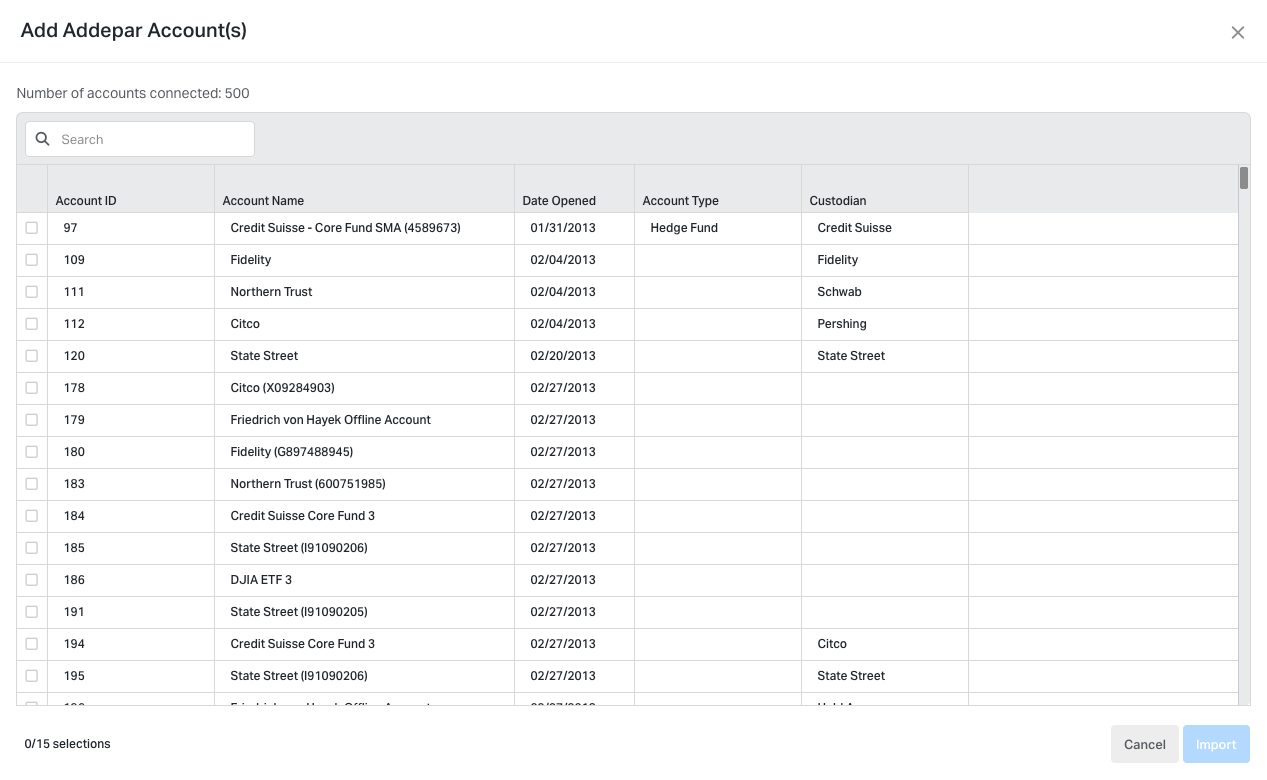
3. Select the account(s) you want to import and click Import.
After Importing
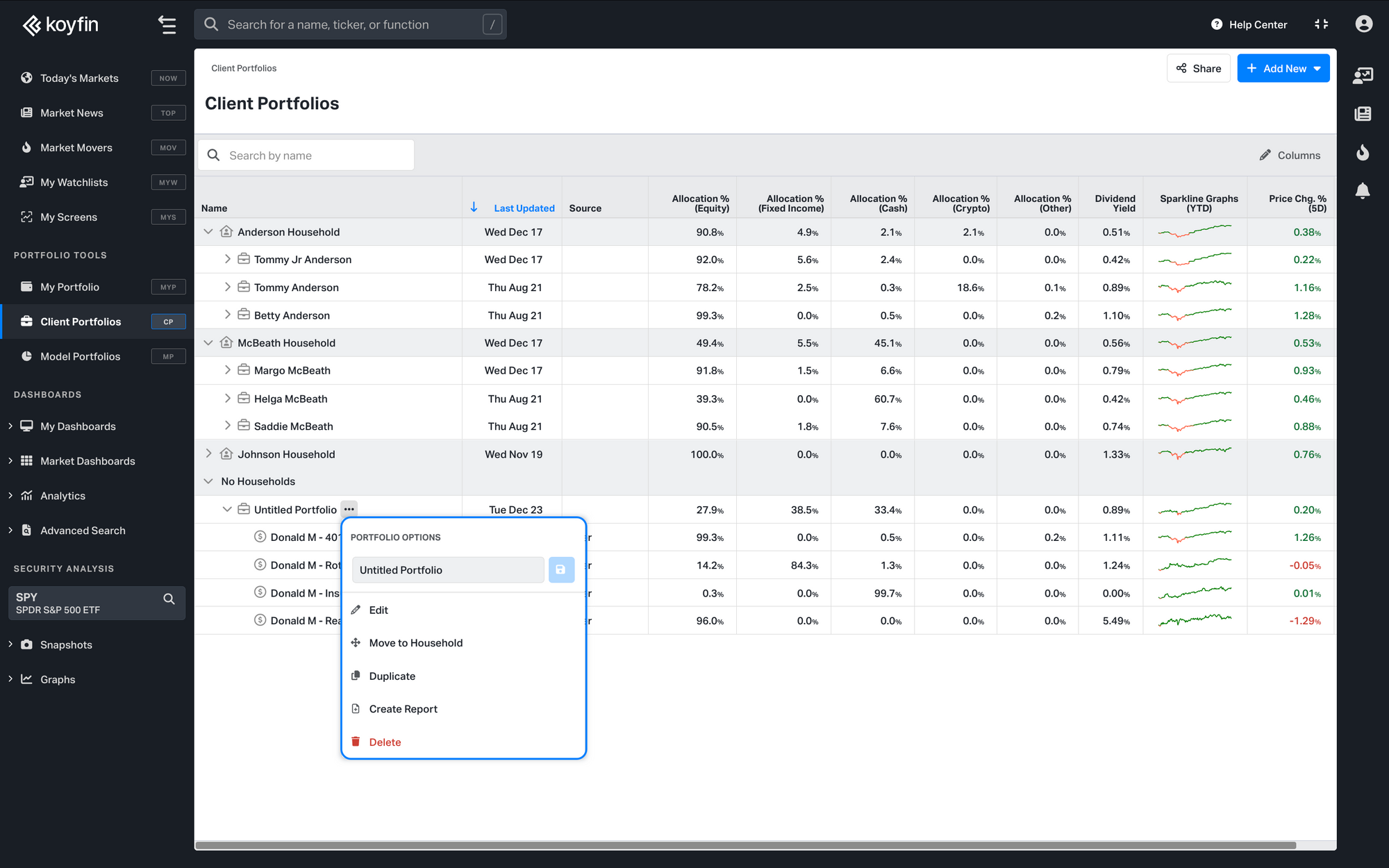
- All imported accounts are grouped into a new Untitled Portfolio.
- The portfolio is placed under No Household by default.
- Each import creates a separate untitled portfolio.
To organize the portfolio:
- Rename the portfolio and accounts if needed.
- Reassign a portfolio or account by hovering over the row, clicking the ⋯ menu, and selecting Move to.
If you have any questions, feel free to reach out to our customer support at help@koyfin.com.