
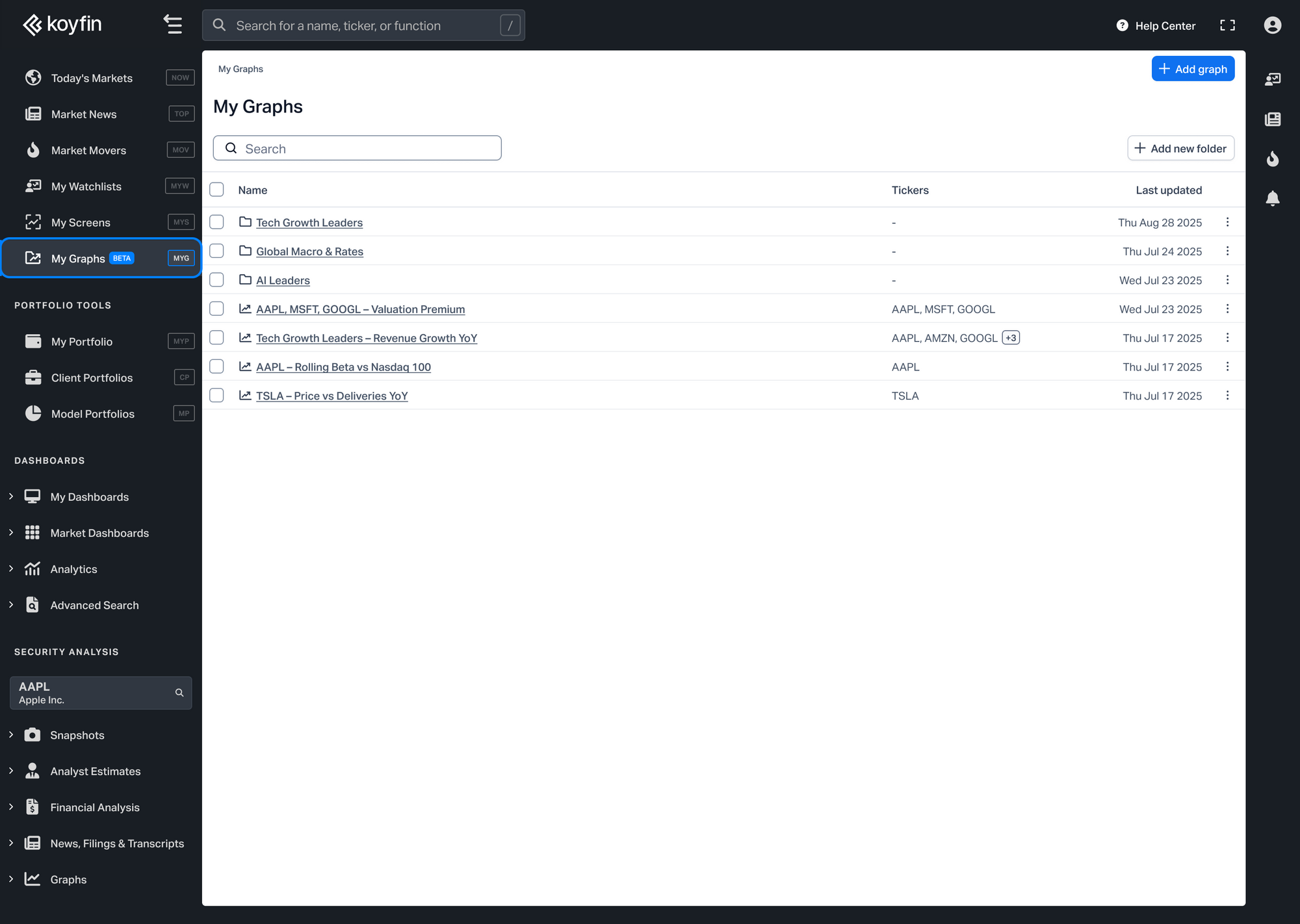
My Graphs is a new section where you can save, organize, and revisit your charts. Each saved chart retains its full configuration, including tickers, data series, time ranges, and settings, and updates automatically with the latest data.
My Graphs is available in the left sidebar, below My Screens.
How to Save a Graph to My Graphs
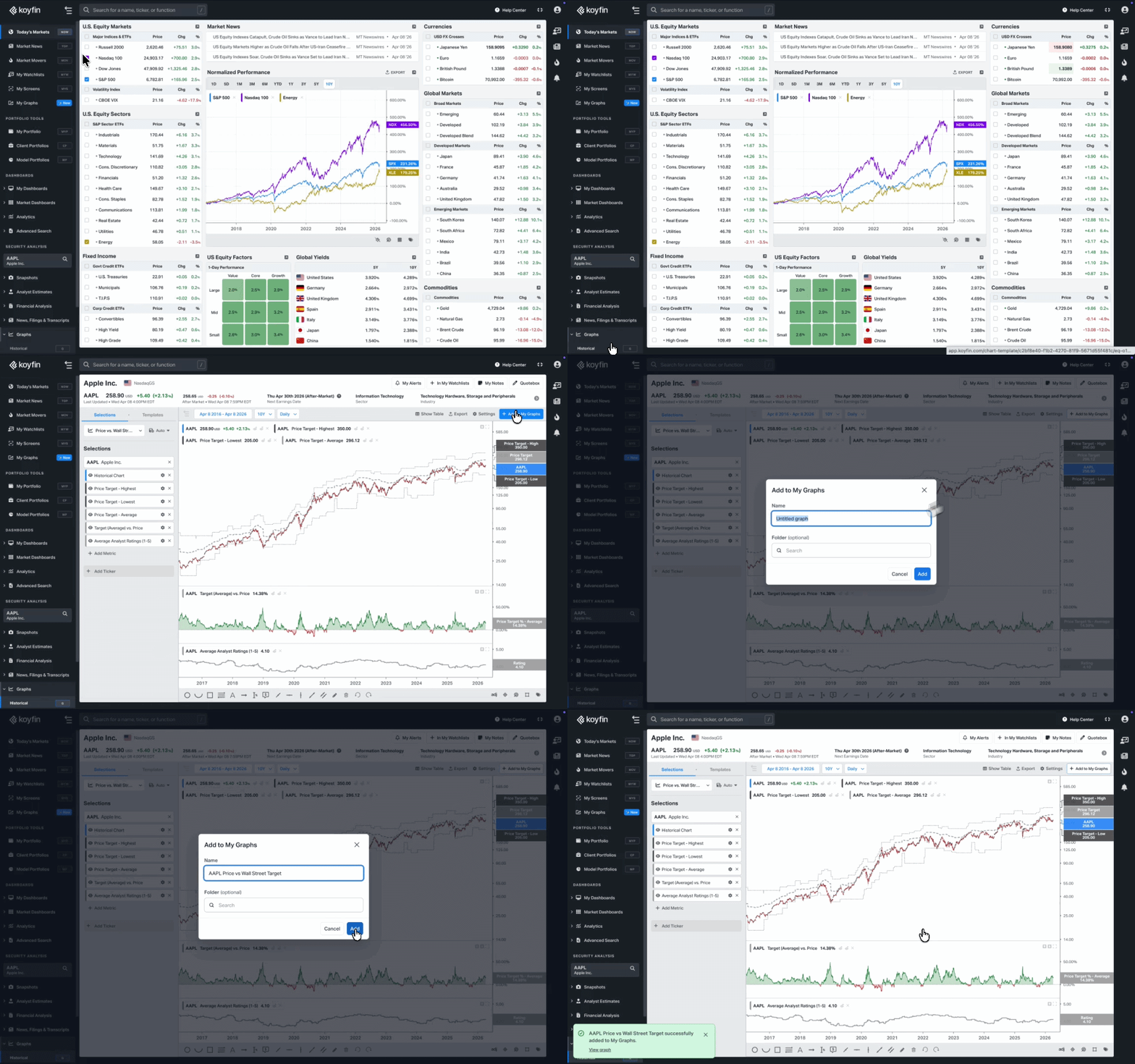
You can save charts from Graphs or create them directly in My Graphs. All three chart types are supported: Historical (G), Comparison (GC), and Performance (GM).
From Graphs (Historical, Comparison, or Performance):
- Open Graphs in the left sidebar under the Security Analysis section.
- Set up your chart.
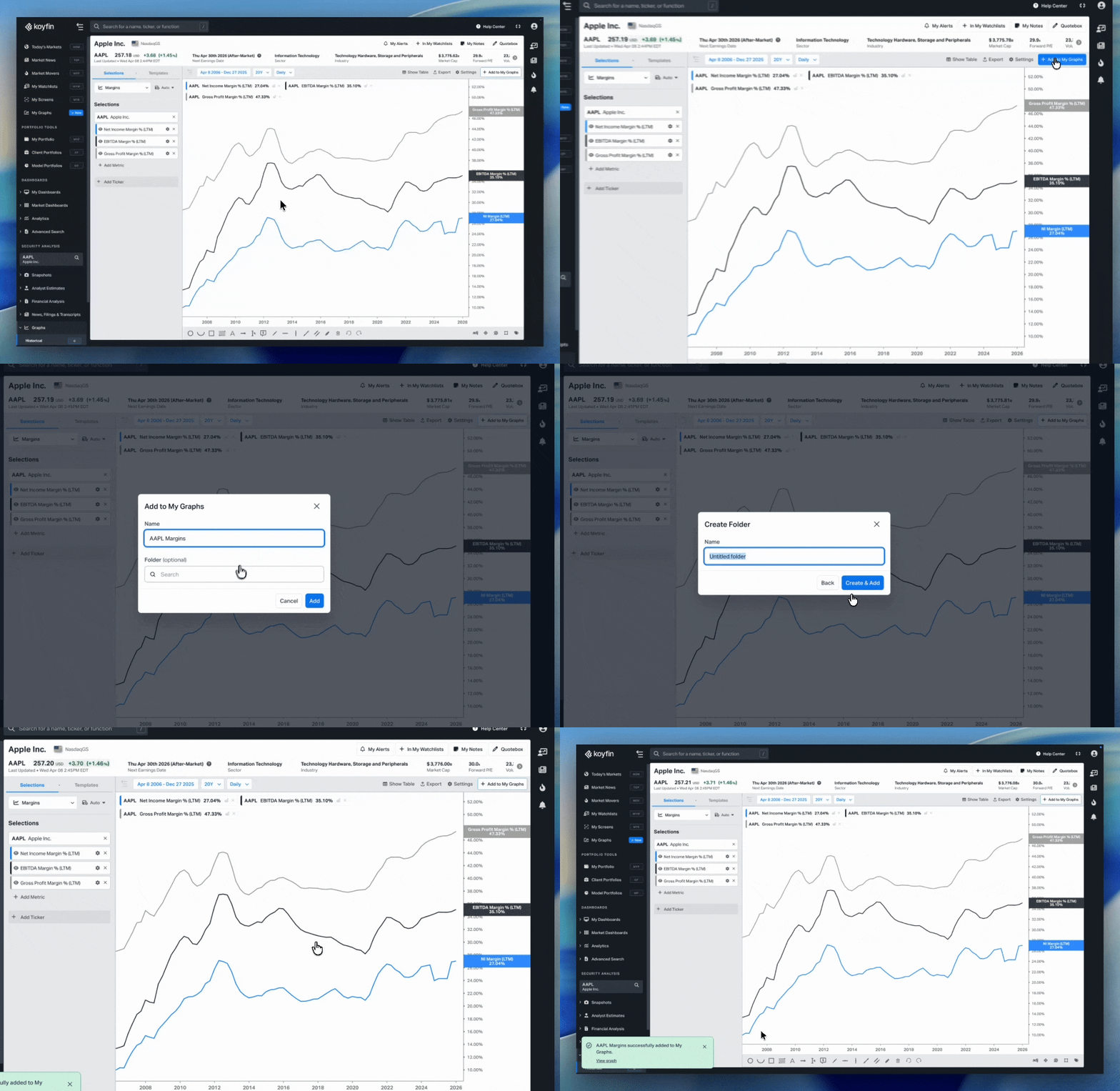
- Click Add to My Graphs in the top bar.
- Name your graph, select a folder or create a new one, and save.
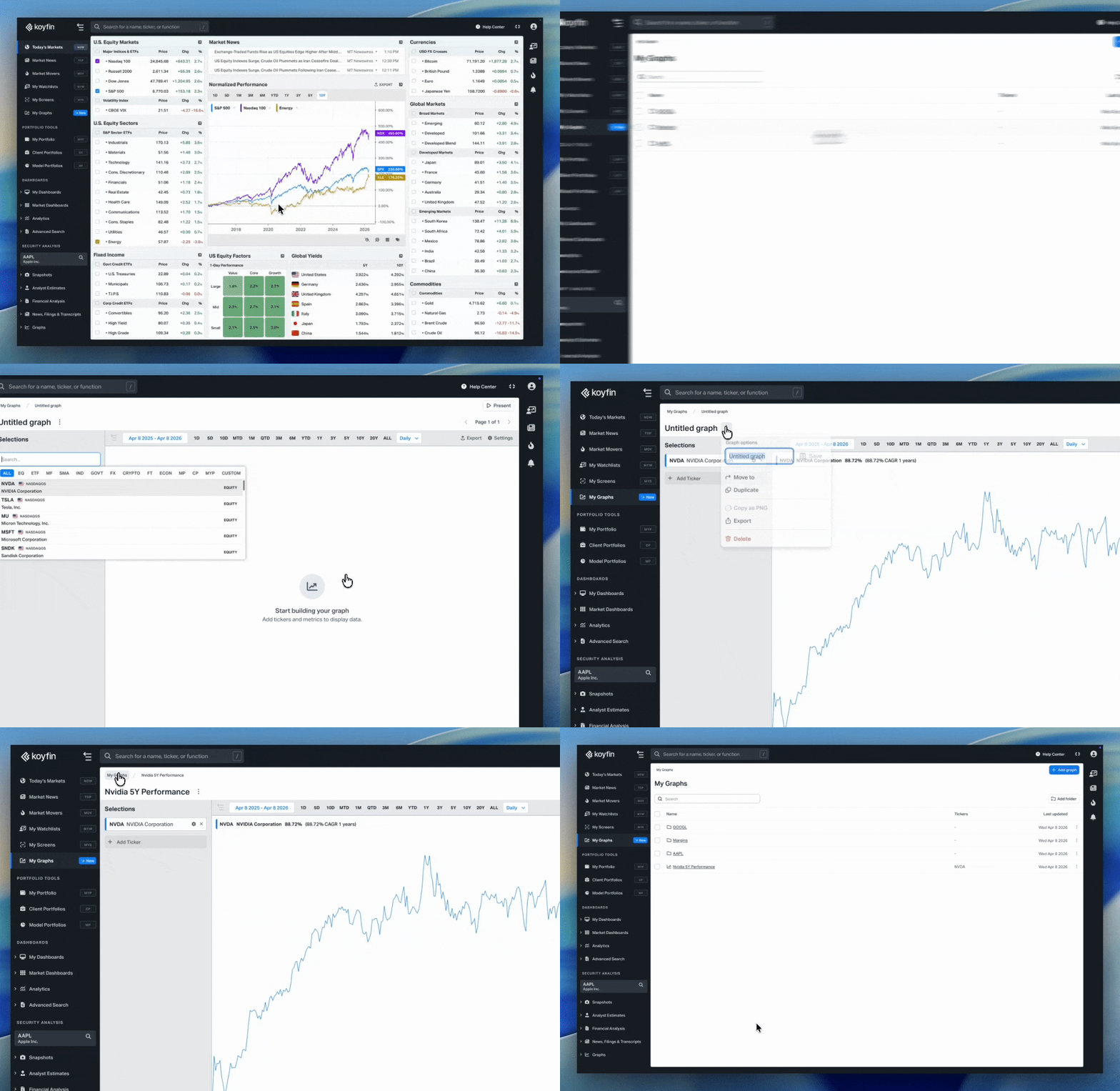
From the My Graphs page:
- Open My Graphs from the left sidebar.
- Click + New Graph and choose a chart type (Historical, Comparison, or Performance).
- Configure your chart in the editor.
- Name your graph and save.
Organizing with Folders
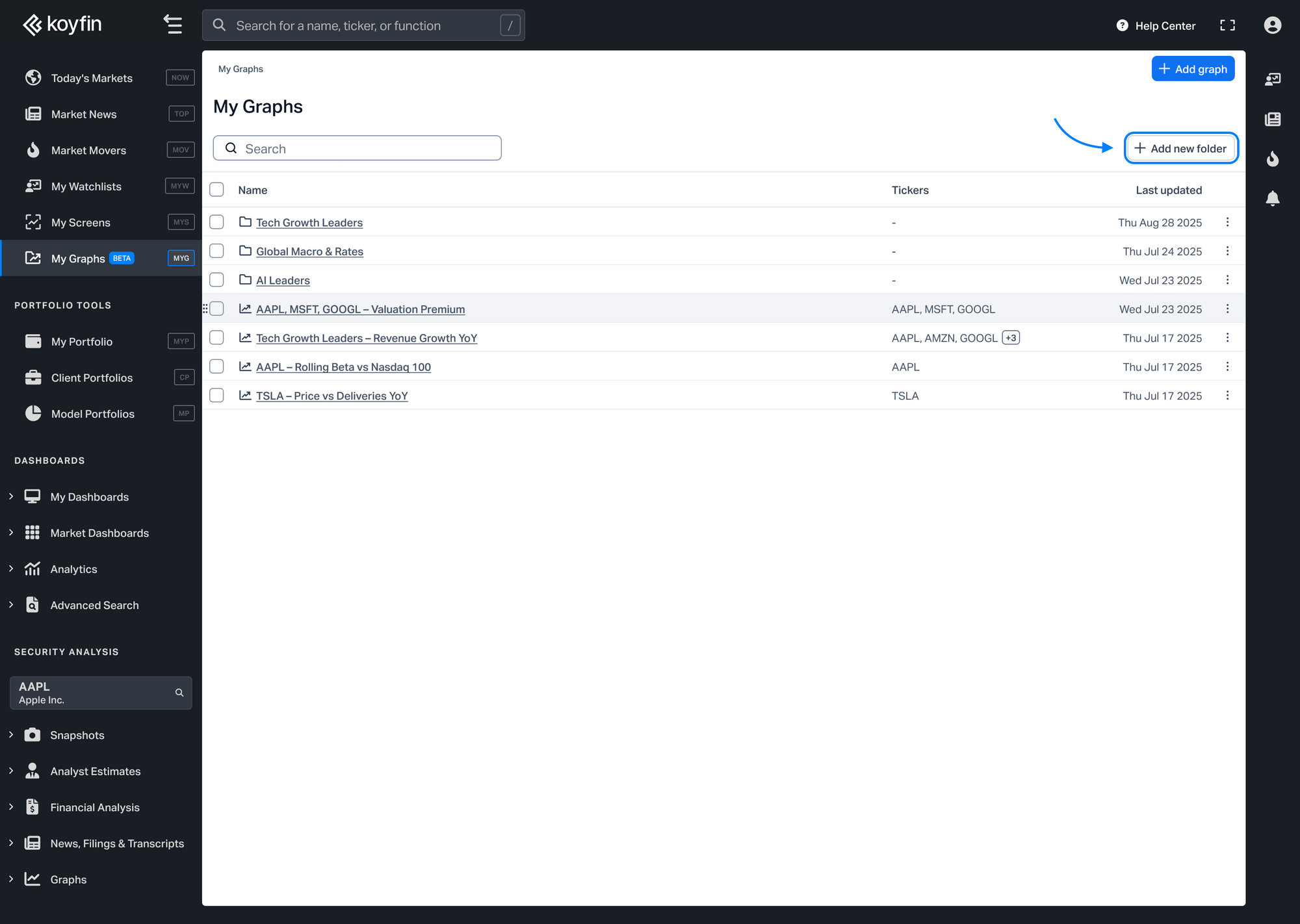
The My Graphs homepage shows all your saved graphs and folders in a table view. To create a folder, click + Add folder in the top right corner of the table.
You can also assign a graph to a folder when saving it. In the Add to My Graphs dialog, use the Folder field to search for an existing folder or create a new one.
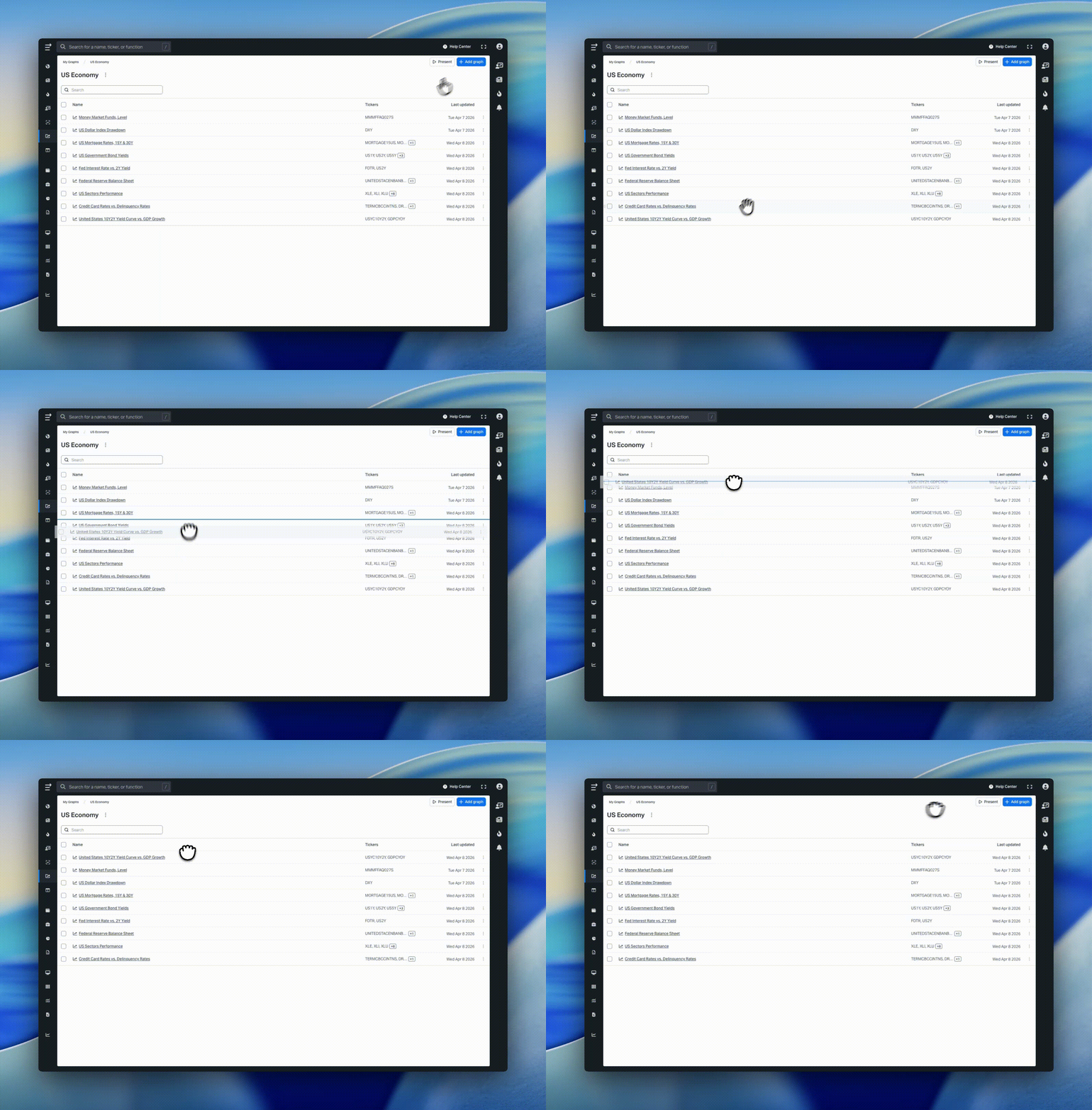
Drag and drop to reorder graphs and folders on the page.
Managing Graphs
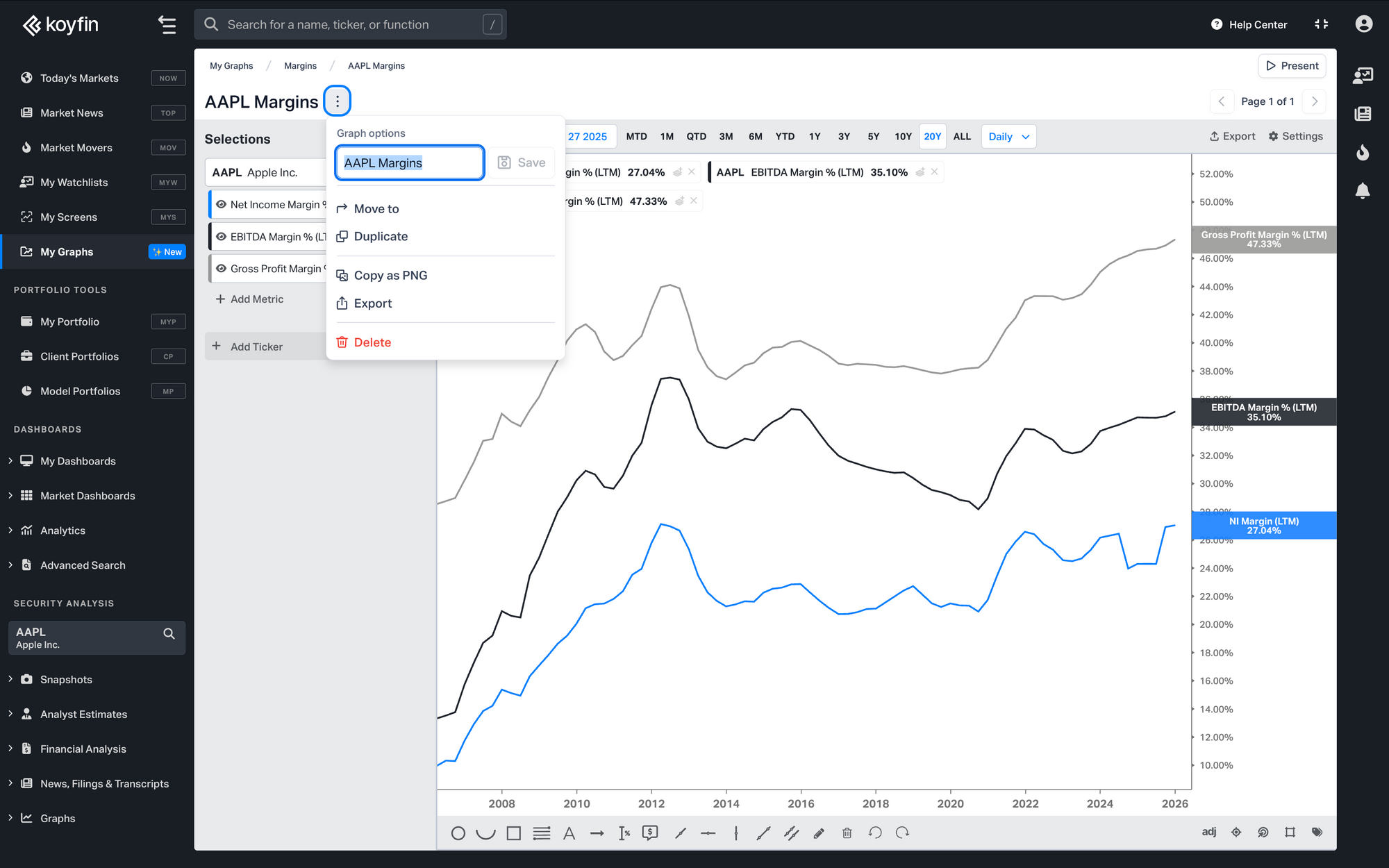
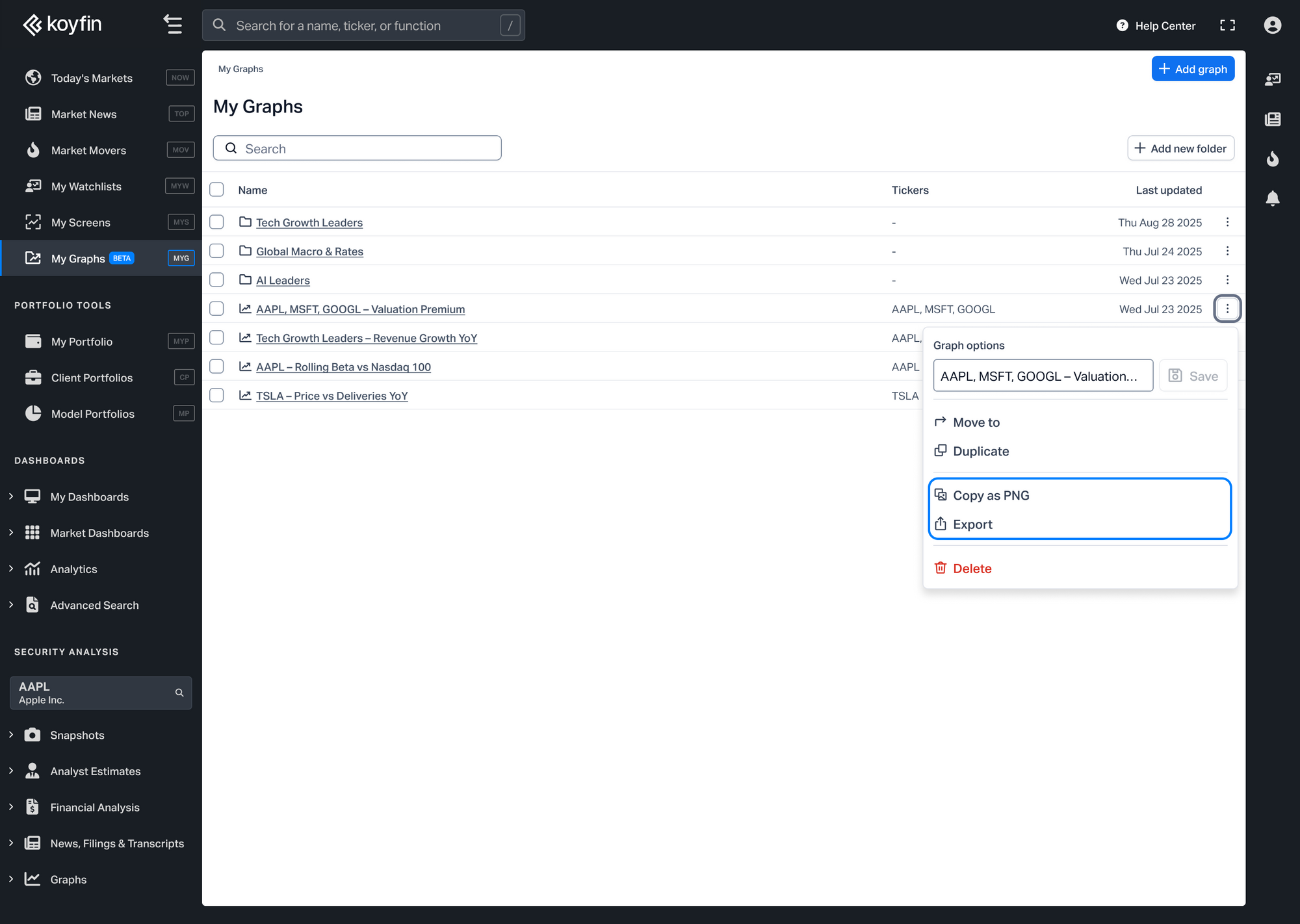
Each graph has a three-dot menu with the following options: Rename, Move to, Duplicate, Copy as PNG, Export, and Delete. To rename, edit the name directly in the text field.
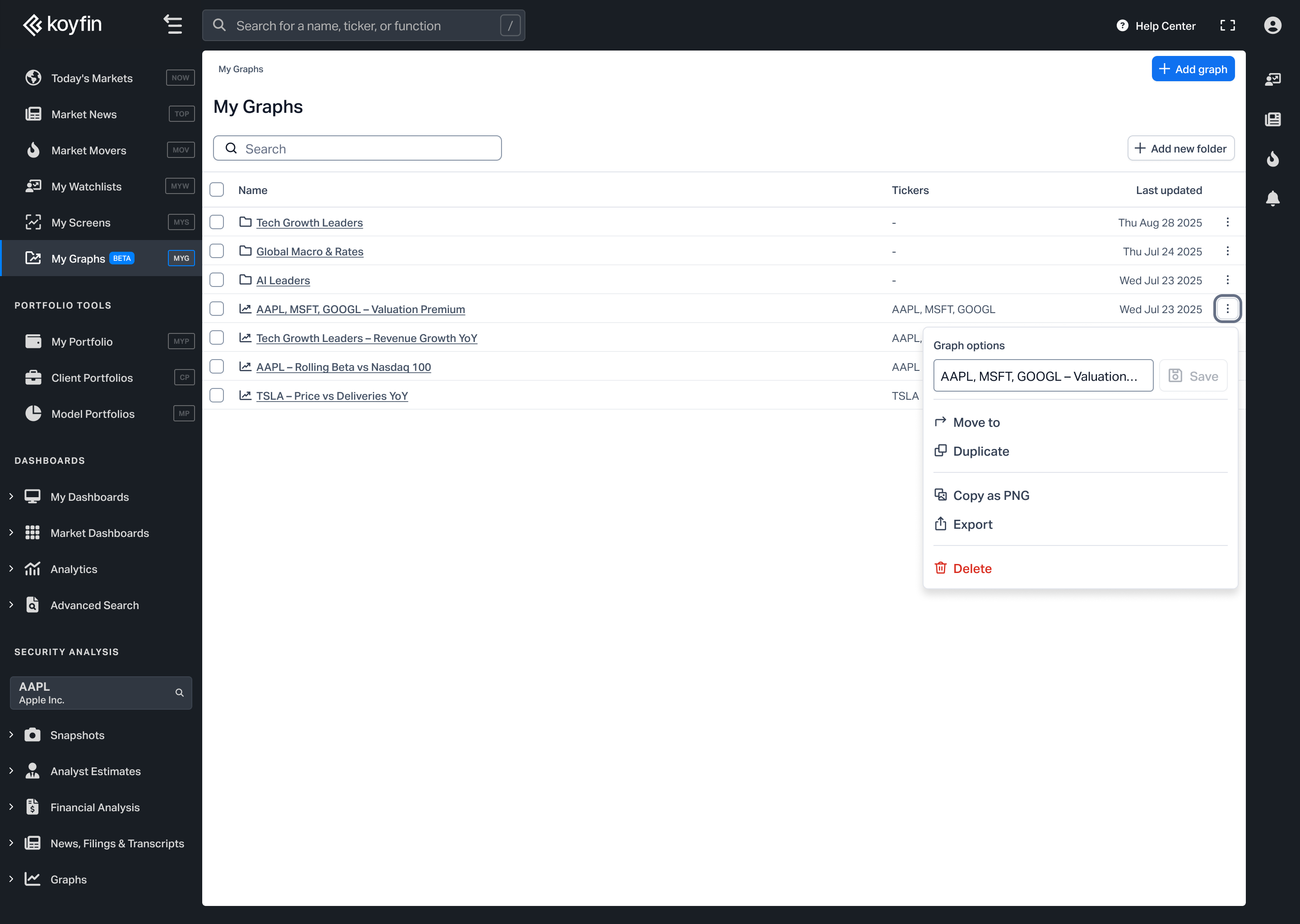
You can access this menu in two places: next to each graph on the My Graphs page, or next to the graph name when viewing a chart.
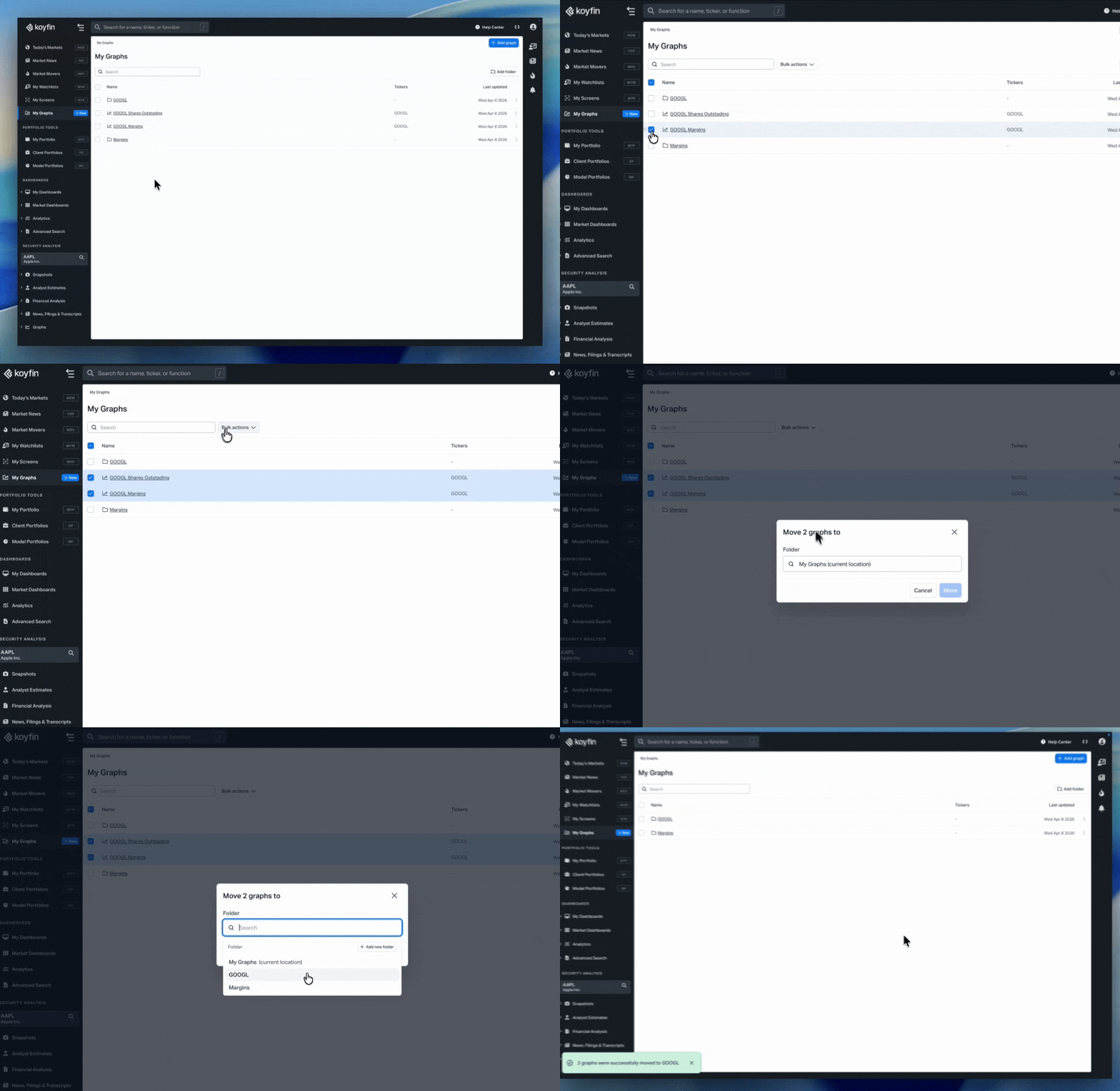
Bulk actions
To manage multiple graphs at once, select them using the checkboxes on the My Graphs page. A Bulk actions dropdown appears at the top of the table with Move to, Duplicate, and Delete.
Viewing Saved Graphs
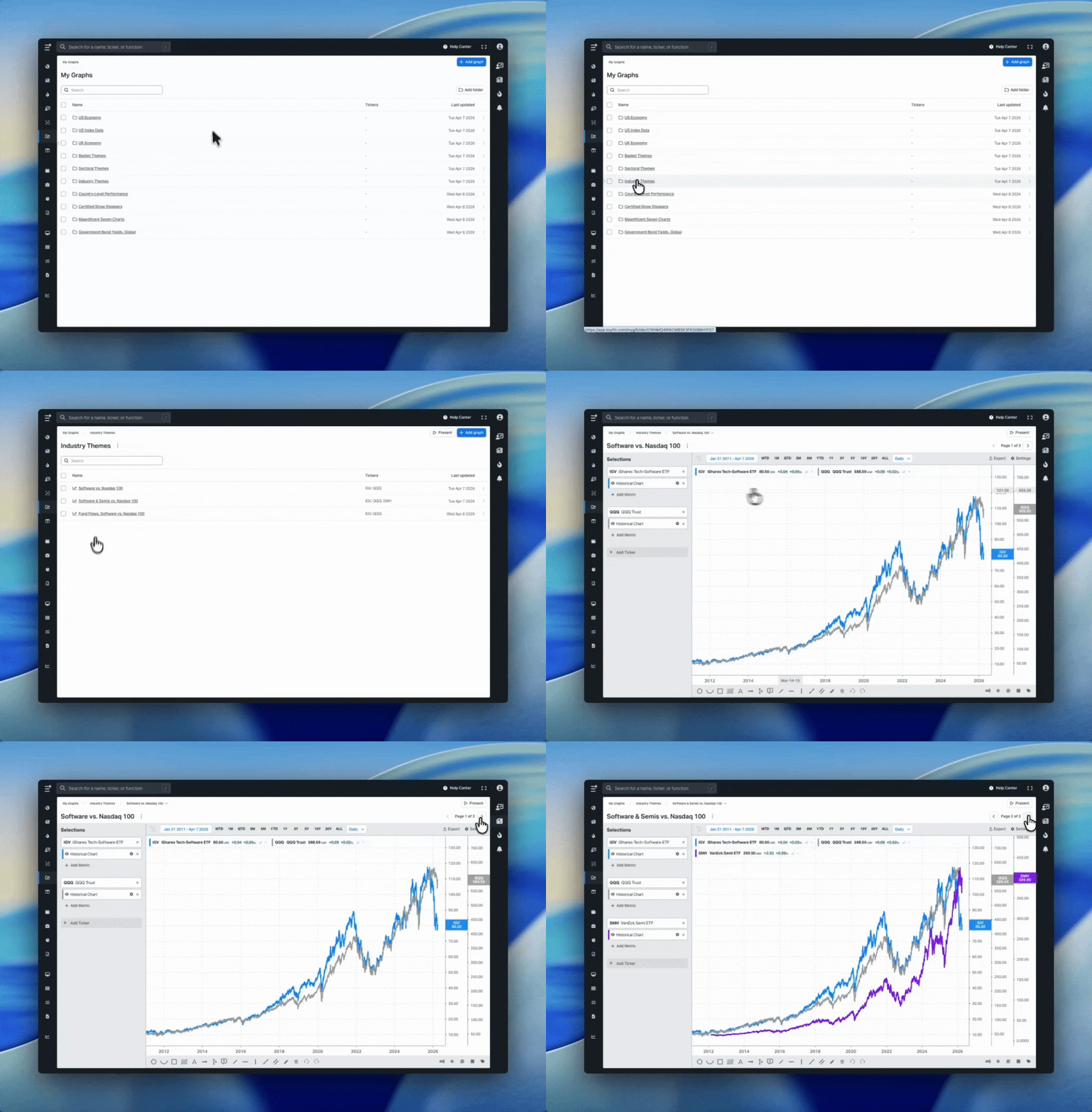
Click any graph on the My Graphs page or inside a folder to open it. The chart opens with the full editor, including the Selections panel, time range, and settings.
Use the page arrows in the top right or the left and right arrow keys to cycle through other graphs.
If you opened a graph from a folder, the arrows cycle through that folder's graphs. If you opened a graph from the My Graphs homepage, the arrows cycle through graphs that are not inside a folder.
Present Mode
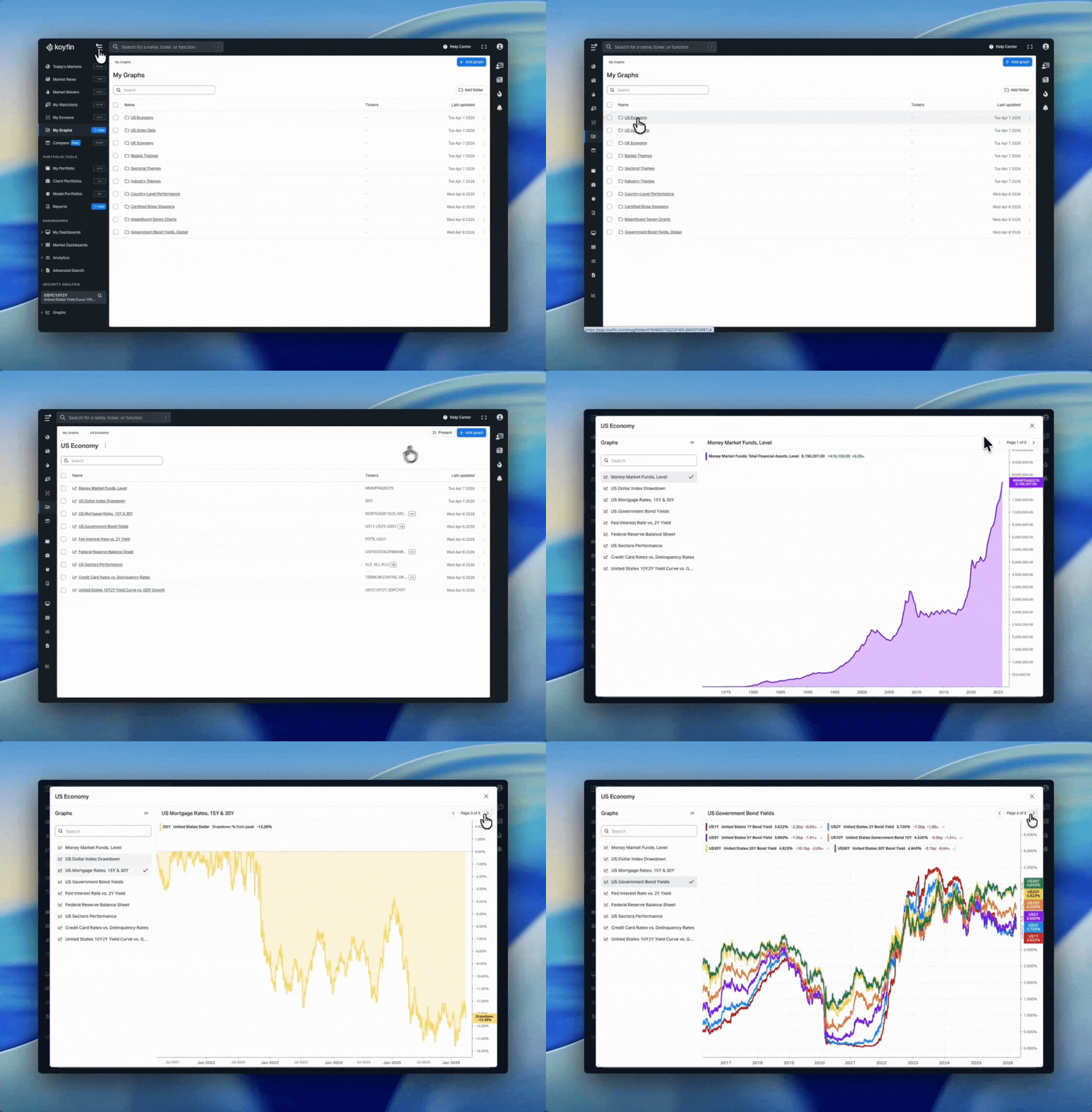
Click Present to view your charts without the editing controls. Present Mode can be opened from the chart view or from the folder table. A collapsible panel on the left lists all available graphs for quick navigation.
Exporting
You can copy any saved graph as a PNG or export it using the three-dot menu next to the graph name.
Access
My Graphs is available on all plans. The number of saved graphs depends on your plan:
- Free: up to 5 graphs
- Plus: up to 50 graphs
- Premium and above: unlimited
How are My Graphs different from Templates
Templates save a chart's layout and metrics but are designed to be reused across different tickers. When you open a template, the primary ticker resets and needs to be re-entered.
My Graphs saves the entire chart, including all tickers, data series, and settings. When you open a saved graph, everything is exactly as you configured it.
Use templates when you want to apply the same layout across different tickers. Use My Graphs when you want to preserve a specific chart and return to it later.